Free Shipping on Domestic Orders $75+

Creative Ziio 7" Left Speaker Replacement

What you need

    1. Creative Ziio 7" Left Speaker Replacement, Back Panel: step 1, image 1 of 3 Creative Ziio 7" Left Speaker Replacement, Back Panel: step 1, image 2 of 3 Creative Ziio 7" Left Speaker Replacement, Back Panel: step 1, image 3 of 3
      • Remove the back panel by using the plastic opening tool to carefully pry around the panel's edges.

      • The volume control button and the top power button may fall out during this step.

      Ask FixBot

      Add Comment

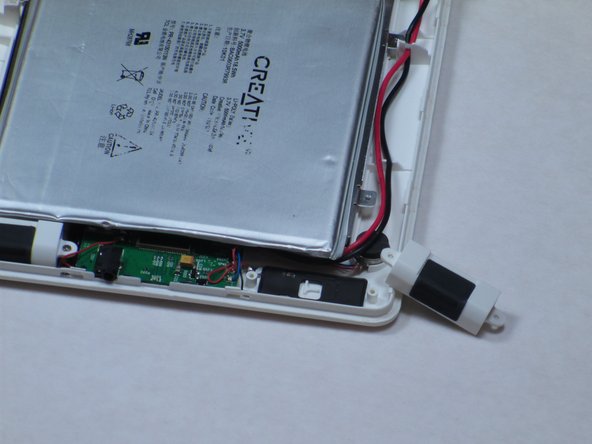
    1. Creative Ziio 7" Left Speaker Replacement, Left Speaker: step 2, image 1 of 1
      • The left speaker is directly below the battery and on the side with the main red and black wires.

      • Unscrew the two 4mm Philips #00 screws using a Philips Screwdriver.

      Ask FixBot

      Add Comment

    2. Creative Ziio 7" Left Speaker Replacement: step 3, image 1 of 2 Creative Ziio 7" Left Speaker Replacement: step 3, image 2 of 2
      • Once the screws are removed, discard the broken speaker.

      • Replace the broken speaker with new left speaker.

      Ask FixBot

      Add Comment

Conclusion

To reassemble your device, follow these instructions in reverse order.

Cancel: I did not complete this guide.

One other person completed this guide.

Kyle

Member since: 04/16/13

126 Reputation

2 Guides authored

Team

Cal Poly, Team 14-10, Maness Spring 2013 Member of Cal Poly, Team 14-10, Maness Spring 2013

CPSU-MANESS-S13S14G10

4 Members

15 Guides authored

0 Guide Comments

Add Comment

View Statistics:

Past 24 Hours: 0

Past 7 Days: 6

Past 30 Days: 27

All Time: 615