This translation was generated by a machine and has not been reviewed by a person yet. Speak this language? Review it.
-
-
-
If the bookmarks bar is not displayed, press CTRL+SHIFT+B or click Menu and then Bookmarks. Select Show bookmarks bar. This creates a list of your bookmarks that are visible in every Chrome window.
-
In Chrome, navigate to the webpage you want to bookmark.
-
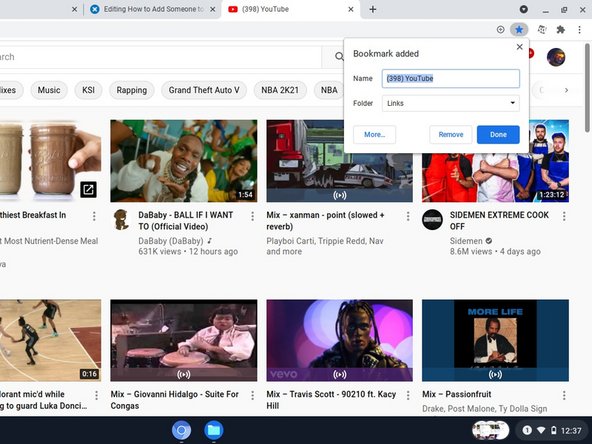
Click Bookmark this tab (☆ becomes ★)
-
Edit the name of the bookmark in the Name box, if necessary.
-
Click Folder and then click the folder you want to use.
-
Click Done
 Ask FixBot
-
-
-
-
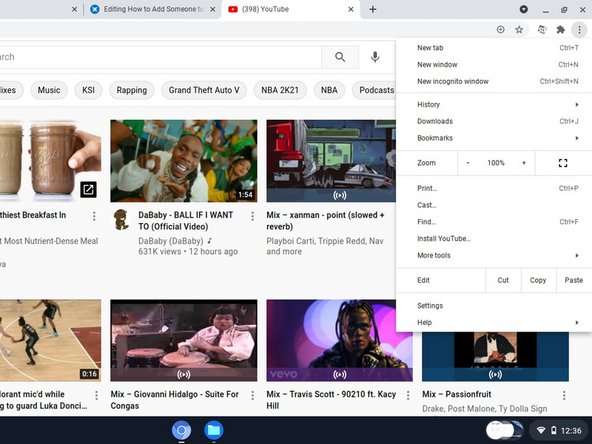
Click on the menu
-
Click or highlight the bookmarks
-
Click on Bookmark Manager
-
Drag a bookmark to the folder where you want to place it.
-
To create a new folder, click on the folder where you want to create it. Then click on Organize, then on Add new folder, enter the folder name, and click Save.
-
When you are finished organizing your bookmarks, click Close
-
-