Introduction
This Guide is for the old Version of the Corsair Void Pro USB gaming headset, wired. This Guide was created after sucessfully fixing my Headset with this recommendable video:
What you need
Video Overview
-
-
-
Remove the left ear pad
-
Remove the screws
-
Carefully lift the plastic, to not damage the speaker cable
 Ask FixBot
-
-
-
Cut the wires coming from below, red, white, green, small black and thick black
-
Remove the two screws next to the cable
-
Turn the cable 180° to be able to remove it
-
-
-
-
Take your desired USB-A replacement cable
-
Cut it to length if needed. Prepare the ends like the old cable
-
If the strain relief is reusable, pull the cable through
-
-
-
Bring the new cable in place and remove the old ones one after another to attach the same colored wires of the new cable
-
-
-
If you cable already has its own strain relief (here: from a defective Corsair mouse), cut it in shape and glue it to the outside
-
-


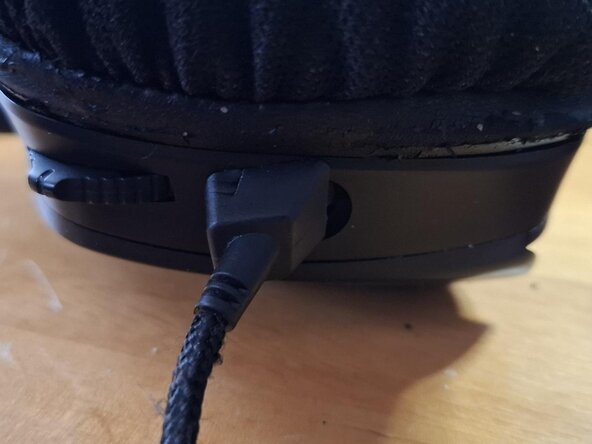
Do the steps in reverse to put your device together.
Cancel: I did not complete this guide.
One other person completed this guide.
Special thanks to these translators:
100%

Dearex is helping us fix the world! Want to contribute?
Start translating ›

