Connecting Cables to the Motherboard

What you need

  1. Connecting Cables to the Motherboard, Connecting Cables to the Motherboard: step 1, image 1 of 2 Connecting Cables to the Motherboard, Connecting Cables to the Motherboard: step 1, image 2 of 2
    • Red- Optional ATX Connector

    • Orange- CPU Fan 1

    • Yellow- CPU Fan 2

    • Green- Main ATX Connectors

    • Light Blue- GPU

    • Blue- Panel Connectors

    • Pink- USB Connectors

    • Black- HD Audio

  2. Connecting Cables to the Motherboard, Optional ATX Connector: step 2, image 1 of 2 Connecting Cables to the Motherboard, Optional ATX Connector: step 2, image 2 of 2
    • Connect the two separate six-pin segments to six pins each on the 12-pin PCIE port.

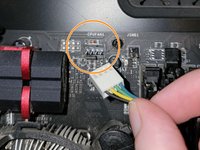
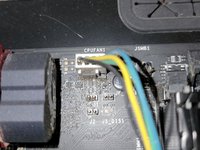
  3. Connecting Cables to the Motherboard, CPU Fan 1: step 3, image 1 of 2 Connecting Cables to the Motherboard, CPU Fan 1: step 3, image 2 of 2
    • Connect the four pin segment to the four pin PCEI connector labeled "CPUFAN1."

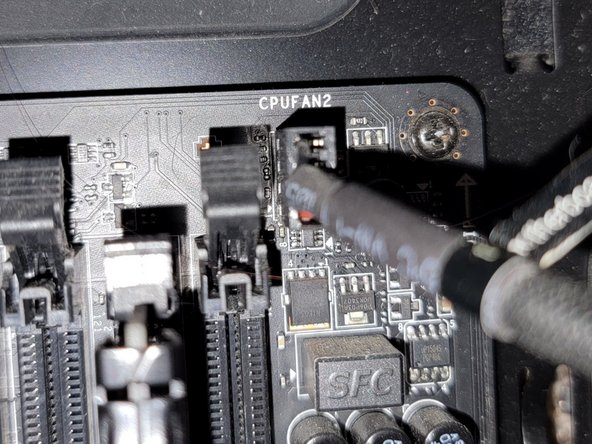
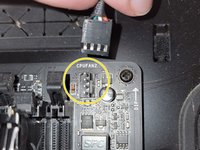
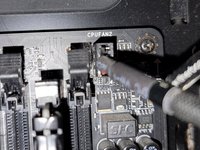
  4. Connecting Cables to the Motherboard, CPU Fan 2: step 4, image 1 of 2 Connecting Cables to the Motherboard, CPU Fan 2: step 4, image 2 of 2
    • Connect the four pin segment to the four pin PCIE port labeled "CPUFAN2."

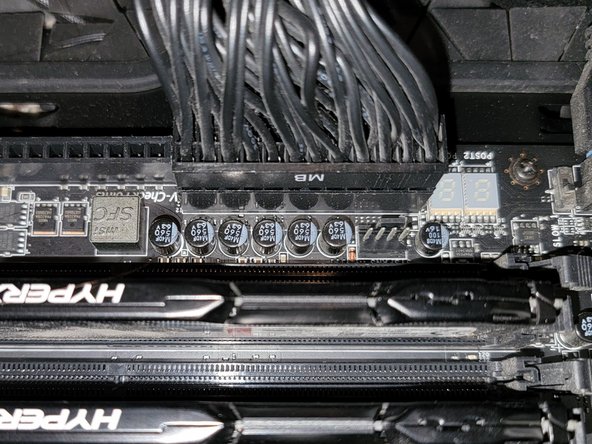
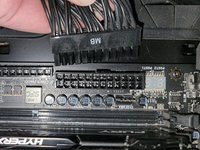
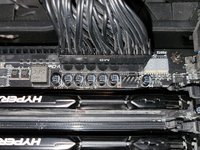
  5. Connecting Cables to the Motherboard, Main ATX Connector: step 5, image 1 of 2 Connecting Cables to the Motherboard, Main ATX Connector: step 5, image 2 of 2
    • Connect the 24 pin segment to the 24 pin PCIE port.

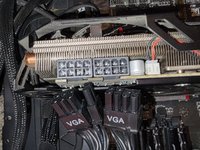
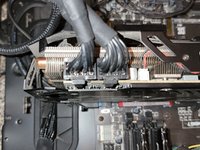
  6. Connecting Cables to the Motherboard, GPU: step 6, image 1 of 2 Connecting Cables to the Motherboard, GPU: step 6, image 2 of 2
    • Connect both of the separate eight pin segments to each of the eight pin PCIE ports on the graphics card.

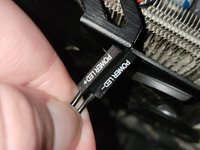
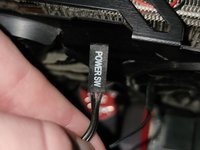
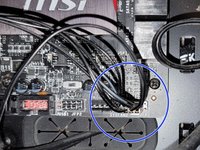
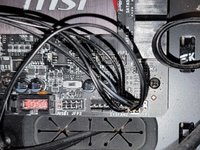
  7. Connecting Cables to the Motherboard, Panel Connectors (Part 1): step 7, image 1 of 3 Connecting Cables to the Motherboard, Panel Connectors (Part 1): step 7, image 2 of 3 Connecting Cables to the Motherboard, Panel Connectors (Part 1): step 7, image 3 of 3
    • This PCIE port consists of eight pins, two rows of four.

    • Connect the "Power LED+" pin to the pin at the top right corner.

    • Connect the "Power LED-" segment to the pin next to the "Power LED+" segment in the top row.

    • Connect the "Power SW" segment to the two pins on the left side of the top row of pins.

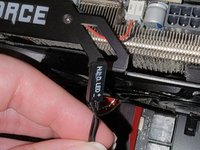
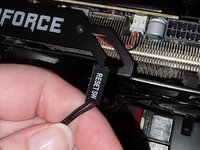
  8. Connecting Cables to the Motherboard, Panel Connectors (Part 2): step 8, image 1 of 3 Connecting Cables to the Motherboard, Panel Connectors (Part 2): step 8, image 2 of 3 Connecting Cables to the Motherboard, Panel Connectors (Part 2): step 8, image 3 of 3
    • Connect the "HDD LED" segment to the two pins on the right side of the bottom row of pins.

    • Connect the "Reset SW" segment to the two pins on the left side of the bottom row of pins.

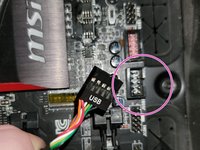
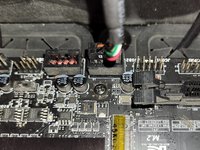
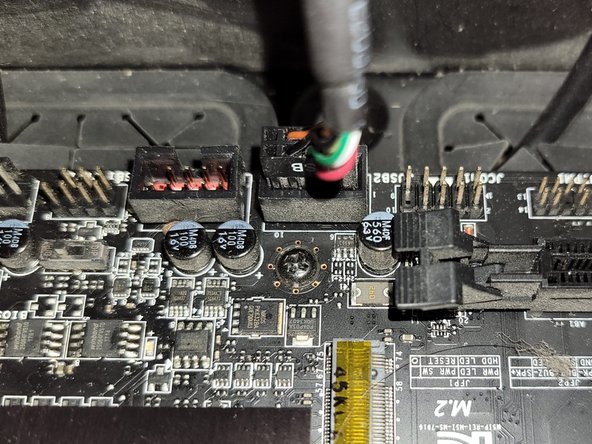
  9. Connecting Cables to the Motherboard, USB Connector: step 9, image 1 of 2 Connecting Cables to the Motherboard, USB Connector: step 9, image 2 of 2
    • Connect the nine pin segment to the nine pin PCIE port.

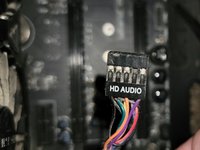
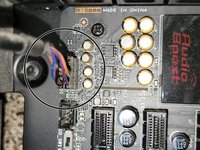
  10. Connecting Cables to the Motherboard, HD Audio: step 10, image 1 of 2 Connecting Cables to the Motherboard, HD Audio: step 10, image 2 of 2
    • Connect the nine pin segment to the nine pin PCIE port.

Conclusion

To disconnect the cable ties, follow these directions in reverse order.

2 other people completed this guide.

Grace Parsekian

Member since: 12/05/23

241 Reputation

1 Guide authored

1 Guide Comment

Rest comment brancher un processeur. Merci comme-me.

Kader Lahcene - Reply
Add Comment

View Statistics:

Past 24 Hours: 53

Past 7 Days: 315

Past 30 Days: 1,435

All Time: 19,779