
Nexus 4 Power and Volume Button Replacement

Kaitlyn Jones and 3 other contributors
Last updated on Jun 30, 2016
Views: 31K
View statistics:
- Past 24 Hours:
- 1
- Past 7 Days:
- 16
- Past 30 Days:
- 87
- All Time:
- 30,625
Comments: 11
11 comments on steps.
Completed: 16 17
16 people have marked this guide "completed." Will you be next?
17 people have marked this guide "completed." Including you — great job!
Favorites: 16 17
16 people have favorited (and subscribed to) this guide. Will you be next?
17 people have favorited (and subscribed to) this guide — including you!
Introduction
Go to step 1 ↓This guide details the removal and installation of the external power and volume buttons located on the right edge of the back cover.
What you need


-
-
Tool used on this step:SIM Card Eject Tool$2.99
-
Power off the phone, by long-pressing the power button and touching Power off.
-
Remove the SIM tray using the SIM Card Eject Tool.
 Ask FixBot
-
-
Tool used on this step:T5 Torx Screwdriver$5.49
-
Remove the two screws from the bottom of the phone with a T5 Torx Screwdriver.
-
-
-
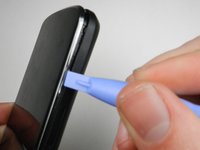
Gently open the back case by prying along the edge of the cover, starting at a corner of the phone and circling around the phone using a plastic opening tool.
-
-
-
-
-
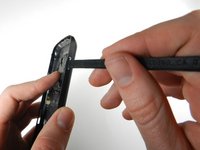
Holding the back case, gently push the power button in towards the center of the phone using a spudger.
-
-
-
-
To remove the volume button, push the button in towards the center of the phone using a spudger.
-
-











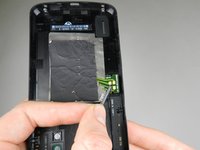
To reassemble your device, follow these instructions in reverse order.
Cancel: I did not complete this guide.
16 other people completed this guide.

Team

Cal Poly, Team 3-32, Amido Winter 2013 Member of Cal Poly, Team 3-32, Amido Winter 2013
CPSU-AMIDO-W13S3G32
4 Members
96 Guides authored
