Shop the Holiday Gift Guide
Free Shipping on Domestic Orders $75+

This translation was generated by a machine and has not been reviewed by a person yet. Speak this language? Review it.

Changing the RAM

Views: 108

View statistics:

Past 24 Hours:
6
Past 7 Days:
15
Past 30 Days:
42
All Time:
108
Comments: 0

No one has left comments on this guide. Will you be first?

Go to guide comments
Completed: 1

1 person has marked this guide "completed." Will you be next?

Favorites: 0

No one has favorited (and subscribed to) this guide. Will you be the first?

Time Required: No estimate
Difficulty: Moderate
In Progress

This guide is a work in progress. Reload periodically to see the latest changes!

Community-Contributed Guide

An awesome member of our community made this guide. It was not created by iFixit staff.

Changing the RAM
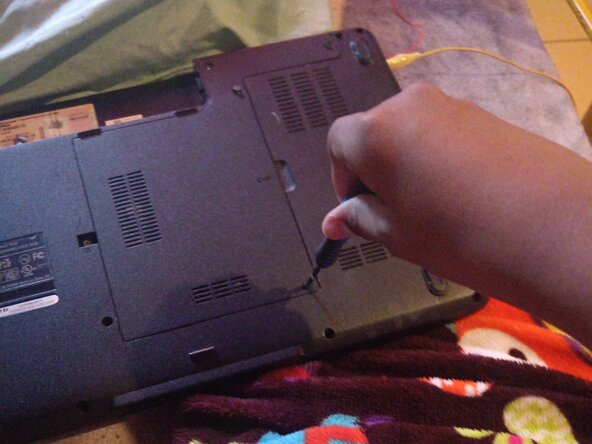
    1. Changing the RAM, How to replace the RAM: step 1, image 1 of 1
      • Remove the screws

      Ask FixBot

      Add Comment

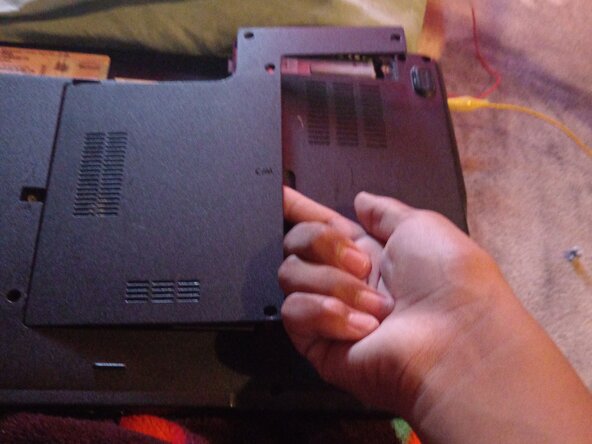
    2. Changing the RAM: step 2, image 1 of 1
      • Use your finger or a tool to remove the back cover after you have removed the screws.

      Ask FixBot

      Add Comment

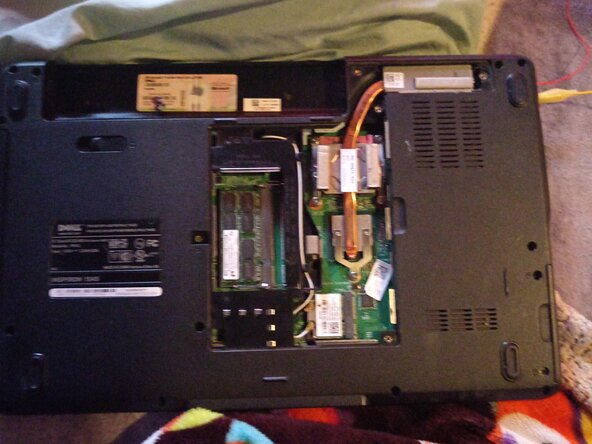
    3. Changing the RAM: step 3, image 1 of 1
      • Next, you need to see where the RAM is located

      Ask FixBot

      Add Comment

    4. Changing the RAM: step 4, image 1 of 1
      • Carefully lift each RAM tab ⚠️

      Ask FixBot

      Add Comment

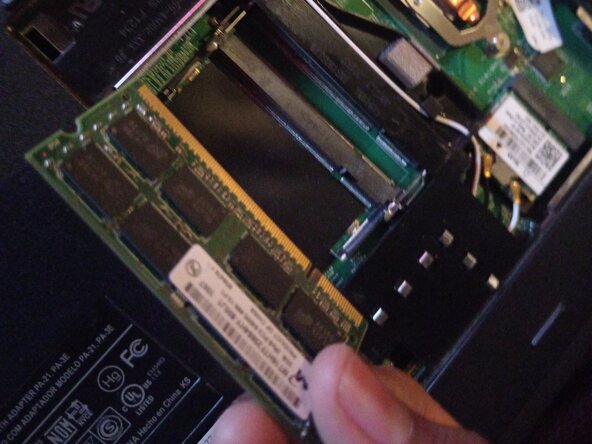
    5. Changing the RAM: step 5, image 1 of 1
      • Remove it and prepare another

      Ask FixBot

      Add Comment

    6. Changing the RAM: step 6, image 1 of 1
      • Place it in its position

      Ask FixBot

      Add Comment

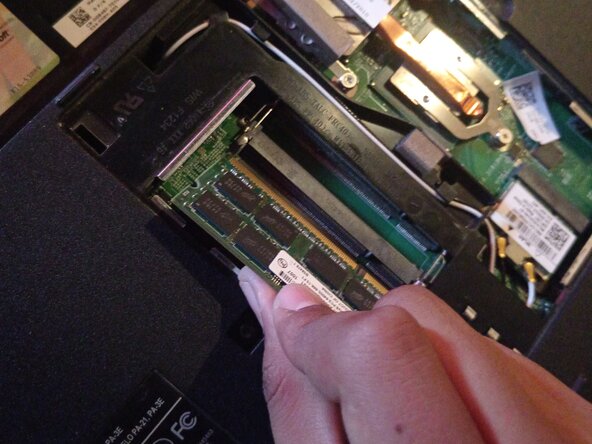
    7. Changing the RAM: step 7, image 1 of 1
      • Once you have placed it, carefully press it down until it clicks.

      Ask FixBot

      Add Comment

    8. Changing the RAM: step 8, image 1 of 1
      • That's fine

      Ask FixBot

      Add Comment

    9. Changing the RAM: step 9, image 1 of 1
      • Insert the cover like this and push it down until it clicks.

      Ask FixBot

      Add Comment

    10. Changing the RAM: step 10, image 1 of 1
      • Screw everything in and you're done✅

      Ask FixBot

      Add Comment

    11. Changing the RAM: step 11, image 1 of 1
      • That is how you changed the RAM of your Dell; thank you for your attention.

      Ask FixBot

      Add Comment

Conclusion

To reassemble your device, follow these instructions in reverse order.

Cancel: I did not complete this guide.

One other person completed this guide.

Author

with

Jesus Guadalupe Huerta Lopez

Member since: 05/08/26

193 Reputation

1 Guide authored

0 Guide Comments

Add Comment

View Statistics:

Past 24 Hours: 6

Past 7 Days: 15

Past 30 Days: 42

All Time: 108