Casio fx-300ES Plus 2nd Edition Battery Replacement

What you need

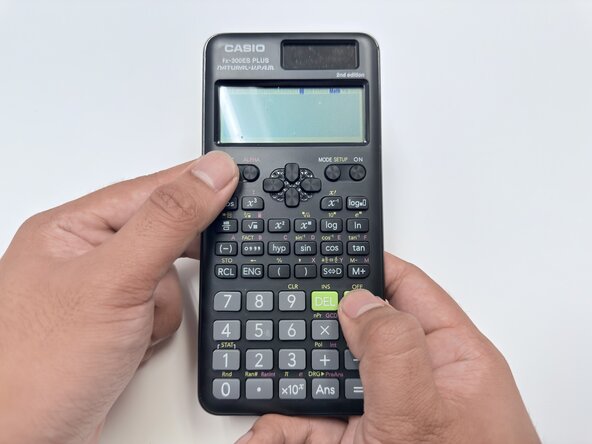
  1. Casio fx-300ES Plus 2nd Edition Battery Replacement, Battery Replacement: step 1, image 1 of 1
    • Press (Shift + AC) to turn off the calculator.

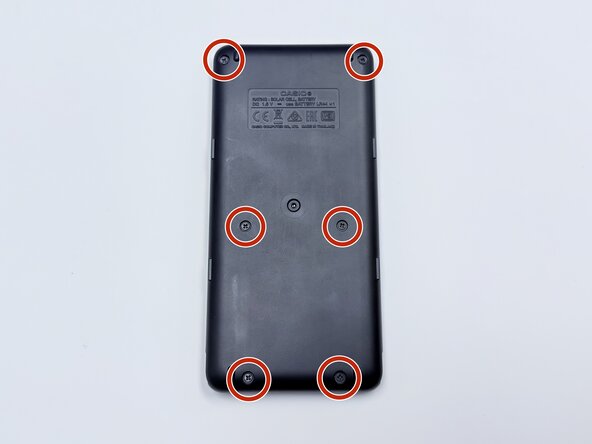
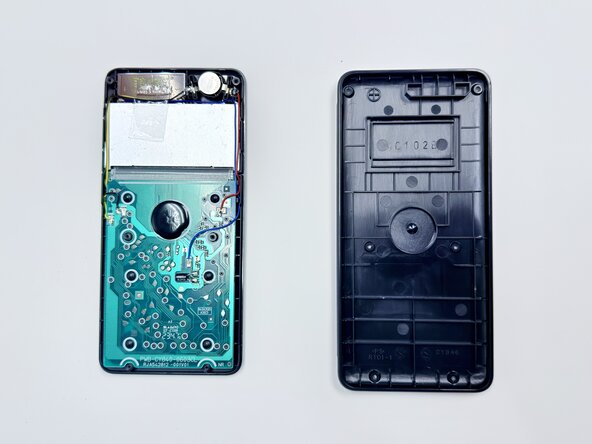
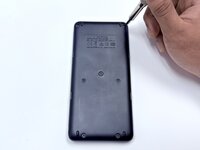
  2. Casio fx-300ES Plus 2nd Edition Battery Replacement: step 2, image 1 of 3 Casio fx-300ES Plus 2nd Edition Battery Replacement: step 2, image 2 of 3 Casio fx-300ES Plus 2nd Edition Battery Replacement: step 2, image 3 of 3
    • Use a Phillips #00 screwdriver to remove the six 7.5 mm screws from the back panel.

    • Insert an opening pick in the seam between the top and bottom casing.

    • Slide it around the perimeter of the calculator to release the clips that connect the front and back panels.

    • Carefully separate the front and back halves of the calculator casing.

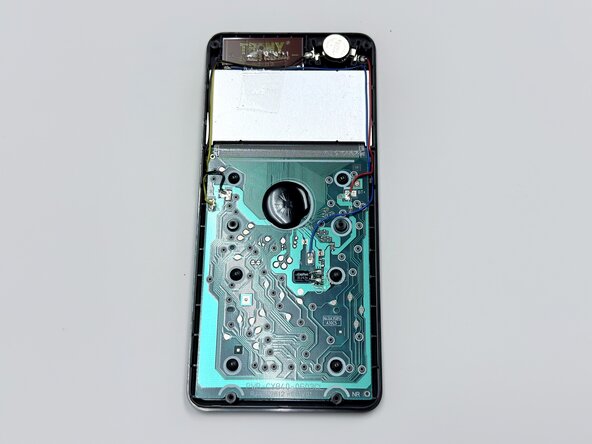
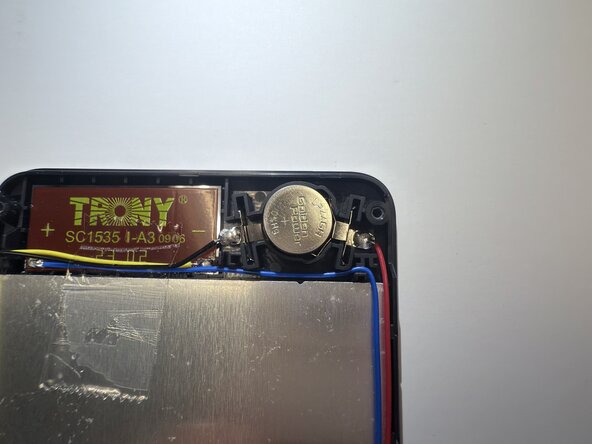
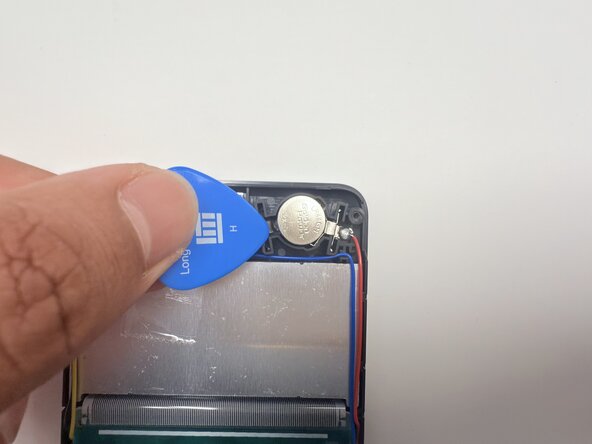
  3. Casio fx-300ES Plus 2nd Edition Battery Replacement: step 3, image 1 of 3 Casio fx-300ES Plus 2nd Edition Battery Replacement: step 3, image 2 of 3 Casio fx-300ES Plus 2nd Edition Battery Replacement: step 3, image 3 of 3
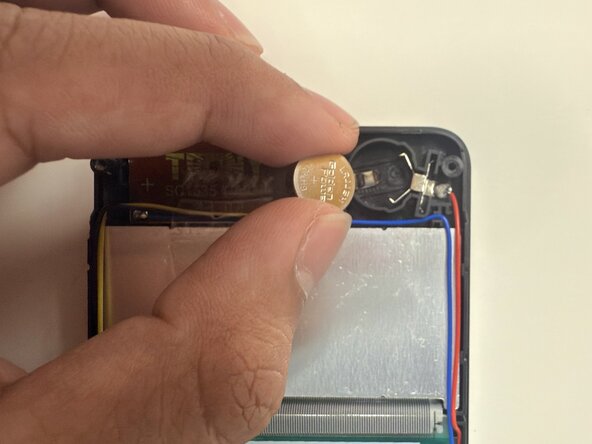
    • Use a plastic spudger or opening pick to remove the old battery.

  4. Casio fx-300ES Plus 2nd Edition Battery Replacement: step 4, image 1 of 1
    • Insert the new LR44 battery into the compartment with the positive (+) side facing up.

  5. Casio fx-300ES Plus 2nd Edition Battery Replacement: step 5, image 1 of 2 Casio fx-300ES Plus 2nd Edition Battery Replacement: step 5, image 2 of 2
    • Replace the panel on the back of the calculator and use a Phillips #00 screwdriver to secure the six 7.5 mm Philips #00 screws.

  6. Casio fx-300ES Plus 2nd Edition Battery Replacement: step 6, image 1 of 2 Casio fx-300ES Plus 2nd Edition Battery Replacement: step 6, image 2 of 2
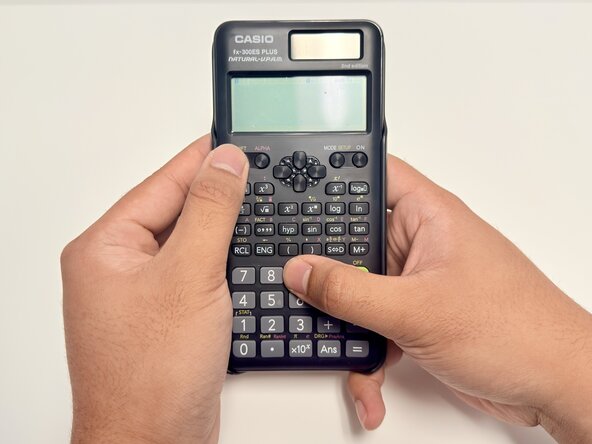
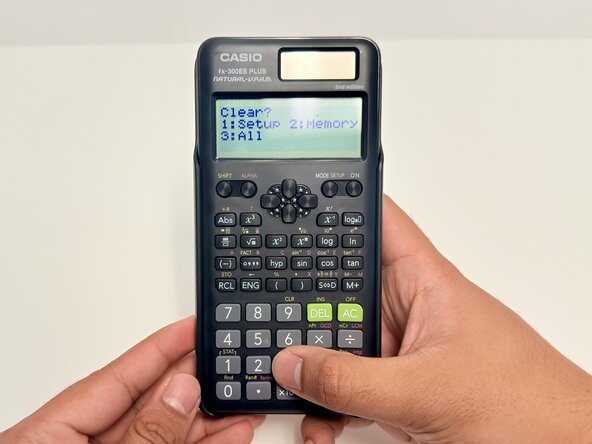
    • Power on the calculator, then bring up the 'clear' menu by pressing (SHIFT + 9).

  7. Casio fx-300ES Plus 2nd Edition Battery Replacement: step 7, image 1 of 3 Casio fx-300ES Plus 2nd Edition Battery Replacement: step 7, image 2 of 3 Casio fx-300ES Plus 2nd Edition Battery Replacement: step 7, image 3 of 3
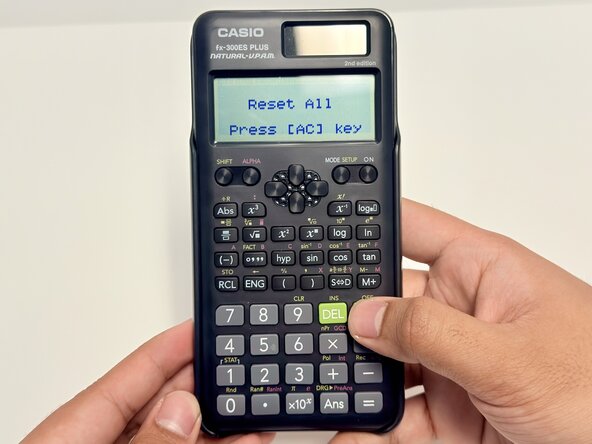
    • Perform a restoration of the calculator's default settings.

    • The order to press is (SHIFT, 9, 1, =).

Conclusion

You've done it! ;)

One other person completed this guide.

Andrei John Tabanao

Member since: 01/07/25

163 Reputation

1 Guide authored

0 Guide Comments

Add Comment

View Statistics:

Past 24 Hours: 2

Past 7 Days: 12

Past 30 Days: 33

All Time: 271