Canon EOS Rebel G LCD Screen Replacement

What you need

  1. Canon EOS Rebel G LCD Screen Replacement, Front Panel: step 1, image 1 of 1
    • Using a #00 Phillips screw driver, remove three 4.4 mm Phillips screws as indicated by the red circles.

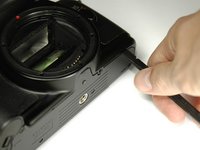
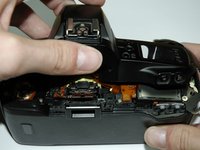
  2. Canon EOS Rebel G LCD Screen Replacement: step 2, image 1 of 2 Canon EOS Rebel G LCD Screen Replacement: step 2, image 2 of 2
    • Using your finger, peel back the textured grip so the components are separated.

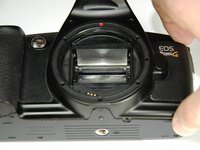
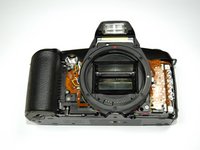
  3. Canon EOS Rebel G LCD Screen Replacement: step 3, image 1 of 3 Canon EOS Rebel G LCD Screen Replacement: step 3, image 2 of 3 Canon EOS Rebel G LCD Screen Replacement: step 3, image 3 of 3
    • Using the flat end of a spudger, loosen the connection between the front panel and the device.

    • Remove the front panel using your hands.

  4. Canon EOS Rebel G LCD Screen Replacement, Top Panel: step 4, image 1 of 1
    • Turn Camera over.

    • Using a #00 Phillips screw driver, unscrew the two 4.9 mm Phillips screws located on either side of the viewfinder.

  5. Canon EOS Rebel G LCD Screen Replacement: step 5, image 1 of 1
    • Using a #00 Phillips screw driver, unscrew the one 5.7 mm Phillips screw located next to the LCD screen.

  6. Canon EOS Rebel G LCD Screen Replacement: step 6, image 1 of 1
    • Lay the camera on its back.

    • Unsolder the flash connection from the motherboard as noted by the blue circle.

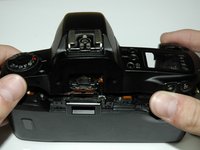
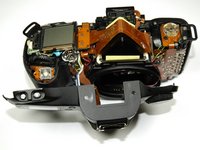
  7. Canon EOS Rebel G LCD Screen Replacement: step 7, image 1 of 3 Canon EOS Rebel G LCD Screen Replacement: step 7, image 2 of 3 Canon EOS Rebel G LCD Screen Replacement: step 7, image 3 of 3
    • Remove the top panel by lifting it from the back, pushing it forward over the camera and letting it rotate down in front of the camera.

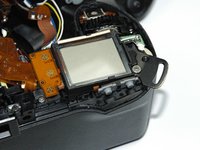
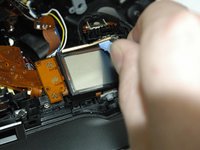
  8. Canon EOS Rebel G LCD Screen Replacement, LCD Screen: step 8, image 1 of 2 Canon EOS Rebel G LCD Screen Replacement, LCD Screen: step 8, image 2 of 2
    • Pry off the small metal brace holding the LCD screen. (Push forward and slide toward the center)

  9. Canon EOS Rebel G LCD Screen Replacement: step 9, image 1 of 1
    • Lift out the LCD screen.

Conclusion

To reassemble your device, follow these instructions in reverse order.

One other person completed this guide.

Zach

Member since: 04/04/12

46 Reputation

8 Guides authored

Team

Cal Poly, Team 14-9, Forte Spring 2012 Member of Cal Poly, Team 14-9, Forte Spring 2012

CPSU-FORTE-S12S14G9

5 Members

36 Guides authored

2 Guide Comments

Great guide thanks! I found my lcd screen was partially working, the top part of the display was showing incomplete numbers...Cleaning the lcd contacts and reassembling it fixed the issue! No need to replace the screen in my case!

Michelangelo - Reply

What Kind of glue is suggested to replace the textured grip?

Mark Garcia - Reply

Add Comment

View Statistics:

Past 24 Hours: 1

Past 7 Days: 4

Past 30 Days: 11

All Time: 1,733