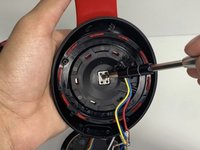
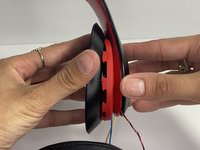
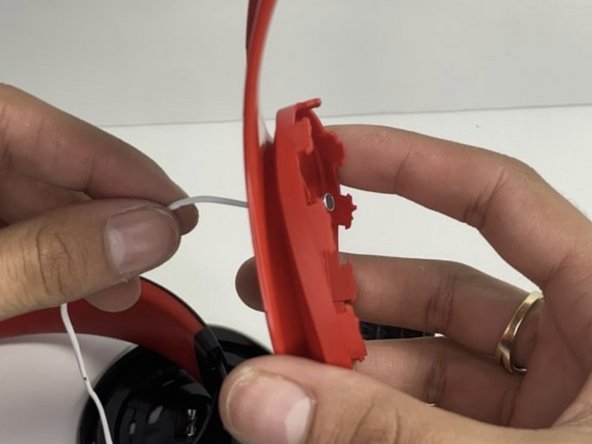
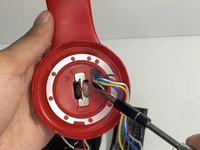
Free Shipping on Domestic Orders $75+

Beats Studio3 Wireless Hinge Replacement

Views: 12K

View statistics:

Past 24 Hours:
13
Past 7 Days:
98
Past 30 Days:
452
All Time:
12,059
Comments: 3

3 comments on steps.

Completed: 1

1 person has marked this guide "completed." Will you be next?

Favorites: 0

No one has favorited (and subscribed to) this guide. Will you be the first?

Time Required: 30 minutes - 1 hour
Difficulty: Difficult
Incorrect Tools

Help make this guide better by using the correct tools in images and/or text.

Beats Studio3 Wireless Hinge Replacement

Introduction

Go to step 1 ↓

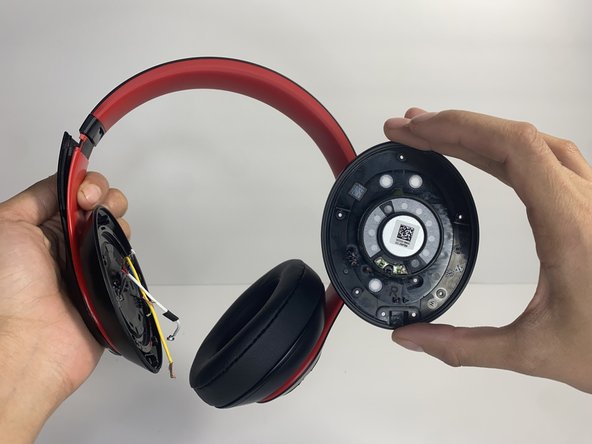
Use this guide to replace the hinge on your Beats Studio3 Wireless (model number: A1914).

The hinge allows the users to extend the Beats Studio3 Wireless headphones. A failing hinge will not allow users to expand the Beats Studio3 Wireless, or the ear pad hangs off. In some cases, your hinge will come loose. Within this guide, you'll find information on how to replace/tighten your Beats Studio3 Wireless headset hinges.

What you need

Tools

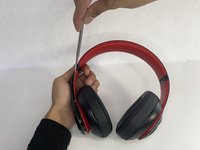
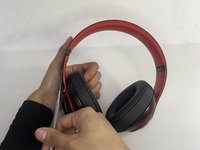
    1. Beats Studio3 Wireless Hinge Replacement, Ear Pad: step 1, image 1 of 2 Beats Studio3 Wireless Hinge Replacement, Ear Pad: step 1, image 2 of 2
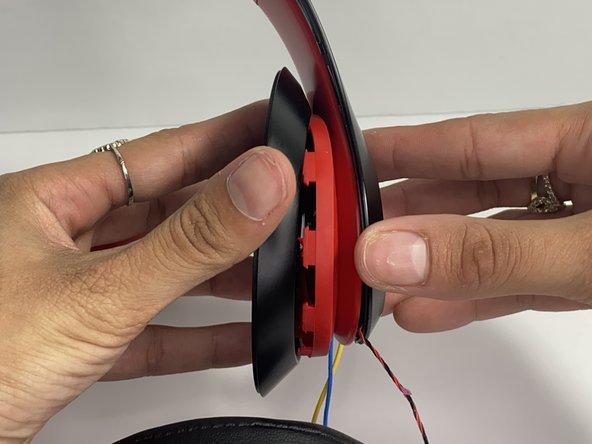
      • Find the separation between the headset and ear cushion.

      • Use an opening tool to go underneath the separation site and split the pieces apart.

      Ask FixBot

      Add Comment

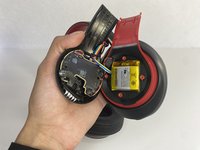
    2. Beats Studio3 Wireless Hinge Replacement: step 2, image 1 of 3 Beats Studio3 Wireless Hinge Replacement: step 2, image 2 of 3 Beats Studio3 Wireless Hinge Replacement: step 2, image 3 of 3
      • You can also use your hands to remove it completely.

      • Pulling it off can be challenging; make sure to apply enough pressure.

      Ask FixBot

      Add Comment

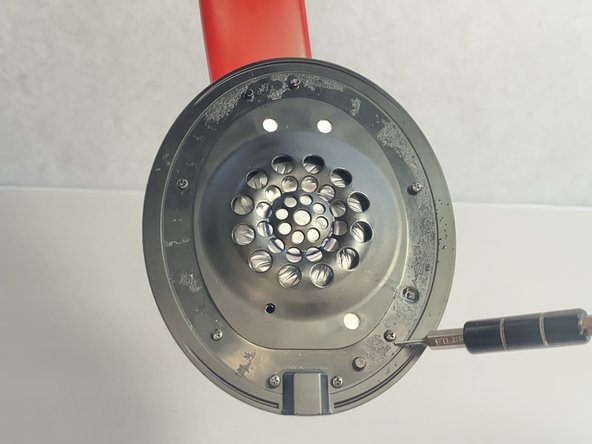
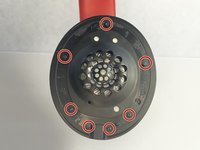
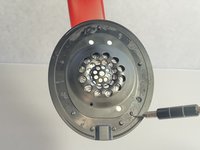
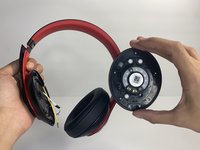
    1. Beats Studio3 Wireless Hinge Replacement, Left Driver Assembly: step 3, image 1 of 2 Beats Studio3 Wireless Hinge Replacement, Left Driver Assembly: step 3, image 2 of 2
      • Remove seven 3.6 mm screws holding the speaker assembly in place using a Phillips #0 screwdriver.

      • Make sure the screws aren't close to the speaker; due to it being a magnet, the screws could get stuck and damage the speaker.

      • Open the speaker by pulling the top layer of the speaker.

      Ask FixBot

      Add Comment

    2. Beats Studio3 Wireless Hinge Replacement: step 4, image 1 of 3 Beats Studio3 Wireless Hinge Replacement: step 4, image 2 of 3 Beats Studio3 Wireless Hinge Replacement: step 4, image 3 of 3
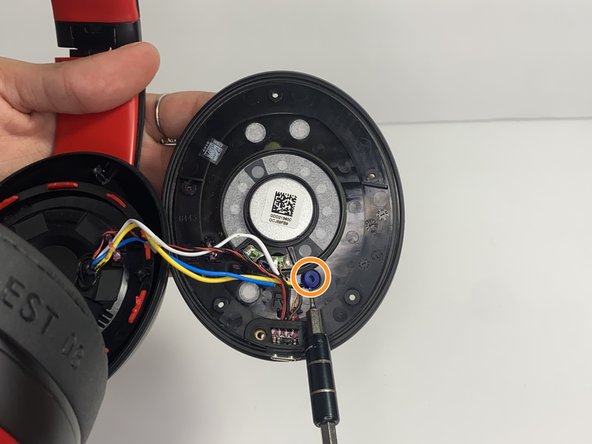
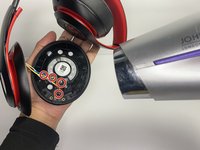
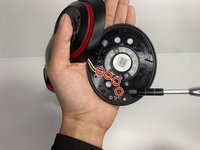
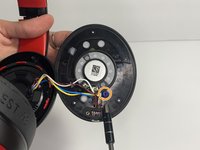
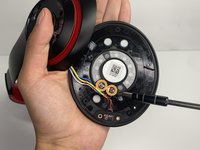
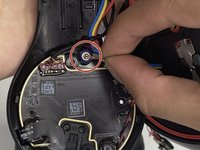
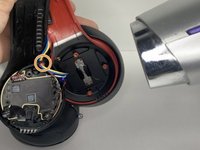
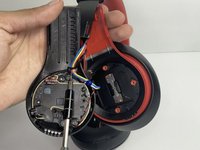
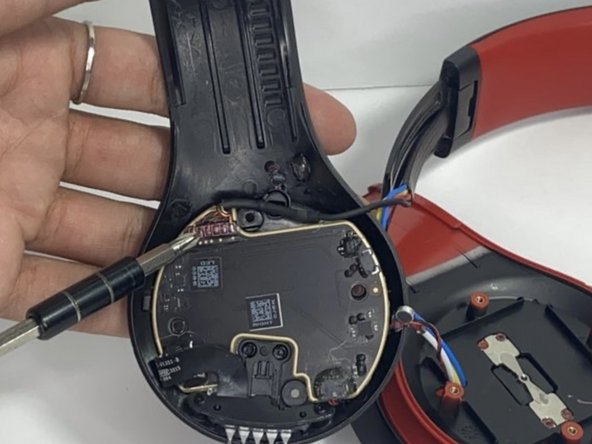
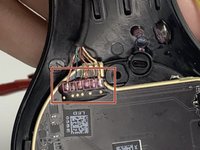
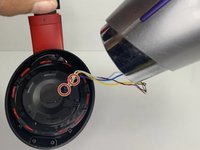
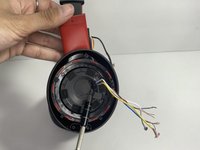
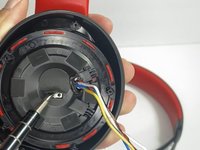
      • With a heat gun or hair dryer, heat the glue that is sticking the wires down until the glue softens.

      • Use a nylon spudger to remove the glue.

      • Pull on the wire to remove it while also removing the blue rubber band.

      Ask FixBot

      Add Comment

    3. Beats Studio3 Wireless Hinge Replacement: step 5, image 1 of 3 Beats Studio3 Wireless Hinge Replacement: step 5, image 2 of 3 Beats Studio3 Wireless Hinge Replacement: step 5, image 3 of 3
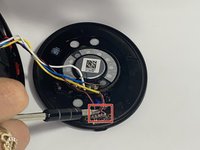
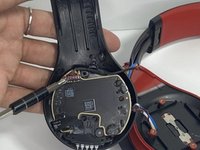
      • Using a soldering iron to remove the cables on the charger port.

      • For help with soldering, check out the How to Solder and Desolder Connections guide.

      • Remove the two wires connected in the middle of the speaker using a soldering iron.

      • Remove the speaker from the headset.

      Ask FixBot

      Add Comment

    1. Beats Studio3 Wireless Hinge Replacement, Battery: step 6, image 1 of 2 Beats Studio3 Wireless Hinge Replacement, Battery: step 6, image 2 of 2
      • Use a pointed nylon spudger to remove the center circular panel on the right side of your device.

      • Be gentle while removing this piece as it is glued on with adhesive.

      Ask FixBot

      Add Comment

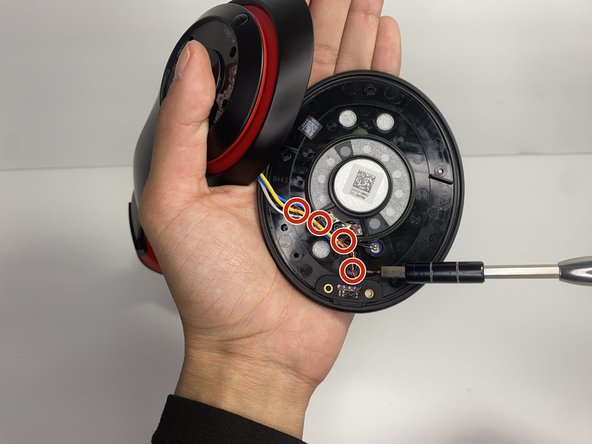
    2. Beats Studio3 Wireless Hinge Replacement: step 7, image 1 of 2 Beats Studio3 Wireless Hinge Replacement: step 7, image 2 of 2
      • Remove the four 3.5 mm screws using a Phillips #0 screwdriver.

      Ask FixBot

      Add Comment

    3. Beats Studio3 Wireless Hinge Replacement: step 8, image 1 of 3 Beats Studio3 Wireless Hinge Replacement: step 8, image 2 of 3 Beats Studio3 Wireless Hinge Replacement: step 8, image 3 of 3
      • Using a pointed nylon spudger, remove the tab located on the inner part of the headband labeled "R."

      • Place the nylon spudger in between the side panels and push inward going from bottom to top to separate both sides of the panel.

      • The panel will pop open after separating.

      Ask FixBot

      Add Comment

    4. Beats Studio3 Wireless Hinge Replacement: step 9, image 1 of 1
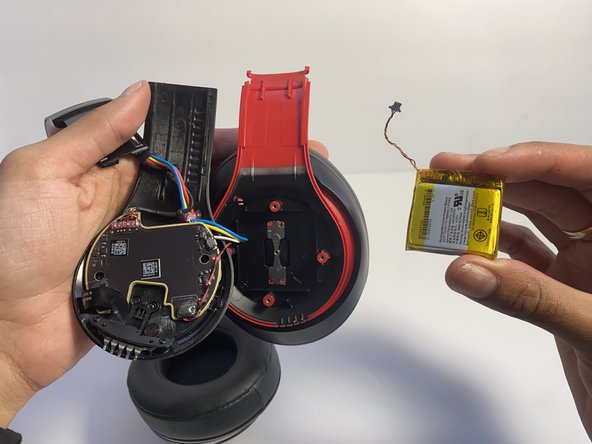
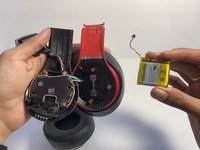
      • Place the nylon spudger underneath the battery, push inward and separate the battery from the inside.

      • Never use sharp tools to pry batteries. Metal spudgers can puncture an unprotected battery, potentially causing a fire.

      Ask FixBot

      Add Comment

    5. Beats Studio3 Wireless Hinge Replacement: step 10, image 1 of 2 Beats Studio3 Wireless Hinge Replacement: step 10, image 2 of 2
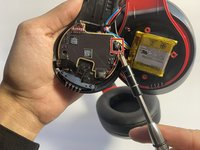
      • Use a nylon spudger to lift up the glue sticking the wires down.

      • Use a nylon spudger to lift the connector to disconnect the battery.

      Ask FixBot

      Add Comment

    1. Beats Studio3 Wireless Hinge Replacement, Hinge: step 11, image 1 of 3 Beats Studio3 Wireless Hinge Replacement, Hinge: step 11, image 2 of 3 Beats Studio3 Wireless Hinge Replacement, Hinge: step 11, image 3 of 3
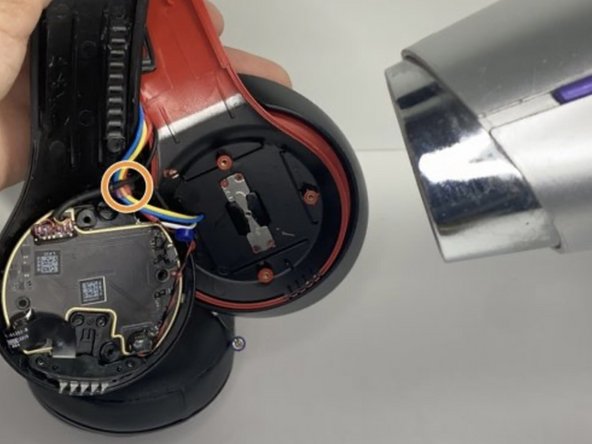
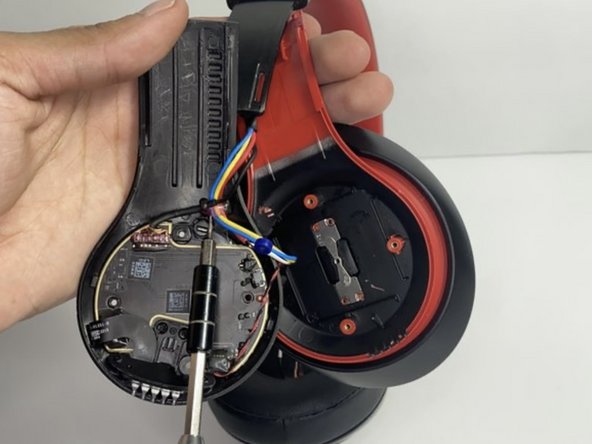
      • Pull the wire making sure that the blue rubber band is off.

      • Heat the glue holding the wires down with a hair dryer or heat gun until the glue softens.

      • Make sure not to overheat any device part, which could cause damage to the sound.

      • With a pointed nylon spudger, remove the glue.

      Ask FixBot

      Add Comment

    2. Beats Studio3 Wireless Hinge Replacement: step 12, image 1 of 2 Beats Studio3 Wireless Hinge Replacement: step 12, image 2 of 2
      Ask FixBot

      Add Comment

    3. Beats Studio3 Wireless Hinge Replacement: step 13, image 1 of 3 Beats Studio3 Wireless Hinge Replacement: step 13, image 2 of 3 Beats Studio3 Wireless Hinge Replacement: step 13, image 3 of 3
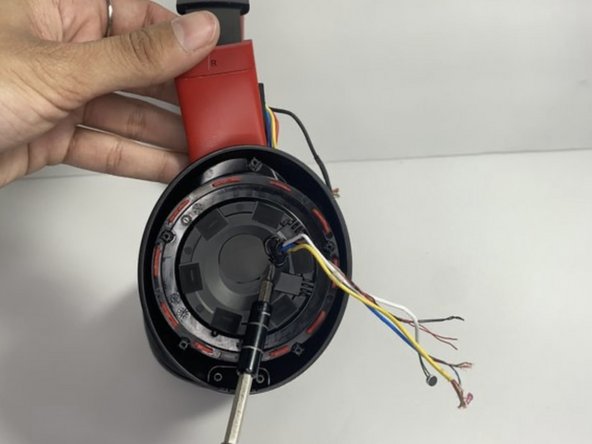
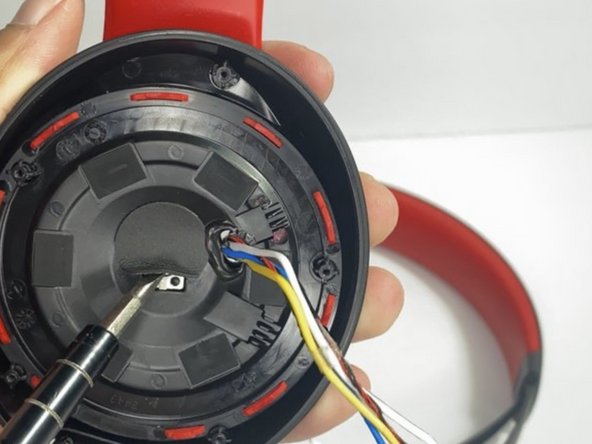
      • With a hair dryer or heating gun, heat the glue that is sticking the wires down.

      • Use a nylon spudger to remove the softened glue.

      • Remove the circular tape inside of the ear pad.

      Ask FixBot

      Add Comment

    4. Beats Studio3 Wireless Hinge Replacement: step 14, image 1 of 2 Beats Studio3 Wireless Hinge Replacement: step 14, image 2 of 2
      • Remove the single 3.5 mm screw with a Phillips #0 screwdriver.

      • Pull apart the top layer of the earpiece.

      Ask FixBot

      Add Comment

    5. Beats Studio3 Wireless Hinge Replacement: step 15, image 1 of 2 Beats Studio3 Wireless Hinge Replacement: step 15, image 2 of 2
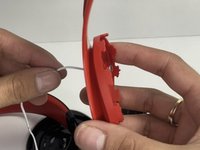
      • Remove the tape holding the wires in place.

      • Pull the wires through the hole with your hand.

      Ask FixBot

      Add Comment

    6. Beats Studio3 Wireless Hinge Replacement: step 16, image 1 of 1
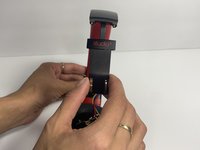
      • Bend the hinge and remove the two 3.5 mm screws with a Phillips #0 screwdriver.

      Ask FixBot

      Add Comment

    7. Beats Studio3 Wireless Hinge Replacement: step 17, image 1 of 3 Beats Studio3 Wireless Hinge Replacement: step 17, image 2 of 3 Beats Studio3 Wireless Hinge Replacement: step 17, image 3 of 3
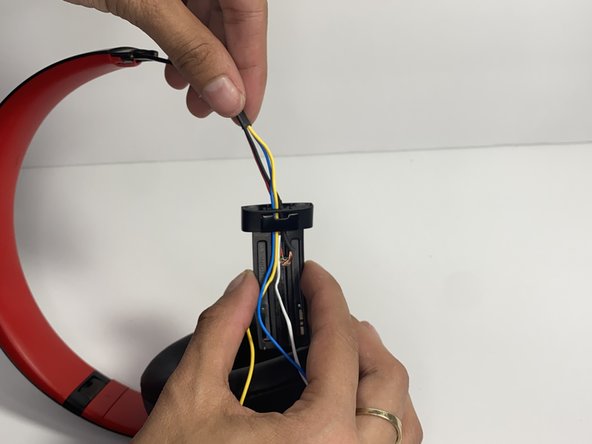
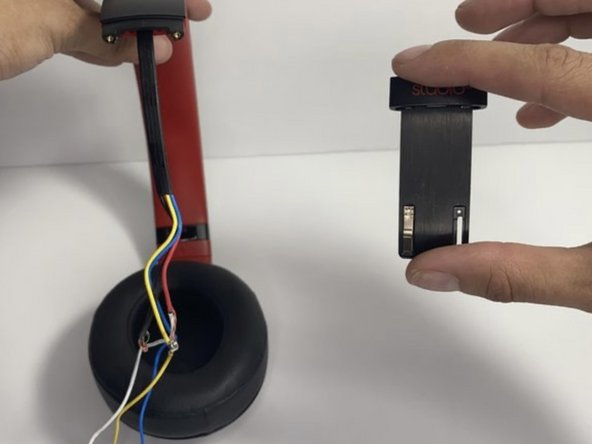
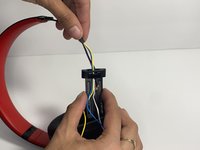
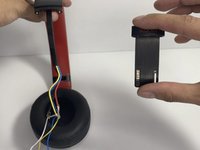
      • Pull the hinge down.

      • Pull on the wires one at a time making sure you don't damage them.

      Ask FixBot

      Add Comment

    8. Beats Studio3 Wireless Hinge Replacement: step 18, image 1 of 2 Beats Studio3 Wireless Hinge Replacement: step 18, image 2 of 2
      Tool used on this step:
      Tweezers
      $4.99
      Buy
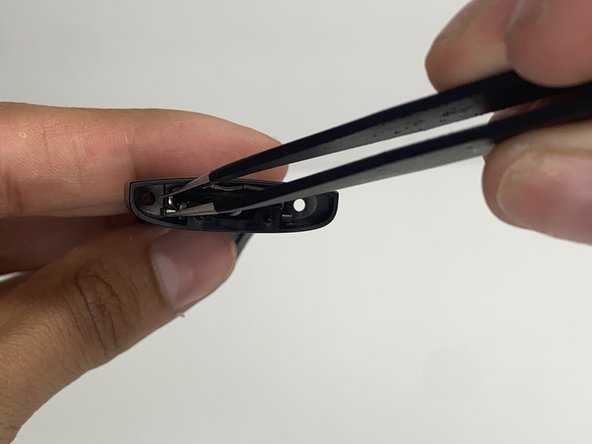
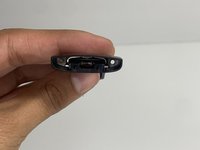
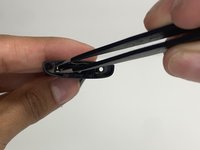
      • With tweezers, remove the pin located inside of the hinge.

      Ask FixBot

      Add Comment

Conclusion

To reassemble your device, follow these instructions in reverse order.

Cancel: I did not complete this guide.

One other person completed this guide.

Nayeli watts

Member since: 03/16/23

548 Reputation

3 Guides authored

Team

0 Guide Comments

Add Comment

View Statistics:

Past 24 Hours: 13

Past 7 Days: 98

Past 30 Days: 452

All Time: 12,059