Free Shipping on Domestic Orders $75+

Battery Terminal Replacement

  1. Battery Terminal Replacement, Battery Terminals: step 1, image 1 of 1
    • Start with a clean work bench

    Ask FixBot
  2. Battery Terminal Replacement: step 2, image 1 of 1
    • Use a 2.5mm allen key to remove the damaged terminals screws

    Ask FixBot
  3. Battery Terminal Replacement: step 3, image 1 of 2 Battery Terminal Replacement: step 3, image 2 of 2
    • Use some small side cutting pliers to cut and break off as much of the plastic as possible.

    Ask FixBot
  4. Battery Terminal Replacement: step 4, image 1 of 2 Battery Terminal Replacement: step 4, image 2 of 2
    • Inside the terminal there are small plastic teeth that lock the metal pin to the plastic part of the terminal.

    • Use a small screwdriver or blade to bend these teeth out of the way.

    • All need to be bent out of the way in order to remove the plastic part of the terminal.

    Ask FixBot
  5. Battery Terminal Replacement: step 5, image 1 of 2 Battery Terminal Replacement: step 5, image 2 of 2
    • Use a screwdriver to wedge out the plastic part of the terminal.

    • Push the metal post back towards batter while removing the plastic part.

    • There is some glue in behind, but no other fixings so it will come out.

    Ask FixBot
  6. Battery Terminal Replacement: step 6, image 1 of 1
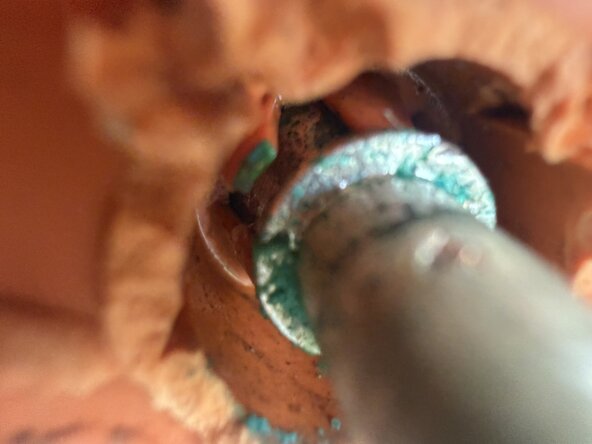
    • Inspect and clean the terminal post.

    Ask FixBot
  7. Battery Terminal Replacement: step 7, image 1 of 1
    • Carefully remove the end cap of the post.

    • Use a blade to wedge it off.

    Ask FixBot
  8. Battery Terminal Replacement: step 8, image 1 of 2 Battery Terminal Replacement: step 8, image 2 of 2
    • Line up the flat sides of the new terminal with the flat side on the metal post

    • Place the plastic terminal over the metal post, and use some small needle nose plier to pull the post over the teeth so that they engage

    Ask FixBot
  9. Battery Terminal Replacement: step 9, image 1 of 2 Battery Terminal Replacement: step 9, image 2 of 2
    • Reinstall and tighten the screws

    • Reinstall the plastic end cap for the terminal post.

    Ask FixBot
Finish Line

Mark Duyvesteyn

Member since: 02/11/26

633 Reputation

6 Guides authored

0 Guide Comments

Add Comment

View Statistics:

Past 24 Hours: 1

Past 7 Days: 17

Past 30 Days: 17

All Time: 17