Battery Blocking

Prerequisite Only
This is a prerequisite-only guide! This guide is part of another procedure and isn’t meant to be used alone.

What you need

  1. Battery Blocking, Unfasten the lower cable shield: step 1, image 1 of 2 Battery Blocking, Unfasten the lower cable shield: step 1, image 2 of 2
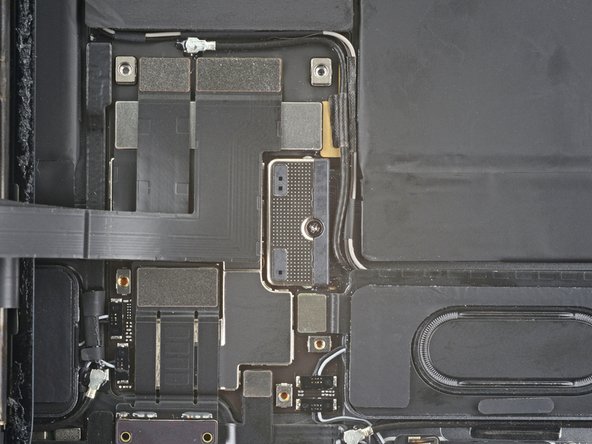
    • Use a Phillips screwdriver to remove the five screws securing the lower cable shield to the logic board:

    • Two 2.0 mm screws

    • Three 1.3 mm screws

  2. Battery Blocking, Remove the lower cable shield: step 2, image 1 of 1
    Tool used on this step:
    Tweezers
    $4.99
    Buy
    • Use tweezers or your fingers to grab and remove the lower cable shield.

  3. Battery Blocking, Unfasten the battery connector: step 3, image 1 of 2 Battery Blocking, Unfasten the battery connector: step 3, image 2 of 2
    • Use a Phillips screwdriver to remove the 1.8 mm screw securing the battery connector to the logic board.

  4. Battery Blocking, Battery connector information: step 4, image 1 of 3 Battery Blocking, Battery connector information: step 4, image 2 of 3 Battery Blocking, Battery connector information: step 4, image 3 of 3
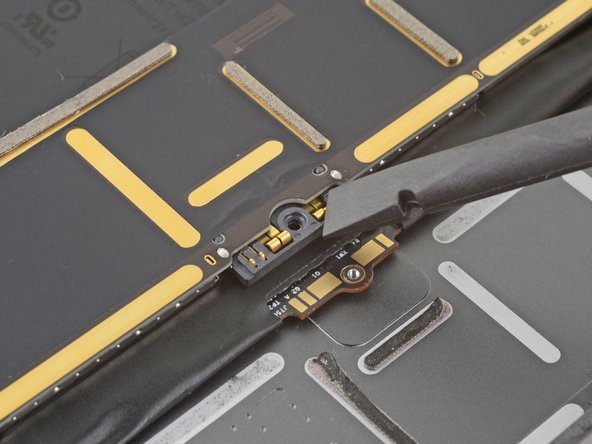
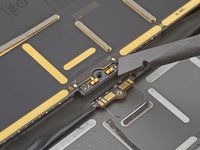
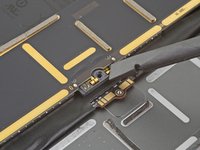
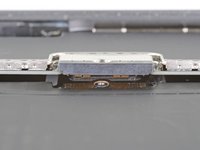
    • These photos show what the battery connector looks like underneath the logic board. Use these photos as a reference while you safely disconnect the battery.

    • Notice that the battery connector has cantilever springs on the logic board that press against the battery contact pads. Since both the logic board and battery are glued down, you'll need to slide something thin and flexible between the contact points to disconnect the battery.

  5. Battery Blocking, Create a battery blocker: step 5, image 1 of 3 Battery Blocking, Create a battery blocker: step 5, image 2 of 3 Battery Blocking, Create a battery blocker: step 5, image 3 of 3
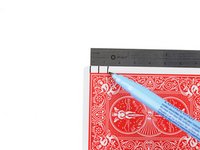
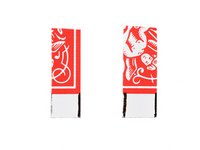
    • Cut two 6 mm wide strips from a playing card or cardstock to use as a battery blocker.

    • The strips should be about 4 cm long so you can easily grip them.

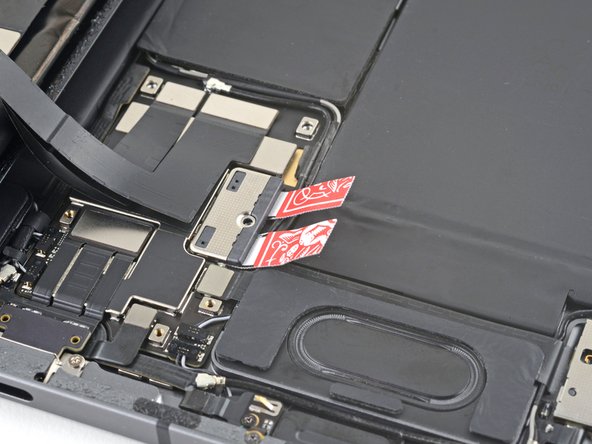
  6. Battery Blocking, Insert the card strips: step 6, image 1 of 3 Battery Blocking, Insert the card strips: step 6, image 2 of 3 Battery Blocking, Insert the card strips: step 6, image 3 of 3
    • Insert the card strips on each side of the battery connector until they stop.

Conclusion

To reassemble your device, follow these instructions in reverse order.

Chayton Ritter

Member since: 08/21/20

24,967 Reputation

105 Guides authored

Team

Guide Team Member of Guide Team

Staff

10 Members

15,932 Guides authored

0 Guide Comments

Add Comment

View Statistics:

Past 24 Hours: 0

Past 7 Days: 1

Past 30 Days: 2

All Time: 87