Free Shipping on Domestic Orders $75+

Autosampler Open-Storm Board Reprogramming (For Old & New Versions)

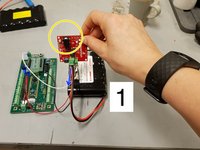
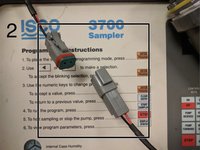
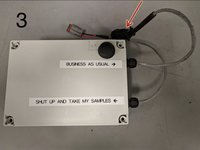
    1. Autosampler Open-Storm Board Reprogramming (For Old & New Versions), Disconnect the batteries completely.: step 1, image 1 of 3 Autosampler Open-Storm Board Reprogramming (For Old & New Versions), Disconnect the batteries completely.: step 1, image 2 of 3 Autosampler Open-Storm Board Reprogramming (For Old & New Versions), Disconnect the batteries completely.: step 1, image 3 of 3
      • 1. Disconnect the plug to the solar panel.

      • Then, grabbing the green connector, pull the battery connector from the solar charge controller.

      • 2. Disconnect the plugs for the autosampler battery.

      • 3. Disconnect the connector that plugs into the battery port of the sampler.

      • If disconnect battery before solar panel, this can damage the solar charger!

      Ask FixBot

      Add Comment

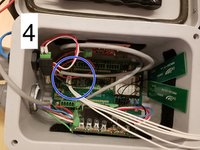
    2. Autosampler Open-Storm Board Reprogramming (For Old & New Versions), Plug in USB and reconnect batteries.: step 2, image 1 of 3 Autosampler Open-Storm Board Reprogramming (For Old & New Versions), Plug in USB and reconnect batteries.: step 2, image 2 of 3 Autosampler Open-Storm Board Reprogramming (For Old & New Versions), Plug in USB and reconnect batteries.: step 2, image 3 of 3
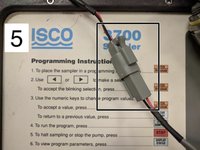
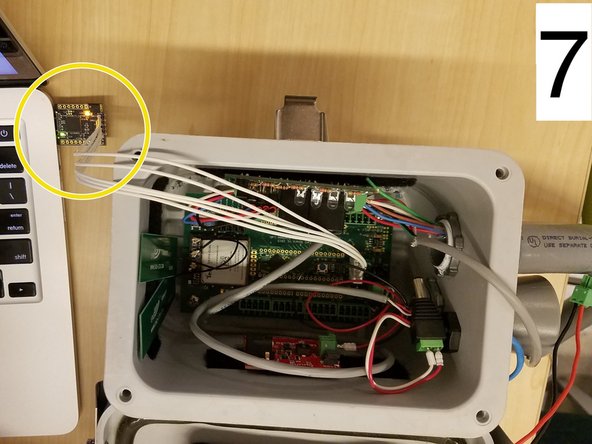
      • 4. Plug in the USB programmer into the Open-Storm board.

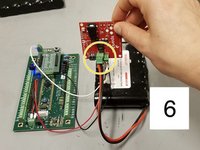
      • 5. Reconnect the node battery.

      • 6. Reconnect the autosampler battery.

      Ask FixBot

      Add Comment

    3. Autosampler Open-Storm Board Reprogramming (For Old & New Versions), Connecting to the computer.: step 3, image 1 of 3 Autosampler Open-Storm Board Reprogramming (For Old & New Versions), Connecting to the computer.: step 3, image 2 of 3 Autosampler Open-Storm Board Reprogramming (For Old & New Versions), Connecting to the computer.: step 3, image 3 of 3
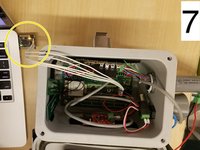
      • 7. Connect the USB programmer into the computer.

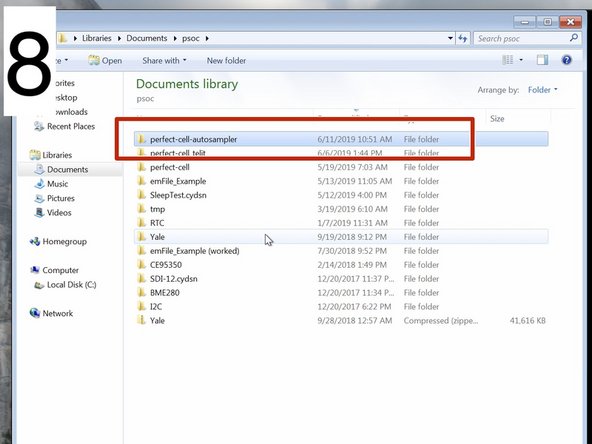
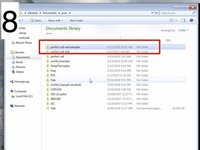
      • 8. Create a folder for the Open-Storm board code to be stored. In this case, it indicates that we are working with an autosampler.

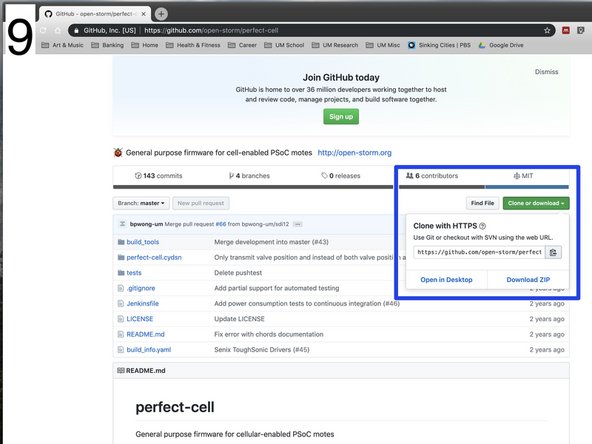
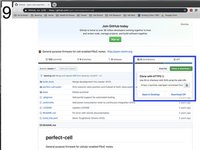
      • 9. The code is stored on GitHub here. Click the "Clone or download" button. Copy the address.

      Ask FixBot

      Add Comment

    4. Autosampler Open-Storm Board Reprogramming (For Old & New Versions), Downloading the code.: step 4, image 1 of 3 Autosampler Open-Storm Board Reprogramming (For Old & New Versions), Downloading the code.: step 4, image 2 of 3 Autosampler Open-Storm Board Reprogramming (For Old & New Versions), Downloading the code.: step 4, image 3 of 3
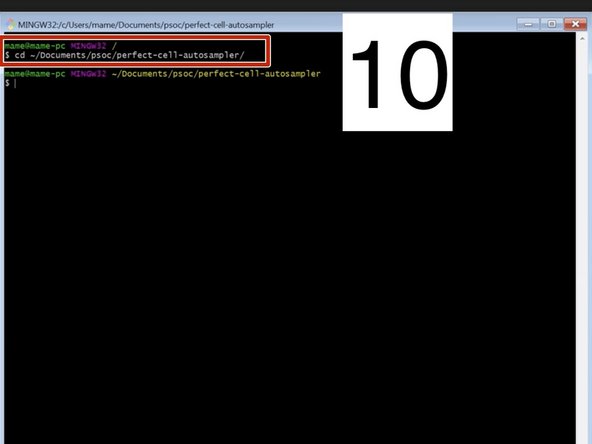
      • 10. Open the Git Bash application and type "cd" followed by the address of the folder you created to save the code in. In this case "~/Documents/psoc/perfect-cell-autosampler".

      • You can use the "~" if the folder is located in your home directory.

      • You will need the free program Git BASH in order to download the code. You can download it here.

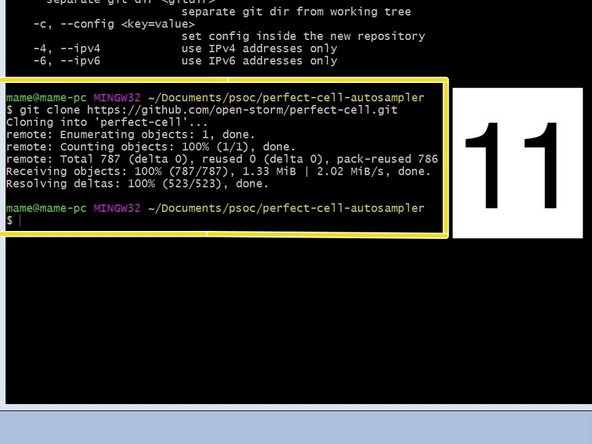
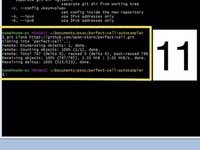
      • 11. Type "git clone" followed by the address copied from git hub here.

      • Now the code will download to the desired folder.

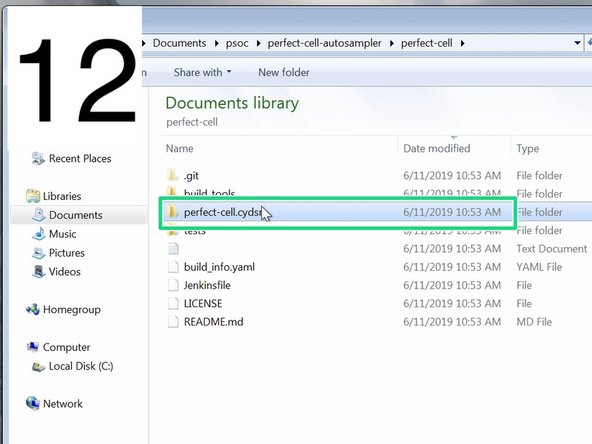
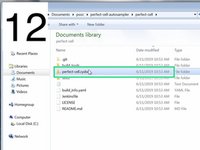
      • 12. Inside your folder, open the "perfect-cell" folder then open the "perfect-cell.cydsn" folder.

      Ask FixBot

      Add Comment

    5. Autosampler Open-Storm Board Reprogramming (For Old & New Versions), Programming the motherboard.: step 5, image 1 of 3 Autosampler Open-Storm Board Reprogramming (For Old & New Versions), Programming the motherboard.: step 5, image 2 of 3 Autosampler Open-Storm Board Reprogramming (For Old & New Versions), Programming the motherboard.: step 5, image 3 of 3
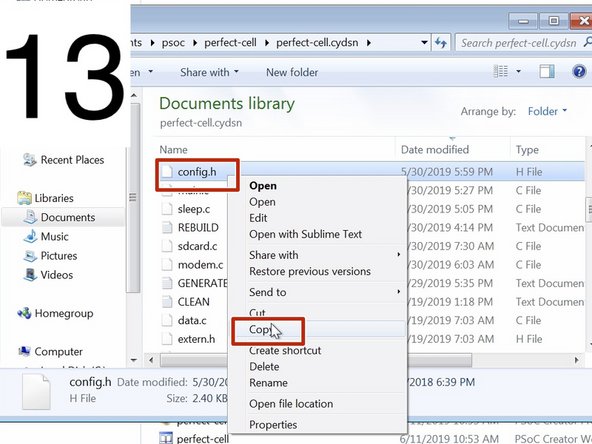
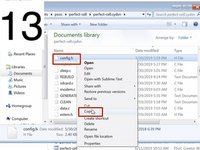
      • 13. Obtain the "config.h" file from an administrator at the Real-Time Water Systems Lab. Then copy the file and paste it in the "perfect-cell.cydsn" file.

      • You will need the free program PSoC to program the cell. You can download it here.

      • PSoC only works on Windows.

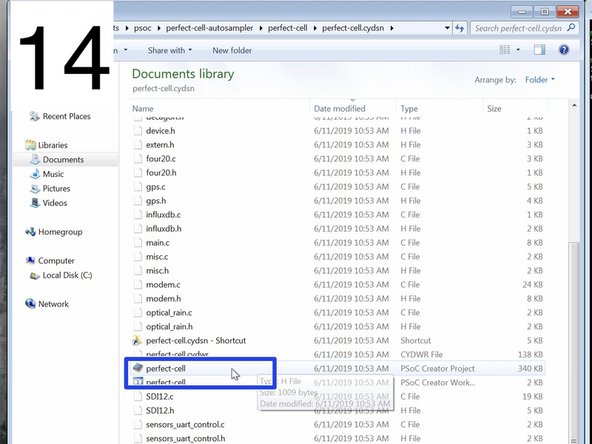
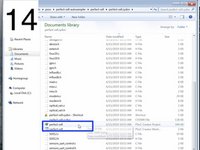
      • 14. Then in the perfect-cell.cydsn" file, open the "perfect-cell" PSoC file. Once the PSoC Creator program launches, begin by building the cell. Go to: Build>Build perfect-cell. After it's done building you should not see any errors. Warnings are okay.

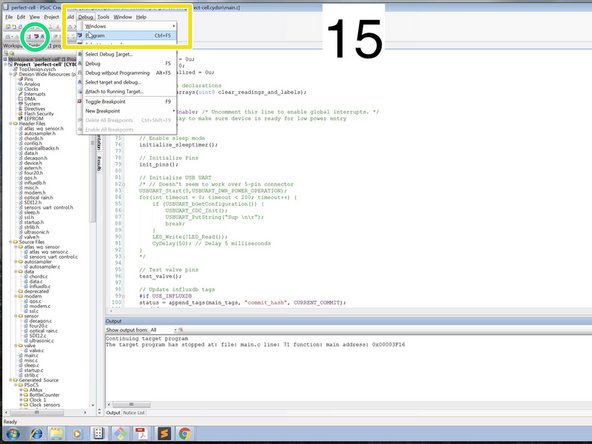
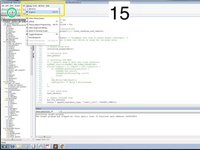
      • 15. Now it is time to program the cell! There are two ways to do this:

      • (1) Press the "Program" button" or;

      • (2) Click "Debug" then select "Program"

      Ask FixBot

      Add Comment

    6. Autosampler Open-Storm Board Reprogramming (For Old & New Versions), Programming the motherboard.: step 6, image 1 of 3 Autosampler Open-Storm Board Reprogramming (For Old & New Versions), Programming the motherboard.: step 6, image 2 of 3 Autosampler Open-Storm Board Reprogramming (For Old & New Versions), Programming the motherboard.: step 6, image 3 of 3
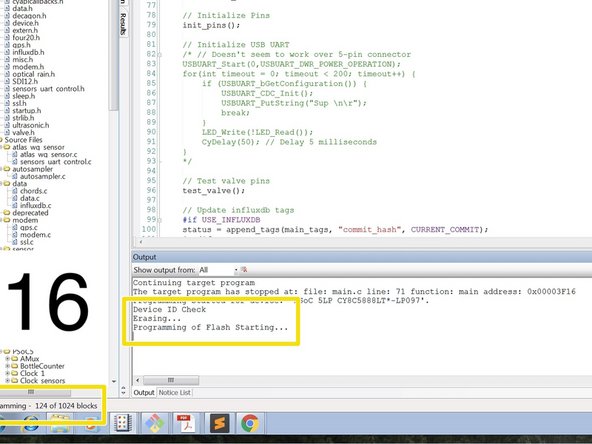
      • 16. PSOC will begin flashing the code. You can track the progress by watching the "programming - XX of 1024 blocks".

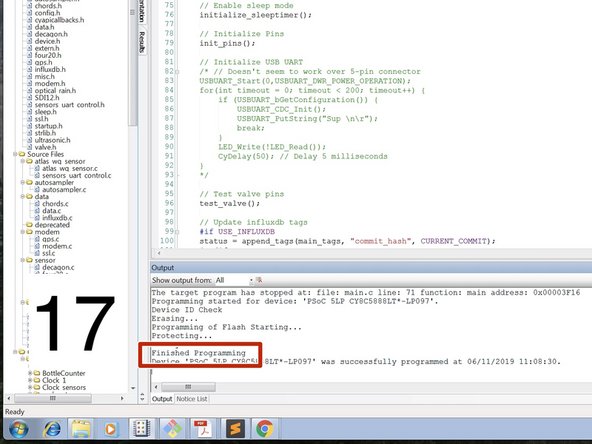
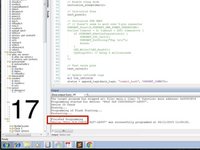
      • 17. When the board is completely programmed, it will say "Finished Programming".

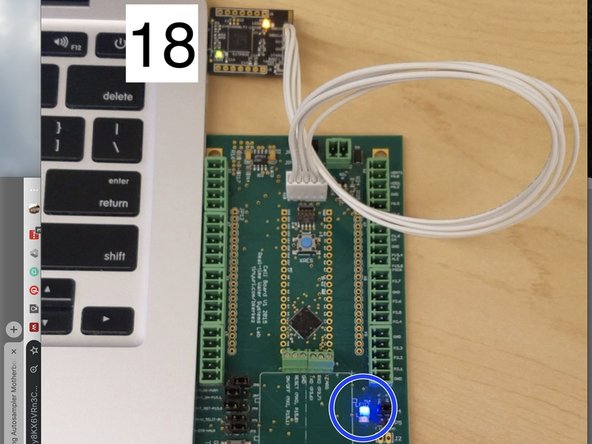
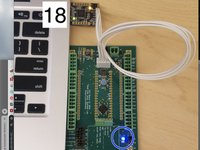
      • 18. You will also note the board is completely programmed when the board flashes blue.

      • Now you can unplug the USB from the board and the computer.

      Ask FixBot

      Add Comment

Finish Line

Cancel: I did not complete this guide.

One other person completed this guide.

Brooke Mason

Member since: 05/29/19

2,958 Reputation

17 Guides authored

Team

Open-Storm Member of Open-Storm

Community

16 Members

275 Guides authored

0 Guide Comments

Add Comment

View Statistics:

Past 24 Hours: 2

Past 7 Days: 15

Past 30 Days: 57

All Time: 788