15% Off Selected iFixit Tools — Limited Time
Free Shipping on Domestic Orders $75+

Asus Transformer Pad TF103C Screen Replacement

What you need

  1. Asus Transformer Pad TF103C Screen Replacement, Battery: step 1, image 1 of 1
    • Make sure the power is off.

    • Insert the plastic opening tool into a crack on side of the tablet.

    • You can use a thin screwdriver if you don't have the opening tool.

    • Carefully pull the tool upwards to and pry open the Transformer pad.

    • Make sure the SD card slot is empty first.

    Ask FixBot

    Add Comment

  2. Asus Transformer Pad TF103C Screen Replacement: step 2, image 1 of 1
    • Slide the tool in the gap along all four sides, continually pulling the tool upwards.

    Ask FixBot

    Add Comment

  3. Asus Transformer Pad TF103C Screen Replacement: step 3, image 1 of 1
    • Remove the back cover once it is loose and set it aside.

    • Rotate the tablet so it matches the picture.

    Ask FixBot

    Add Comment

  4. Asus Transformer Pad TF103C Screen Replacement: step 4, image 1 of 1
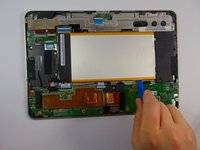
    • Carefully unplug the battery cable from the motherboard by grabbing the wires close to the black piece and pulling it out of the housing.

    Ask FixBot

    Add Comment

  5. Asus Transformer Pad TF103C Screen Replacement: step 5, image 1 of 2 Asus Transformer Pad TF103C Screen Replacement: step 5, image 2 of 2
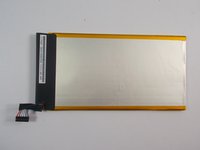
    • Carefully pry the battery out of the tablet with the opening tool.

    • Replace battery with a new +3.7V=19Wh Li-polymer Battery Pack C11P1328.

    • There may be some tape on the battery, so you may hear pulling as you pry.

    Ask FixBot

    Add Comment

  6. Asus Transformer Pad TF103C Screen Replacement, Screen: step 6, image 1 of 2 Asus Transformer Pad TF103C Screen Replacement, Screen: step 6, image 2 of 2
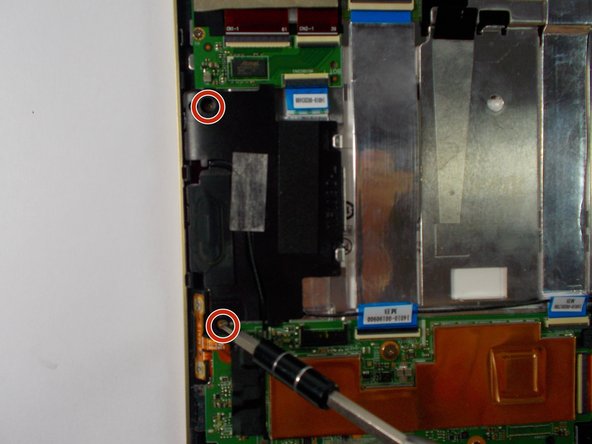
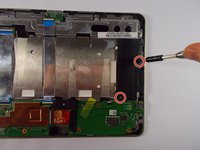
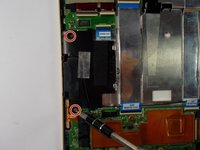
    • Remove two screws from each speaker with the +J000 screwdriver.

    • Keep the screws together and organized. (Label if necessary).

    Ask FixBot

    Add Comment

  7. Asus Transformer Pad TF103C Screen Replacement: step 7, image 1 of 1
    • Unplug the wire from the top of the left speaker.

    • If you pull on the wire too much, it can break off.

    • If you break the wire off, you can solder it back on.

    Ask FixBot

    Add Comment

  8. Asus Transformer Pad TF103C Screen Replacement: step 8, image 1 of 1
    • Remove the yellow tape and unplug the wire that attaches the speakers to the soundboard.

    Ask FixBot

    Add Comment

  9. Asus Transformer Pad TF103C Screen Replacement: step 9, image 1 of 2 Asus Transformer Pad TF103C Screen Replacement: step 9, image 2 of 2
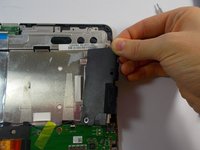
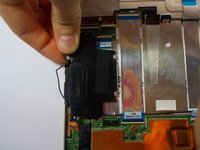
    • Remove the two speakers from the device's frame

    Ask FixBot

    Add Comment

  10. Asus Transformer Pad TF103C Screen Replacement: step 10, image 1 of 1
    • Use the +J000 screwdriver to remove the screw pictured. Then, remove the plastic cover that is labeled "M2".

    • Note: You will break the seal sticker on the screw.

    Ask FixBot

    Add Comment

  11. Asus Transformer Pad TF103C Screen Replacement: step 11, image 1 of 1
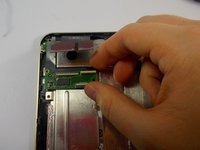
    • Remove the black tape from the ribbon cable and separate the cable from the soundboard.

    • Open the ribbon cable connector by lifting the white portion of the connectors up and to the left.

    Ask FixBot

    Add Comment

  12. Asus Transformer Pad TF103C Screen Replacement: step 12, image 1 of 1
    • Remove the screws from the soundboard with the +J000 screwdriver.

    Ask FixBot

    Add Comment

  13. Asus Transformer Pad TF103C Screen Replacement: step 13, image 1 of 1
    • Remove the soundboard.

    Ask FixBot

    Add Comment

  14. Asus Transformer Pad TF103C Screen Replacement: step 14, image 1 of 1
    • Remove the black tape from the motherboard. Unplug the ribbon cable from the volume and power buttons.

    Ask FixBot

    Add Comment

  15. Asus Transformer Pad TF103C Screen Replacement: step 15, image 1 of 1
    • Remove the three screws from the motherboard with the +J000 screwdriver.

    Ask FixBot

    Add Comment

  16. Asus Transformer Pad TF103C Screen Replacement: step 16, image 1 of 1
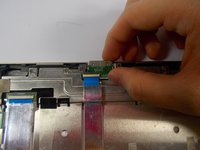
    • Unplug all three ribbon cables from the motherboard.

    Ask FixBot

    Add Comment

  17. Asus Transformer Pad TF103C Screen Replacement: step 17, image 1 of 1
    • Unhook the camera's ribbon cable from the underside of the motherboard and then remove the motherboard.

    Ask FixBot

    Add Comment

  18. Asus Transformer Pad TF103C Screen Replacement: step 18, image 1 of 1
    • Remove the two keyboard connector screws with the +J000 screwdriver.

    Ask FixBot

    Add Comment

  19. Asus Transformer Pad TF103C Screen Replacement: step 19, image 1 of 1
    • Remove the tape from the charging port chip.

    Ask FixBot

    Add Comment

  20. Asus Transformer Pad TF103C Screen Replacement: step 20, image 1 of 1
    • Unplug the two ribbon cables from the charging port chip.

    Ask FixBot

    Add Comment

  21. Asus Transformer Pad TF103C Screen Replacement: step 21, image 1 of 1
    • Remove the two charging port screws with the +J000 screwdriver.

    Ask FixBot

    Add Comment

  22. Asus Transformer Pad TF103C Screen Replacement: step 22, image 1 of 2 Asus Transformer Pad TF103C Screen Replacement: step 22, image 2 of 2
    • Remove the charging port chip and the keyboard connector chip.

    Ask FixBot

    Add Comment

  23. Asus Transformer Pad TF103C Screen Replacement: step 23, image 1 of 1
    • Remove all eight screws from the metal frame with the +J000 screwdriver.

    Ask FixBot

    Add Comment

  24. Asus Transformer Pad TF103C Screen Replacement: step 24, image 1 of 1
    • Carefully unpeel the metallic tape from the left side of the frame.

    • Don't unpeel the left side of the tape

    Ask FixBot

    Add Comment

  25. Asus Transformer Pad TF103C Screen Replacement: step 25, image 1 of 1
    • Carefully remove the frame and avoid getting it caught in the wires.

    • Watch out for the power and volume ribbon cables in the lower left corner.

    Ask FixBot

    Add Comment

  26. Asus Transformer Pad TF103C Screen Replacement: step 26, image 1 of 1
    • Use the plastic opening tool to pry the display screen from the front panel.

    • For better results, use opening picks and glide them around the screen tape. Note: you may need to replace the tape.

    • Some cracking sounds might happen as you break the adhesive.

    • Be careful not to break the glass screen cover.

    Ask FixBot

    Add Comment

  27. Asus Transformer Pad TF103C Screen Replacement: step 27, image 1 of 1
    • Replace the faulty display screen.

    Ask FixBot

    Add Comment

Conclusion

To reassemble your device, follow these instructions in reverse order.

Cancel: I did not complete this guide.

9 other people completed this guide.

Tyler Ellis

Member since: 10/28/15

668 Reputation

4 Guides authored

Team

UMass Dartmouth, Team 3-6, Shastany Fall 2015 Member of UMass Dartmouth, Team 3-6, Shastany Fall 2015

UMASSD-SHASTANY-F15S3G6

4 Members

5 Guides authored

2 Guide Comments

For step 5 it said to replace with a new battery. Is that necessary? Will the battery life of the tablet be affected if the battery is taken out and that same battery is placed back?

malomoses - Reply Share

I was wondering if you could tell me which ribbon cable connects the screen, and in particular the touch input to the main board. I would guess that it is the one labeled 14010-00190900.

I am having the problem with intermittent touch input failure, and since my device is not on warranty, I thought I might try replacing the ribbon cable.

korokinopio - Reply Share

Add Comment

View Statistics:

Past 24 Hours: 0

Past 7 Days: 11

Past 30 Days: 49

All Time: 9,760