
Asus TF300T Tablet Display Replacement

Khairuz Zaki Md Rujhan and 3 other contributors
Last updated on May 7, 2024
Views: 1.6K
View statistics:
- Past 24 Hours:
- 3
- Past 7 Days:
- 22
- Past 30 Days:
- 87
- All Time:
- 1,637
Comments: 1
1 comment on steps.
Completed: 0 1
No one has marked this guide "completed." Will you be the first?
1 person has marked this guide "completed." It's you — great job!
Favorites: 0 1
No one has favorited (and subscribed to) this guide. Will you be the first?
1 person has favorited (and subscribed to) this guide — and that's you!
Needs More Images
A few more images would make this guide's procedures crystal clear.
Introduction
Go to step 1 ↓The display for the tablet is one of the hardest parts to replace as it is attached by glued and you will need a hair dryer. The broken screen affects the display's functionality and will need replacement.
What you need
Tools


-
-
-
Disconnect the dock and make sure the power is turned off.
-
Use plastic opening tool to pry screen up and remove from outer casing.
 Ask FixBot
-
-
-
Pull up on the black circuit board protector.
-
Turn off the hard power switch before working with the tablet. Use a tool to slide the switch to the position marked "off".
-
-
Tool used on this step:Tweezers$4.99
-
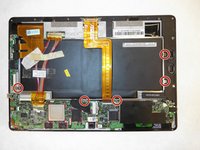
Use a Phillips #00 screwdriver to remove the 3mm screws connecting the battery to the motherboard.
-
Use the same screwdriver to remove two 3mm screws connecting the clips.
-
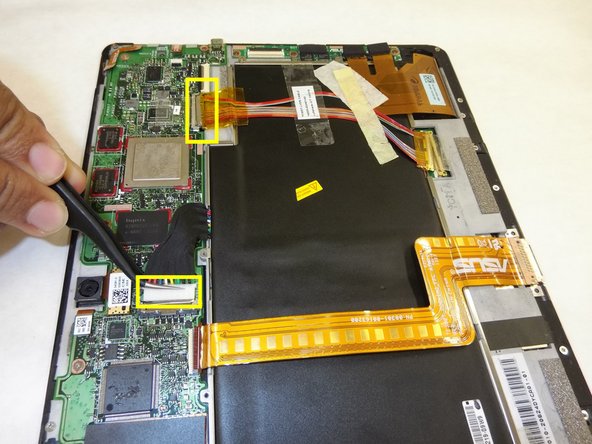
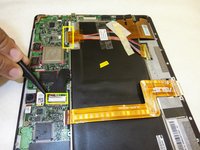
Use tweezers to remove two wires connected from the battery to the motherboard.
-
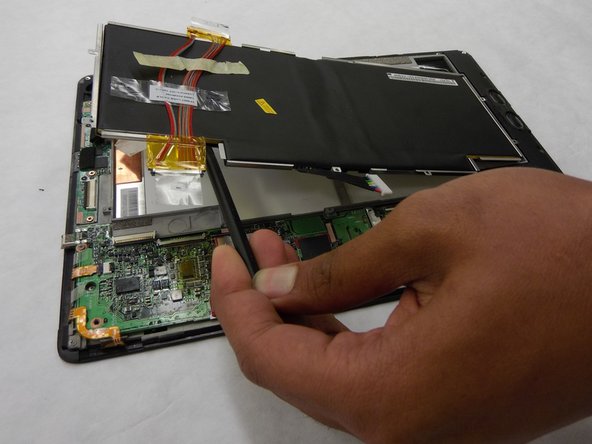
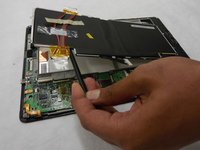
Use the spudger to remove the battery from the case.
-
-
-
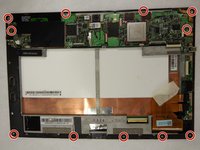
Use a Phillips #00 Screwdriver to remove the 3mm screws that connect the metal board with the screen.
-
-
-
-
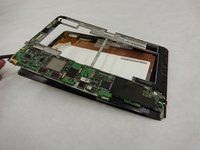
Use a hairdryer on high and heat the edges of the screen. Melt the adhesive holding the screen to the casing of the tablet.
-
Take out the display away from the screen.
-
-




To reassemble your device, follow these instructions in reverse order.

Team

IUPUI, Team S2-G2, Wilson Summer 2017 Member of IUPUI, Team S2-G2, Wilson Summer 2017
IUPUI-WILSON-SU17S2G2
3 Members
48 Guides authored
