Free Shipping on Domestic Orders $75+

Asus ROG G74SX-DH73-3D Track Pad Buttons Replacement

What you need

    1. Asus ROG G74SX-DH73-3D Track Pad Buttons Replacement, Battery: step 1, image 1 of 3 Asus ROG G74SX-DH73-3D Track Pad Buttons Replacement, Battery: step 1, image 2 of 3 Asus ROG G74SX-DH73-3D Track Pad Buttons Replacement, Battery: step 1, image 3 of 3
      • With your right hand, push the latch completely up to where you can see the battery pop slightly up. Pick and pull at the tab with your left hand.

      • You can now fully remove the battery from the device.

      Ask FixBot

      Add Comment

    1. Asus ROG G74SX-DH73-3D Track Pad Buttons Replacement, Track Pad Buttons: step 2, image 1 of 2 Asus ROG G74SX-DH73-3D Track Pad Buttons Replacement, Track Pad Buttons: step 2, image 2 of 2
      • Remove the large flathead screw holding the back cover in place.

      • Pull the cover off by prying it open starting from the top center and moving outwards.

      Ask FixBot

      Add Comment

    2. Asus ROG G74SX-DH73-3D Track Pad Buttons Replacement: step 3, image 1 of 2 Asus ROG G74SX-DH73-3D Track Pad Buttons Replacement: step 3, image 2 of 2
      • Remove the eight short screws holding in the two metal covers near the bottom.

      • Remove the two metal covers.

      Ask FixBot

      Add Comment

    3. Asus ROG G74SX-DH73-3D Track Pad Buttons Replacement: step 4, image 1 of 2 Asus ROG G74SX-DH73-3D Track Pad Buttons Replacement: step 4, image 2 of 2
      • Remove the battery to access the screws under it.

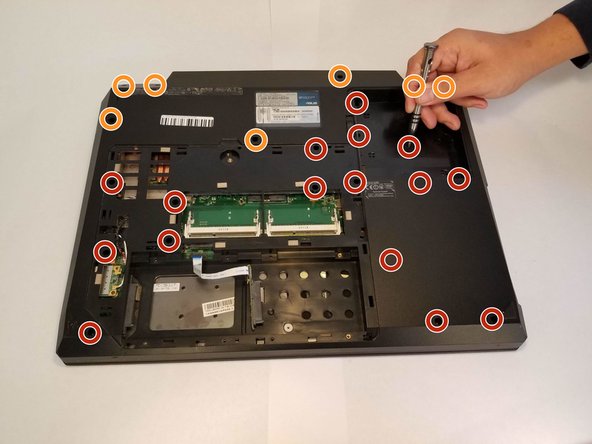
      • Remove these 16 screws with a regular Phillips head screw-driver.

      • These Phillips head screws will require a longer bit or an extension.

      Ask FixBot

      Add Comment

    4. Asus ROG G74SX-DH73-3D Track Pad Buttons Replacement: step 5, image 1 of 2 Asus ROG G74SX-DH73-3D Track Pad Buttons Replacement: step 5, image 2 of 2
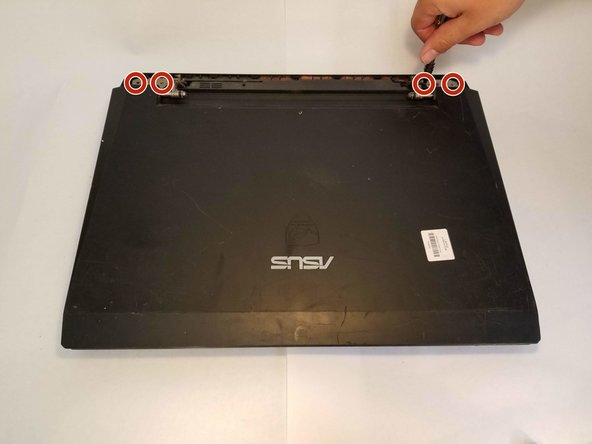
      • Flip the device back over.

      • Pull off the plastic cover behind the screen.

      • Remove the four Phillips head screws holding the screen in place.

      Ask FixBot

      Add Comment

    5. Asus ROG G74SX-DH73-3D Track Pad Buttons Replacement: step 6, image 1 of 2 Asus ROG G74SX-DH73-3D Track Pad Buttons Replacement: step 6, image 2 of 2
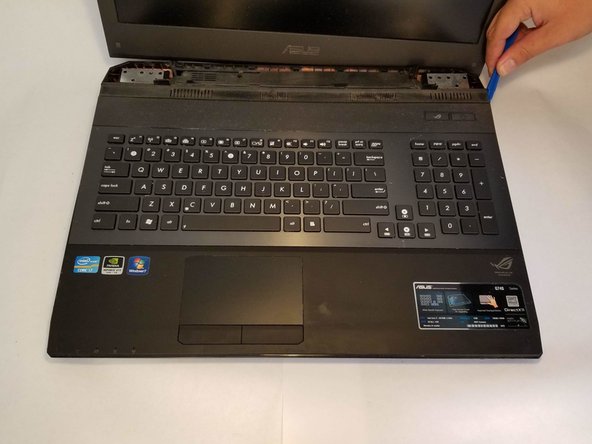
      • With the screen removed, pry the piece that has the keyboard and the track pad on it.

      Ask FixBot

      Add Comment

    6. Asus ROG G74SX-DH73-3D Track Pad Buttons Replacement: step 7, image 1 of 2 Asus ROG G74SX-DH73-3D Track Pad Buttons Replacement: step 7, image 2 of 2
      • Remove the two Phillips head screws holding the buttons in place.

      Ask FixBot

      Add Comment

Conclusion

To reassemble your device, follow these instructions in reverse order.

Cancel: I did not complete this guide.

0 Guide Comments

Add Comment

View Statistics:

Past 24 Hours: 2

Past 7 Days: 16

Past 30 Days: 67

All Time: 774