
Asus Q525U RAM Replacement

Stewart Crandall and 3 other contributors
Last updated on Jun 1, 2022
Views: 1.8K
View statistics:
- Past 24 Hours:
- 1
- Past 7 Days:
- 8
- Past 30 Days:
- 61
- All Time:
- 1,765
Comments: 0
No one has left comments on this guide. Will you be first?
Go to guide commentsCompleted: 1 2
1 person has marked this guide "completed." Will you be next?
2 people have marked this guide "completed." Including you — great job!
Favorites: 0 1
No one has favorited (and subscribed to) this guide. Will you be the first?
1 person has favorited (and subscribed to) this guide — and that's you!
Introduction
Go to step 1 ↓If your laptop is displaying the dreaded ‘blue screen of death,’ randomly reboots itself, and/or frequently freezes, you will need to replace the Random Access Memory (RAM) on your laptop. You may also want to upgrade your RAM for more memory. Follow this guide in order to replace or upgrade your RAM.
Remember to power off your laptop and unplug it from the power adapter prior to beginning this repair.
What you need
Tools
-
-
Spudger4.9


-
-
-
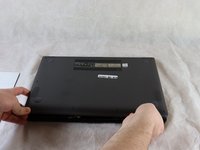
Carefully remove the two longer 9.5 mm screws on the corners with a Phillips #1 screwdriver.
-
Remove the eight 7.5 mm Phillips #1 screws on the back of the device.
 Ask FixBot
-
-
-
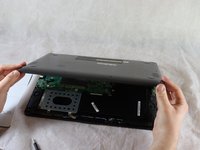
Once the cover has been separated from the device, carefully lift the back cover off the device (begin by lifting from the front of the cover first).
-
-
-
-
-
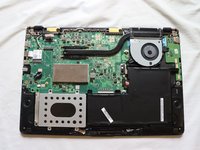
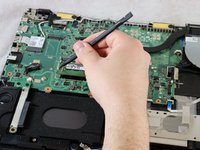
Position the flat end of the Spudger under one of the corners on the RAM cover and pry it up slightly.
-
Move the spudger around the periphery of the cover to lift the cover up.
-
-
-
-
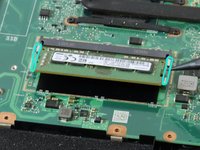
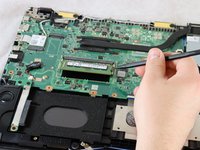
Using a spudger or your fingers, gently pull the metal brackets away from the RAM.
-
-





To reassemble your device, follow these instructions in reverse order.
Cancel: I did not complete this guide.
One other person completed this guide.

Team

Clemson, Team 2-5, Hunter Spring 2022 Member of Clemson, Team 2-5, Hunter Spring 2022
CLEM-HUNTER-S22S2G5
4 Members
72 Guides authored
