Free Shipping on Domestic Orders $75+

Asus 1015E-DS03 Keyboard Replacement

What you need

    1. Asus 1015E-DS03 Keyboard Replacement, Battery: step 1, image 1 of 1
      • Hold the laptop using both hands with the battery facing upwards.

      Ask FixBot

      Add Comment

    2. Asus 1015E-DS03 Keyboard Replacement: step 2, image 1 of 1
      • Push the two tabs located below the battery in towards each other using your thumbs.

      Ask FixBot

      Add Comment

    3. Asus 1015E-DS03 Keyboard Replacement: step 3, image 1 of 1
      • Push the battery upwards and out of the laptop as shown.

      Ask FixBot

      Add Comment

    4. Asus 1015E-DS03 Keyboard Replacement: step 4, image 1 of 1
      • Continue to push the battery upwards until it is completely separated from the laptop as shown.

      Ask FixBot

      Add Comment

    1. Asus 1015E-DS03 Keyboard Replacement, Keyboard: step 5, image 1 of 1
      • Once the battery is removed, unscrew the highlighted 3mm screws (4) using a #0 Phillps head screwdriver.

      • Be very careful not to lose the screws, these four screws are very small.

      Ask FixBot

      Add Comment

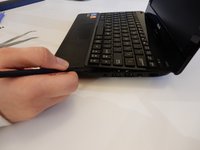
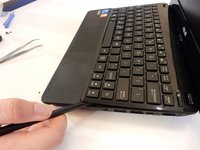
    2. Asus 1015E-DS03 Keyboard Replacement: step 6, image 1 of 2 Asus 1015E-DS03 Keyboard Replacement: step 6, image 2 of 2
      • After all four screws are removed, flip the laptop over with the keyboard facing up.

      • Use a spudger to pry up where the keyboard is attached to the laptop on all sides until it is detached from the laptop.

      • It is normal to hear cracking noises when prying off the keyboard.

      • After keyboard is detached from laptop, there is a ribbon cable still attached to the motherboard. See next step before completely removing keyboard.

      Ask FixBot

      Add Comment

    3. Asus 1015E-DS03 Keyboard Replacement: step 7, image 1 of 1
      • After the keyboard is detached, the ribbon cable which connects the keyboard to the laptop's motherboard is exposed.

      • Be careful not to tear or rip the ribbon cable.

      Ask FixBot

      Add Comment

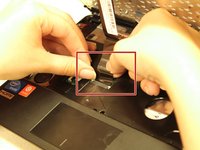
    4. Asus 1015E-DS03 Keyboard Replacement: step 8, image 1 of 1
      • Using the spudger push the white clips upwards that are holding the cable.

      Ask FixBot

      Add Comment

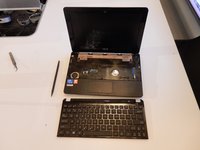
    5. Asus 1015E-DS03 Keyboard Replacement: step 9, image 1 of 2 Asus 1015E-DS03 Keyboard Replacement: step 9, image 2 of 2
      • Gently pull the strip out of the square slot.

      Ask FixBot

      Add Comment

Conclusion

To reassemble your device, follow these instructions in reverse order.

Cancel: I did not complete this guide.

2 other people completed this guide.

Joe Capriola

Member since: 03/21/16

494 Reputation

3 Guides authored

Team

Clemson, Team 7-4, Benson Spring 2016 Member of Clemson, Team 7-4, Benson Spring 2016

CLEM-BENSON-S16S7G4

5 Members

21 Guides authored

0 Guide Comments

Add Comment

View Statistics:

Past 24 Hours: 1

Past 7 Days: 7

Past 30 Days: 37

All Time: 1,603