
Apple USB SuperDrive Optical Drive Replacement

Alex Jansen and 10 other contributors
Last updated on Dec 16, 2024
Views: 95K
View statistics:
- Past 24 Hours:
- 21
- Past 7 Days:
- 119
- Past 30 Days:
- 551
- All Time:
- 94,920
Comments: 30
6 comments on steps, 24 guide comments.
Go to guide commentsCompleted: 55 56
55 people have marked this guide "completed." Will you be next?
56 people have marked this guide "completed." Including you — great job!
Favorites: 44 45
44 people have favorited (and subscribed to) this guide. Will you be next?
45 people have favorited (and subscribed to) this guide — including you!
Introduction
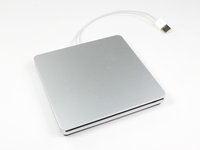
Go to step 1 ↓A simple guide to replacing the optical drive in the external optical drive sold by Apple for the MacBook Air. If your optical drive breaks, use this guide to replace it.
Note: Here's a method to hack the OS X configuration file for the SuperDrive to be used on the older iMac, MacBook, or MacBook Pro systems that the drive normally won't work with. Use with caution!
Open the com.apple.Boot.plist file in a text editor or in terminal use nano you will see a key <key>Kernel Flags</key>
Under it add the following line:
<string>mbasd=1</string>
Reboot your Mac.
If you have the later model A1379:
You will unfortunately need to replace the internal drive from another identical Apple external SuperDrive, as the contacts on the PCB are soldered to the USB cable directly. The model produced prior to 2012 is a standard PATA slimline drive, but any SuperDrive purchased from Apple in 2012 or later will need a soldering iron to repair.
What you need
Tools


-
-
-
To open the SuperDrive we must remove the lower case.
-
The lower case is attached by 8 clips.
-
6 along the sides
-
2 on the back
 Ask FixBot
-
-
-
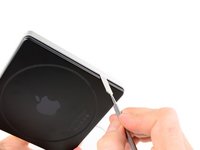
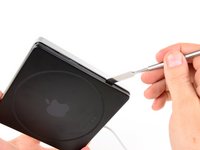
Insert a metal spudger down between the black lower case and the aluminum upper case.
-
Lightly pry back to gently lift the clip out of place, just far enough to disengage.
-
-
-
Repeat Step 2 for each of the 8 clips.
-
Continue until all of the clips have been disengaged and the lower case is free.
-
-
-
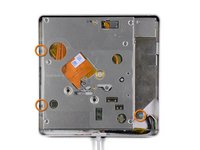
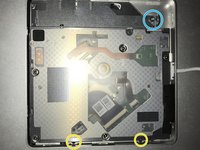
Remove the screws holding optical drive in the upper case
-
(A1270) three 3.8 mm with 1 mm deep head #00 Phillips head screws.
-
(A1379) 2 #00 Phillips head screws (I did not measure their length, sorry)
-
(A1379) 1 T9 torx screw
-
-
-
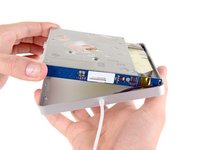
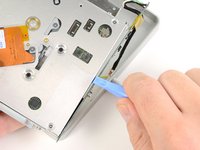
(A1270) Lift the optical drive from the thick side, then pull out.
-
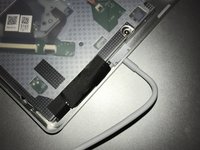
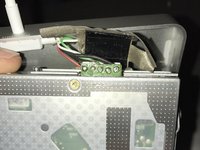
(A1379) You will need to be even more careful with this model, as there is less wiggle room. Peel back the insulation tape to see the connector.
-
When re-installing the optical drive insert tongue in groove side first, as pictured.
-
-
-
-
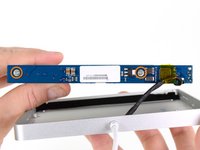
(A1270) Remove screws holding the board to optical drive.
-
two 3.8 mm #00 Phillips head screws.
-
-
-
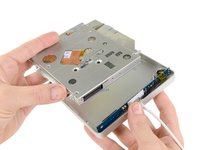
Use a plastic opening tool to remove the board from the optical drive.
-
The optical drive is now free from the case.
-
-












To reassemble your device, follow these instructions in reverse order.
Cancel: I did not complete this guide.
55 other people completed this guide.

24 Guide Comments
After you pry open, inside there is an internal Super Drive.
Please tell me what's the markings/printed words model, name, brand, part number, etc....
Thank you.
My drive has nothing on that orange part in the middle of the drive (like you can see in the pictures here) except for two QR codes; it has absolutely no markings/printed words model, name, brand, part number, etc. on the inside, except the manufacturing date 2012 stamped inside the black aluminum bottom case cover.
Hope this helps.
Thank you. My drive from 2012 ist fastened with a six-sided star-shaped Torx screw on the right side. The ones on the left side are black Philips screws and they are so tiny that they are hard to see in normal light. All I want to do is clean the drive from dust since it won't read DVDs anymore, while it has no problems with CDs at all. So now this Torx screw is another obstacle. I will have to waste more time & money buying an extra tool, thanks to Apple.
Is it possible to replace the internal DVD drive by a Bluray? Does macOS Sierra work with external Bluray drives?
Thanks for helping.
Sincerely
Yes, but the only drive that is known to be an ATAPI (EIDE) connecting drive that supports Blu-ray is the Panasonic UJ-215-B. They were astronomically priced new in 2007-2008 when they were released. Good luck finding one today, and if you do it will still be very expensive and almost never a new one. But it seems to be a direct drop in replacement. I myself have already begun this project, and have one on the way right now. Bought it for $250 so it was pricey but considering it was new I got very lucky.
