Free Shipping on Domestic Orders $75+

Apple Time Capsule Model A1254 Logic Board Replacement

Views: 11K

View statistics:

Past 24 Hours:
4
Past 7 Days:
27
Past 30 Days:
127
All Time:
11,048
Comments: 29

27 comments on steps, 2 guide comments.

Go to guide comments
Completed: 7

7 people have marked this guide "completed." Will you be next?

Favorites: 1

1 person has favorited (and subscribed to) this guide. Will you be next?

Time Required: 15 minutes
Difficulty: Easy
Featured Student Guide

This guide has been the hard work of our awesome students and is found to be exceptionally cool by the iFixit staff.

Apple Time Capsule Model A1254 Logic Board Replacement

Introduction

Go to step 1 ↓

The Logic Board is like the central nervous system of the Time Capsule. Without the Logic Board the device will not function. The Ethernet ports are attached to the Logic Board, so if one port is damaged then you must replace the whole board. Use this guide to easily replace the damaged component.

What you need

Tools

    1. Apple Time Capsule Model A1254 Logic Board Replacement, Back Plate: step 1, image 1 of 3 Apple Time Capsule Model A1254 Logic Board Replacement, Back Plate: step 1, image 2 of 3 Apple Time Capsule Model A1254 Logic Board Replacement, Back Plate: step 1, image 3 of 3
      • Turn the device upside down to reveal the rubber section of the back plate. Using a metal spudger, carefully wedge the blunt tip into the space between the aluminum back plate and the rubber, separating the two pieces.

      • This may take a few minutes to pry the rubber off completely. Once your are able to get a grip on the rubber it is easier to peel it off using your hands.

      • Depending on air temperature and how set the adhesive is, you may need to spend some time warming the back plate with a hot plate (on low) or hair dryer.

      • Don't worry about re-applying adhesive to the rubber; the remaining adhesive has plenty of strength to affix itself to the aluminum.

      Ask FixBot

      Add Comment

    2. Apple Time Capsule Model A1254 Logic Board Replacement: step 2, image 1 of 2 Apple Time Capsule Model A1254 Logic Board Replacement: step 2, image 2 of 2
      • Remove the ten 3mm screws with a Phillips #00 screwdriver.

      • The screws with adhesive covering do not need to be removed.

      Ask FixBot

      Add Comment

    3. Apple Time Capsule Model A1254 Logic Board Replacement: step 3, image 1 of 2 Apple Time Capsule Model A1254 Logic Board Replacement: step 3, image 2 of 2
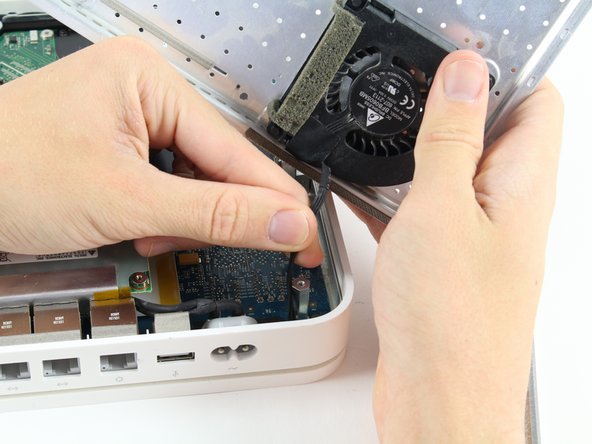
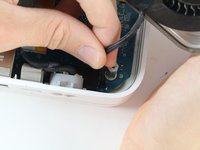
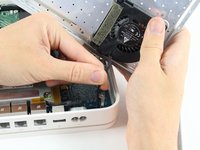
      • The fan affixed to the back plate is connected to the logic board. A small wire must be detached to fully remove the back plate.

      • Pull the base of the wire close to the logic board and the connector will pop off.

      Ask FixBot

      Add Comment

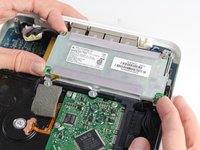
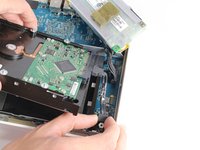
    1. Apple Time Capsule Model A1254 Logic Board Replacement, Internal Power Supply Replacement: step 4, image 1 of 2 Apple Time Capsule Model A1254 Logic Board Replacement, Internal Power Supply Replacement: step 4, image 2 of 2
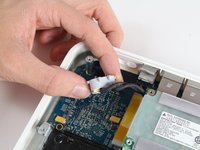
      • Remove the external connector from its housing by lifting it up, then out.

      • Lift the internal power supply brick out of the device.

      • You may have to wiggle the brick slightly when removing it, but it will lift straight up and out as nothing else is holding it down.

      Ask FixBot

      Add Comment

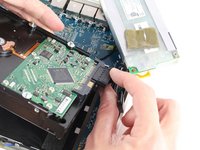
    2. Apple Time Capsule Model A1254 Logic Board Replacement: step 5, image 1 of 1
      • Disconnect the SATA connector from the hard drive.

      • This cable does not have a locking mechanism so it can just be pulled out.

      Ask FixBot

      Add Comment

    3. Apple Time Capsule Model A1254 Logic Board Replacement: step 6, image 1 of 1
      • Disconnect the final power cable from the logic board.

      • Be careful when pushing in the tab on the logic board connector to release the cable lock.

      Ask FixBot

      Add Comment

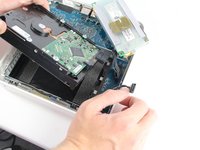
    1. Apple Time Capsule Model A1254 Logic Board Replacement, Hard Drive: step 7, image 1 of 1
      • Peel off the adhesive backed foam from the top of the drive.

      • Lift the drive straight up and out of the device.

      Ask FixBot

      Add Comment

    2. Apple Time Capsule Model A1254 Logic Board Replacement: step 8, image 1 of 3 Apple Time Capsule Model A1254 Logic Board Replacement: step 8, image 2 of 3 Apple Time Capsule Model A1254 Logic Board Replacement: step 8, image 3 of 3
      • Remove the SATA connector and power connector from the end of the hard drive by simply pulling the cables straight away from the connection points.

      Ask FixBot

      Add Comment

    1. Apple Time Capsule Model A1254 Logic Board Replacement, Logic Board: step 9, image 1 of 1
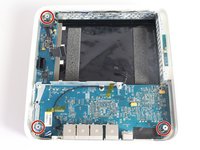
      • Remove the three 4mm screws from the base of the board with a Phillips #0 screwdriver.

      • The center screw will release a small aluminum mounting block, be sure to keep track of this for reassembly.

      Ask FixBot

      Add Comment

    2. Apple Time Capsule Model A1254 Logic Board Replacement: step 10, image 1 of 2 Apple Time Capsule Model A1254 Logic Board Replacement: step 10, image 2 of 2
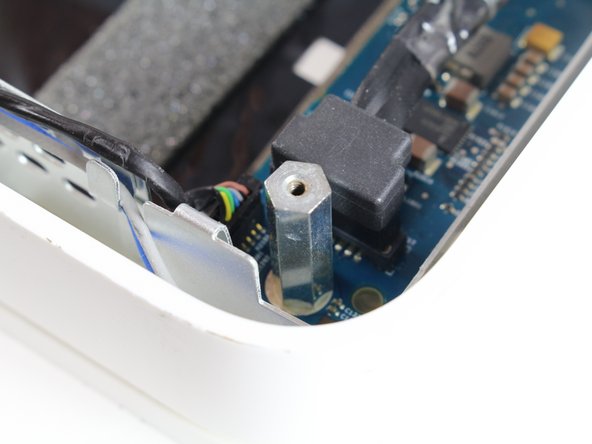
      • Remove the three hexagonal mounting blocks by twisting them counter clockwise.

      • Some of the mounting blocks may need to be loosened by a wrench or a small set of plyers first before being removed by hand.

      Ask FixBot

      Add Comment

    3. Apple Time Capsule Model A1254 Logic Board Replacement: step 11, image 1 of 1
      • Press in the two aluminum tabs to lift the board up and out from under the tabs.

      • There are still connectors keeping the board attached to the device shell. Do NOT remove the board all the way at this step, just out from under the tabs.

      Ask FixBot

      Add Comment

    4. Apple Time Capsule Model A1254 Logic Board Replacement: step 12, image 1 of 1
      • Remove the LED cable from the top left corner of the logic board by pulling the cable straight out and away from the board.

      Ask FixBot

      Add Comment

    5. Apple Time Capsule Model A1254 Logic Board Replacement: step 13, image 1 of 1
      • Pull the two indicated tabs away from the Wi-Fi Module and carefully pull out the card.

      • This can be tricky sometimes, you may need to ask a friend for a spare set of hands to pull apart the tabs, if it's too fiddly for you.

      Ask FixBot

      Add Comment

Conclusion

To reassemble your device, follow these instructions in reverse order.

Cancel: I did not complete this guide.

7 other people completed this guide.

Patrick Butler

Member since: 10/06/16

1,187 Reputation

2 Guides authored

Team

Cal Poly, Team 4-2, Livingston Fall 2016 Member of Cal Poly, Team 4-2, Livingston Fall 2016

CPSU-LIVINGSTON-F16S4G2

4 Members

60 Guides authored

2 Guide Comments

Between step 12 and 13 there is no detail on how to remove the board! I did the procedure until step #12 but board is firmly attached to the case! even after pullling the metal tabs it’s still glued to the base, please help

Juan Fonseca - Reply Share

The board seems stuck because of sticky thermal pads between the chips and the housing. Assuming all screws are removed and cables disconnected, you should be able to pull up the board by just applying force. Hope this helps.

Steffen Moldekleiv - Reply Share

Add Comment

View Statistics:

Past 24 Hours: 4

Past 7 Days: 27

Past 30 Days: 127

All Time: 11,048