
Apple IIc Floppy Drive Replacement

Alexandria Weinberg and 5 other contributors
Last updated on Jan 28, 2014
Views: 6.6K
View statistics:
- Past 24 Hours:
- 2
- Past 7 Days:
- 22
- Past 30 Days:
- 111
- All Time:
- 6,574
Comments: 3
3 comments on steps.
Completed: 8 9
8 people have marked this guide "completed." Will you be next?
9 people have marked this guide "completed." Including you — great job!
Favorites: 7 8
7 people have favorited (and subscribed to) this guide. Will you be next?
8 people have favorited (and subscribed to) this guide — including you!
Introduction
Go to step 1 ↓If your driver is malfunctioning or broken, this guide will show you how to replace your Apple IIc floppy Drive.
What you need
Tools


-
-
-
Remove the six 19 mm long screws with a #2 Phillips head screwdriver.
 Ask FixBot
-
-
-
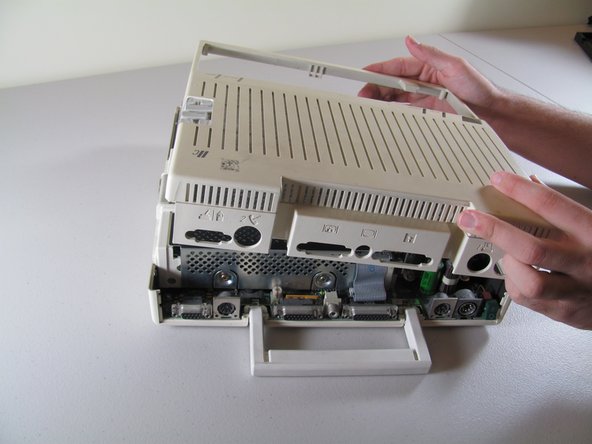
Slide the case toward the ports on the back, then grip under the catch and pull up while moving toward the ports to remove.
-
-
-
-
-
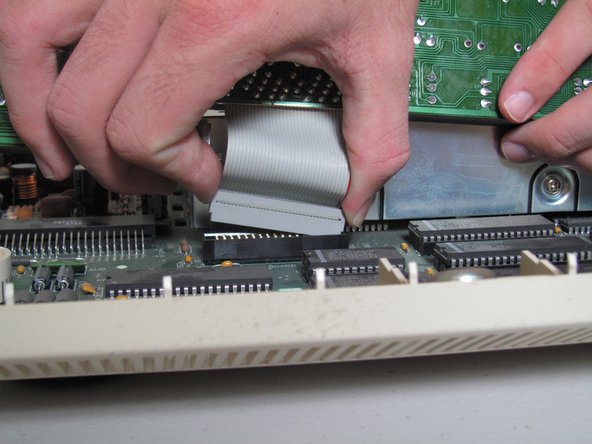
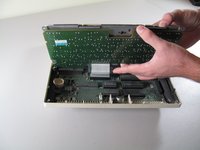
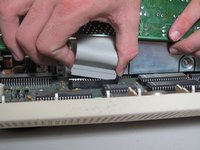
Tilt the keyboard up while detaching the ribbon connection by pulling it straight up. You may have to wiggle the connector sideways to loosen it.
-
-
-
-
-
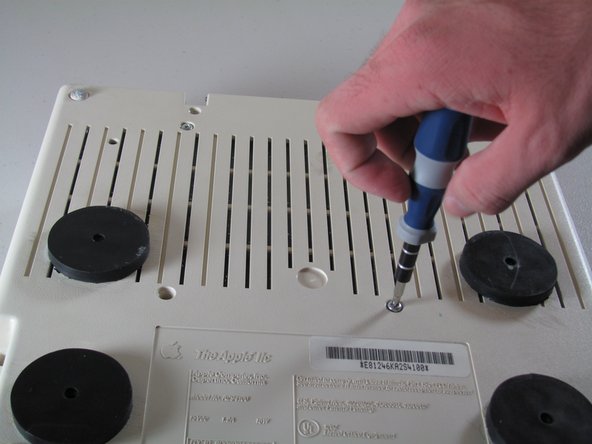
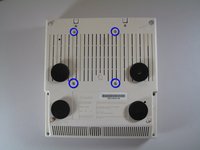
Carefully place device upside down to remove the four centered 21.1 mm screws that secure the floppy drive.
-
-
-
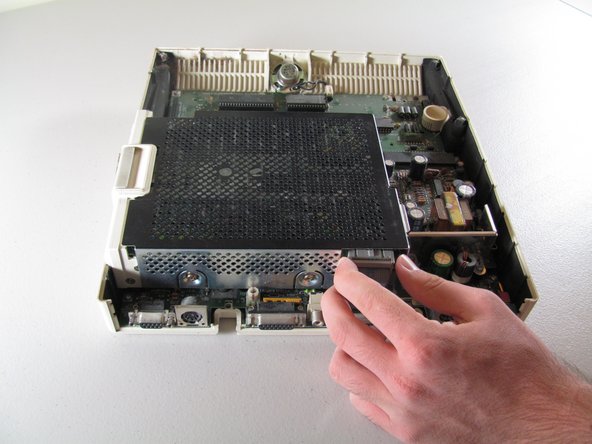
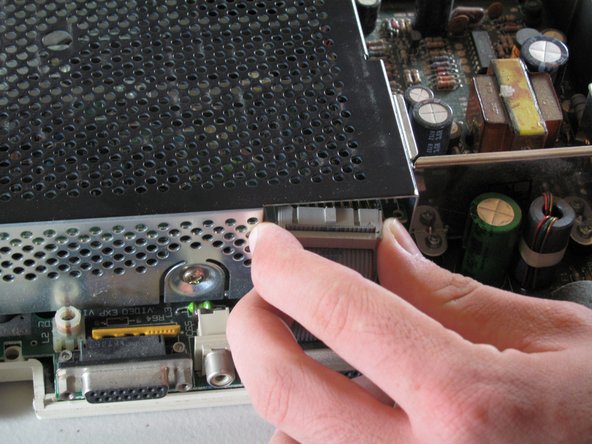
Carefully detach ribbon connector from floppy disk drive by pulling it out horizontally.
-
-
-
-
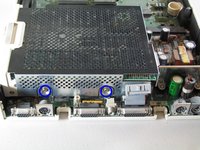
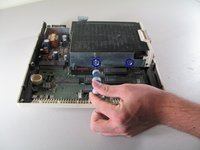
Unscrew the four 8.5 mm screws that attach the floppy drive cage. Two screws are located on the front and back of the cage.
-
-




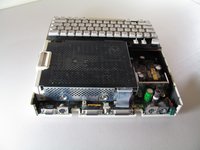




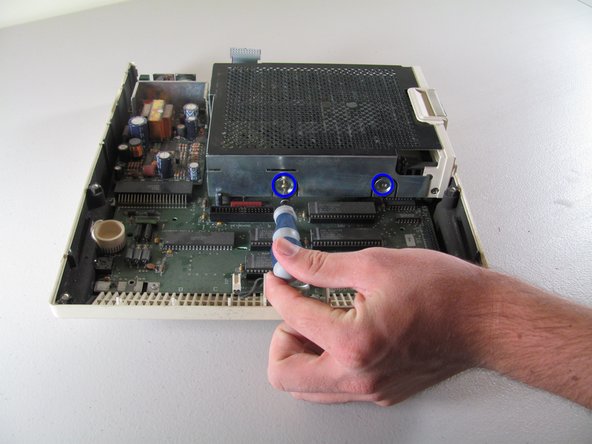

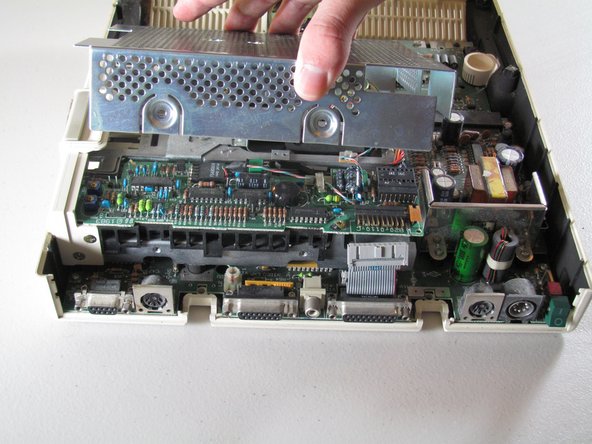
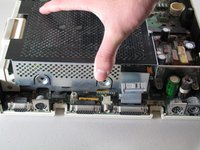
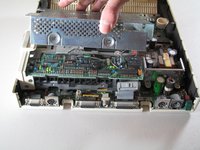

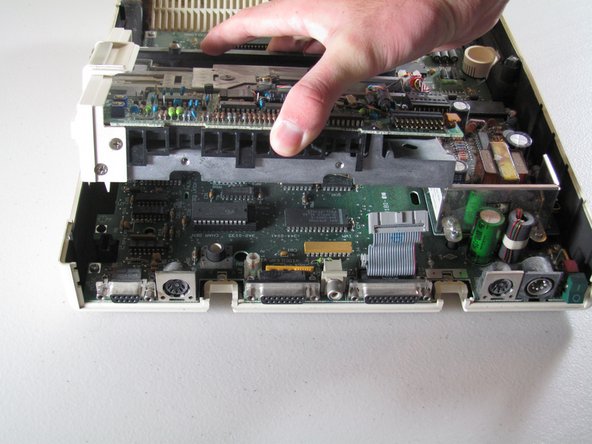
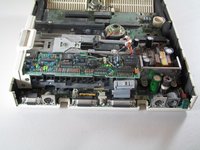
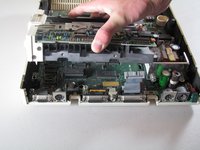
To reassemble your device, follow these instructions in reverse order.
Cancel: I did not complete this guide.
8 other people completed this guide.

Team

Cal Poly, Team 21-23, Maness Fall 2011 Member of Cal Poly, Team 21-23, Maness Fall 2011
CPSU-MANESS-F11S21G23
4 Members
72 Guides authored
