
Anker 2.4G Wireless Mouse Sensor Replacement

Ryan and 12 other contributors
Last updated on Dec 27, 2021
Views: 8.8K
View statistics:
- Past 24 Hours:
- 2
- Past 7 Days:
- 24
- Past 30 Days:
- 99
- All Time:
- 8,785
Comments: 0
No one has left comments on this guide. Will you be first?
Go to guide commentsCompleted: 2 3
2 people have marked this guide "completed." Will you be next?
3 people have marked this guide "completed." Including you — great job!
Favorites: 0 1
No one has favorited (and subscribed to) this guide. Will you be the first?
1 person has favorited (and subscribed to) this guide — and that's you!
Incorrect Tools
Help make this guide better by using the correct tools in images and/or text.
Introduction
Go to step 1 ↓This manual shows how to simply replace the sensor on the Anker 2.4G wireless mouse. Before moving on with the first step, check the battery casing for any corrosion or visible damage. Beware, this guide requires use of a soldering iron which needs to be handled with caution. The instructions on how to solder can be found here How To Solder and Desolder Connections.
What you need
Parts
Tools


-
-
-
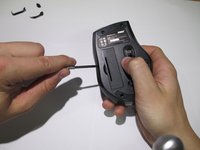
Using a spudger, carefully pry off the stickers to reveal the location of four screws.
 Ask FixBot
-
-
-
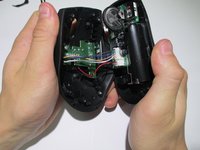
Using a spudger, carefully pry apart the upper and lower housing of the mouse.
-
-
-
Tool used on this step:Anti-Static Wrist Strap$7.95
-
Gently lift the motherboard away from the plastic housing.
-
-
-
Desolder the six wires holding the I.C. in place to complete the sensor change.
-
-




To reassemble your device, follow these instructions in reverse order.
Cancel: I did not complete this guide.
2 other people completed this guide.

Team

Cal Poly, Team 1-39, Maness Winter 2014 Member of Cal Poly, Team 1-39, Maness Winter 2014
CPSU-MANESS-W14S1G39
4 Members
96 Guides authored
