
Amazon Kindle DX LCD Replacement

Lori White and 9 other contributors
Last updated on Jan 29, 2019
Views: 4.7K
View statistics:
- Past 24 Hours:
- 3
- Past 7 Days:
- 27
- Past 30 Days:
- 115
- All Time:
- 4,722
Comments: 4
1 comment on steps, 3 guide comments.
Go to guide commentsCompleted: 0 1
No one has marked this guide "completed." Will you be the first?
1 person has marked this guide "completed." It's you — great job!
Favorites: 0 1
No one has favorited (and subscribed to) this guide. Will you be the first?
1 person has favorited (and subscribed to) this guide — and that's you!
Missing Steps
Oops! This guide is currently missing one or more important steps.
Introduction
Go to step 1 ↓This guide will show users how to replace the LCD screen on the Amazon Kindle DX in just a few simple steps.
Note: This guide is incomplete, the motherboard will need to be removed before the screen can be replaced.
What you need
Tools


-
-
-
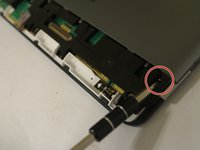
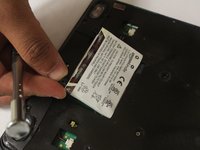
Take your Kindle and place it screen side down in order to open it from the back. Use the opening tool from the ifixit tool kit and insert it between the metal casing and plastic top piece.
 Ask FixBot
-
-
-
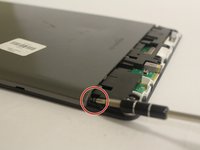
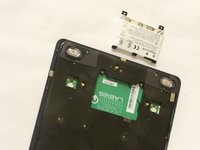
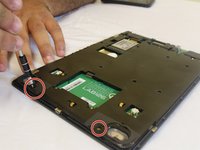
Once the small plastic piece is removed you will need to locate two 40mm screws on both corners of the remaining casing. Use the PH000 Philips Head Screwdriver from the tool kit to remove both screws.
-
-
-
-
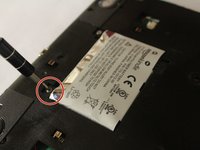
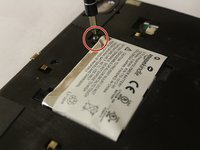
Locate the two 30mm screws securing the battery on the bottom of the Kindle DX. Use the PH00 Philips head screw driver from the tool kit to remove both screws.
-
-
-
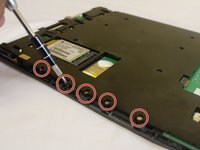
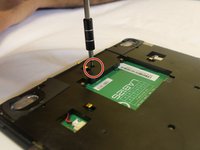
Unscrew the 30 mm screws using a Phillips #000 screwdriver as shown in the picture.
-
-
-
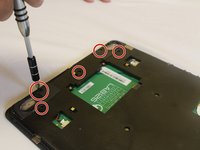
Unscrew the 30 mm screws using a Phillips #000 screwdriver as demonstrated in the picture.
-
-












To reassemble your device, follow these instructions in reverse order.

Team

USF Tampa, Team 1-5, Cagle Fall 2016 Member of USF Tampa, Team 1-5, Cagle Fall 2016
USFT-CAGLE-F16S1G5
3 Members
48 Guides authored
3 Guide Comments
Guide is incomplete :(
I can follow and understand up to step 11.
Steps 12 and 13 loose me, why would one need to remove the metal protection lid / shield? There does not seem to be any screws covered by the lids that need to be removed.
one would need to unclip the screen from the motherboard the lead off board from the wireless card to aerial and unscrew the remaining motherboard screws at least before you could remove the motherboard to access the screen to replace it.
Guide is useless and should be removed or replaced.
