Free Shipping on Domestic Orders $75+

Amazon Echo Show 8 3rd Gen Display Assembly Replacement

What you need

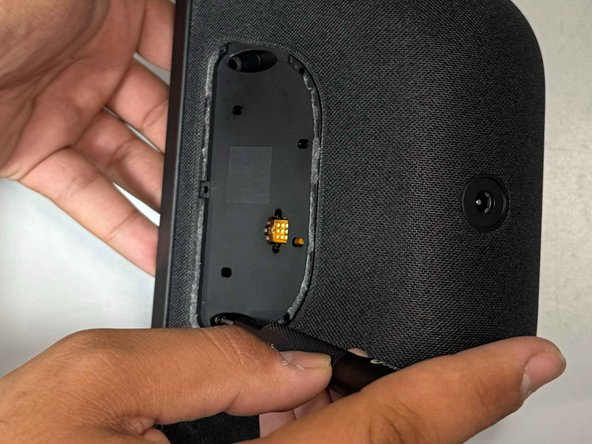
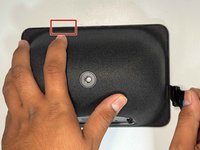
    1. Amazon Echo Show 8 3rd Gen Display Assembly Replacement, Power Board: step 1, image 1 of 3 Amazon Echo Show 8 3rd Gen Display Assembly Replacement, Power Board: step 1, image 2 of 3 Amazon Echo Show 8 3rd Gen Display Assembly Replacement, Power Board: step 1, image 3 of 3
      • Use a prying tool to remove the rubber foot at the bottom.

      • It is secured with adhesive and will lift off with some gentle prying.

      • Use an opening pick to remove the screw cover.

      Ask FixBot

      Add Comment

    2. Amazon Echo Show 8 3rd Gen Display Assembly Replacement: step 2, image 1 of 2 Amazon Echo Show 8 3rd Gen Display Assembly Replacement: step 2, image 2 of 2
      • Use a Torx TR8 screwdriver to remove the two 2 cm screws.

      Ask FixBot

      Add Comment

    3. Amazon Echo Show 8 3rd Gen Display Assembly Replacement: step 3, image 1 of 2 Amazon Echo Show 8 3rd Gen Display Assembly Replacement: step 3, image 2 of 2
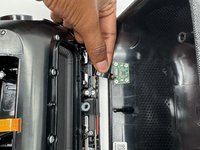
      • Insert a jimmy in the gap between the display and chassis.

      • Pry around the perimeter until the back case releases.

      • Be careful as to not damage the ribbon cable on the top left area of the screen.

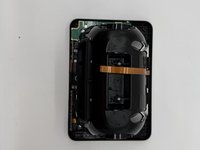
      • Remove the back case.

      Ask FixBot

      Add Comment

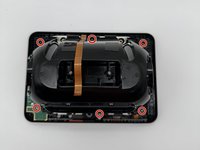
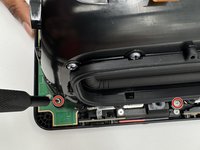
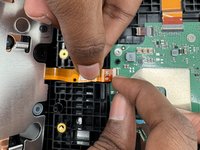
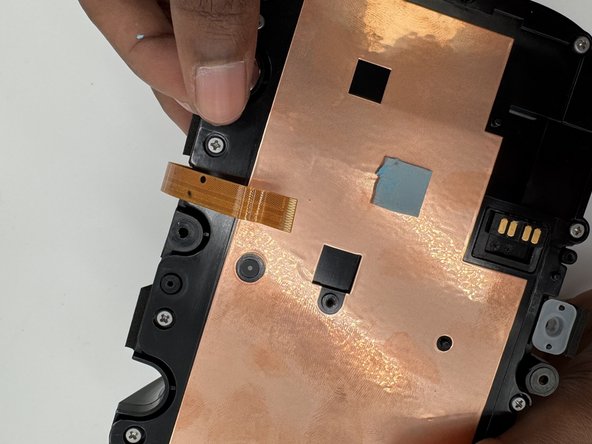
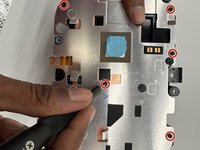
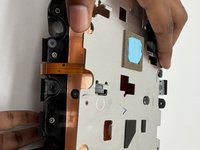
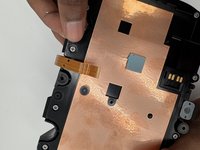
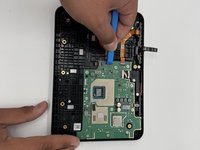
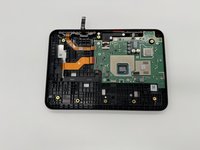
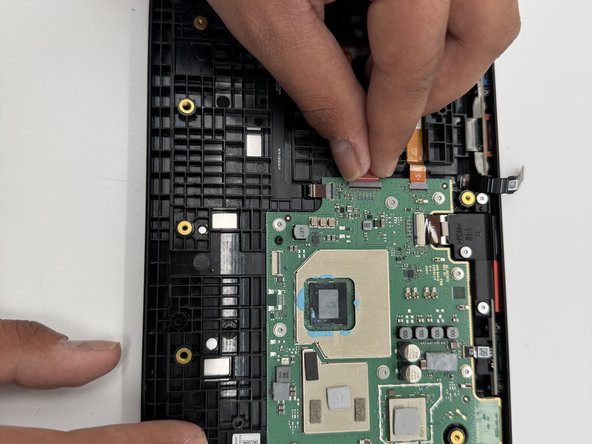
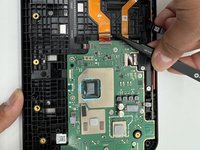
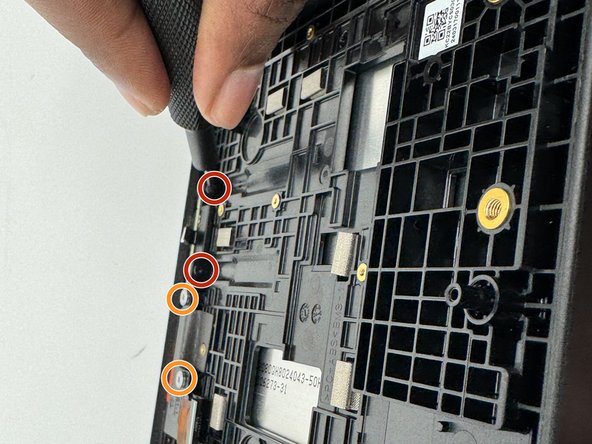
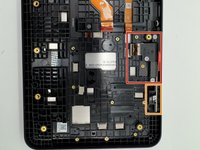
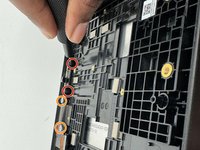
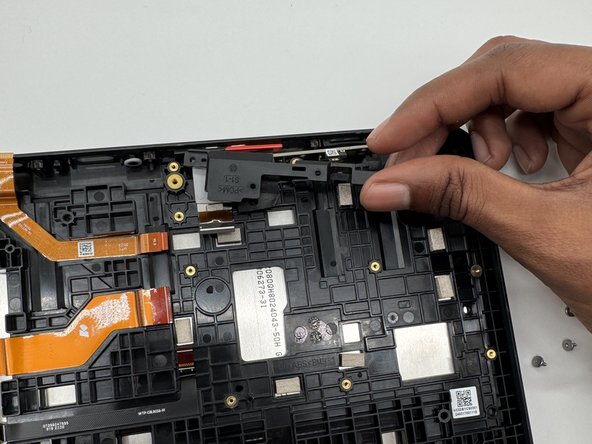
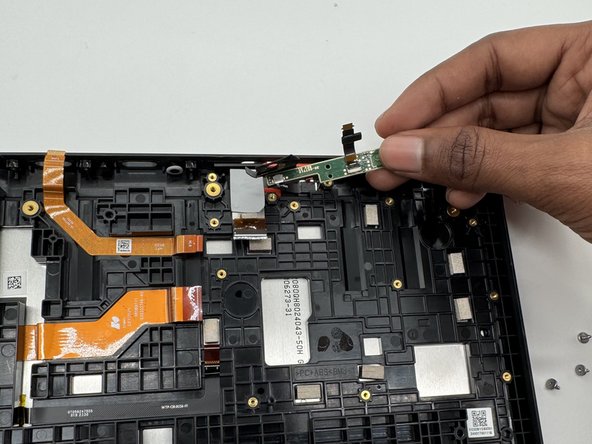
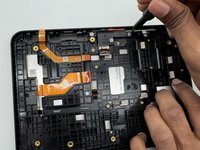
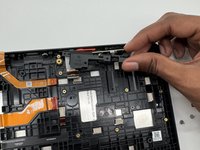
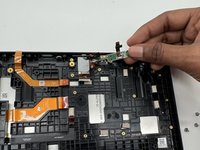
    4. Amazon Echo Show 8 3rd Gen Display Assembly Replacement: step 4, image 1 of 3 Amazon Echo Show 8 3rd Gen Display Assembly Replacement: step 4, image 2 of 3 Amazon Echo Show 8 3rd Gen Display Assembly Replacement: step 4, image 3 of 3
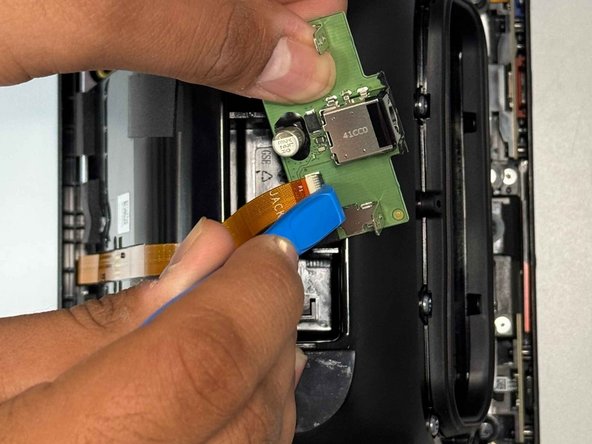
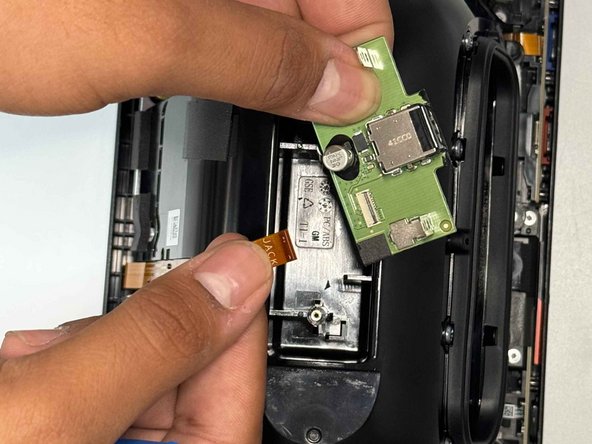
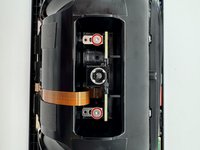
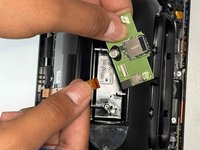
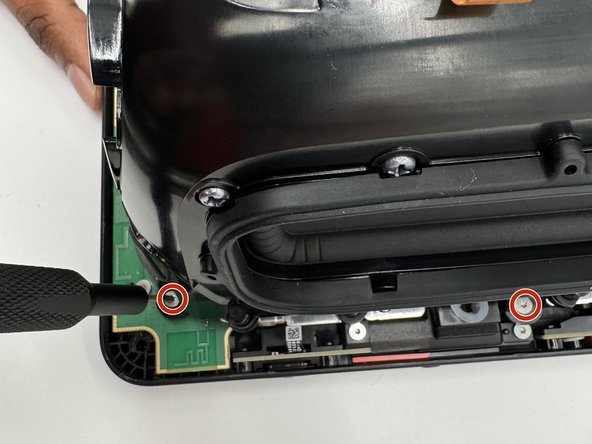
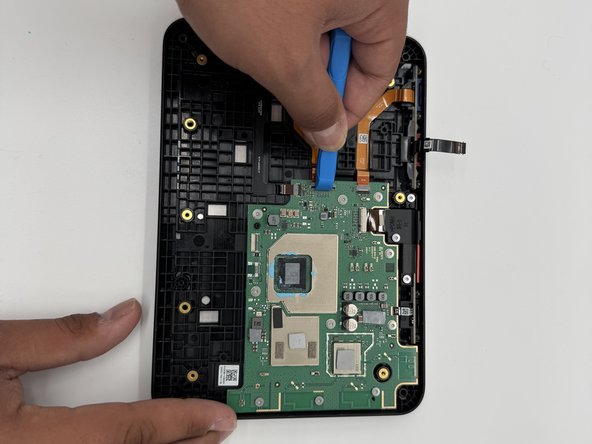
      • Use a Torx TR6 screwdriver to remove the two 5 mm screws that secure the power board.

      • Carefully lift the board without straining the ribbon cable.

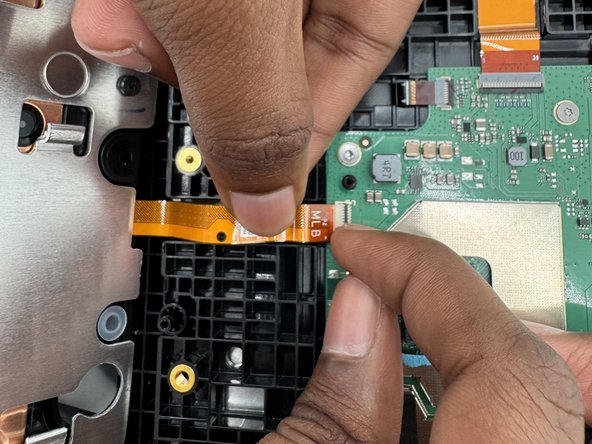
      • Using an opening tool, carefully flip up the black ZIF locking flap that secures the ribbon cable.

      • Disconnect the ribbon cable.

      Ask FixBot

      Add Comment

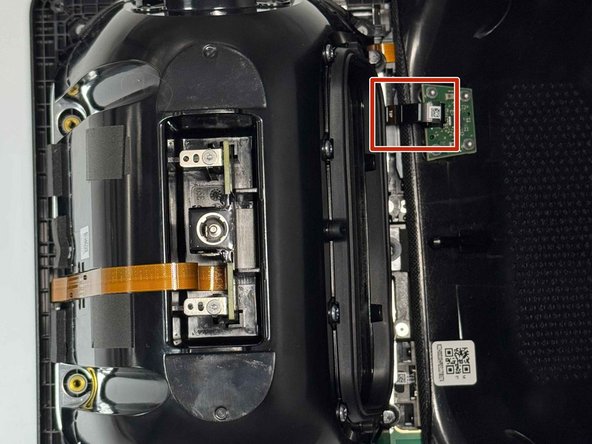
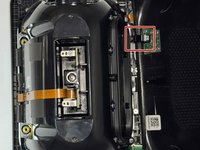
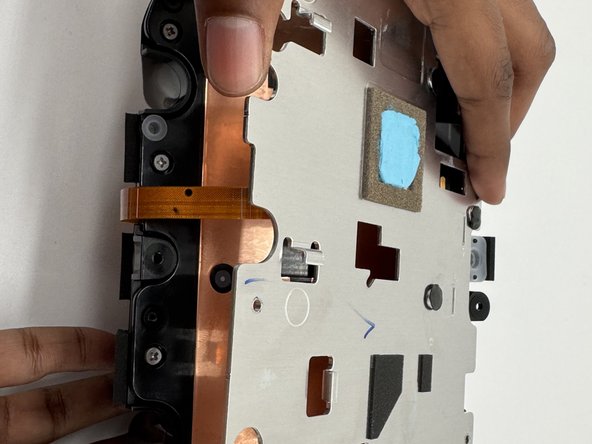
    1. Amazon Echo Show 8 3rd Gen Display Assembly Replacement, Speakers: step 5, image 1 of 3 Amazon Echo Show 8 3rd Gen Display Assembly Replacement, Speakers: step 5, image 2 of 3 Amazon Echo Show 8 3rd Gen Display Assembly Replacement, Speakers: step 5, image 3 of 3
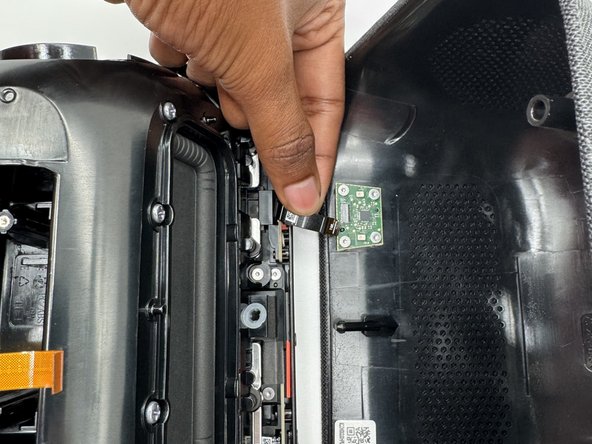
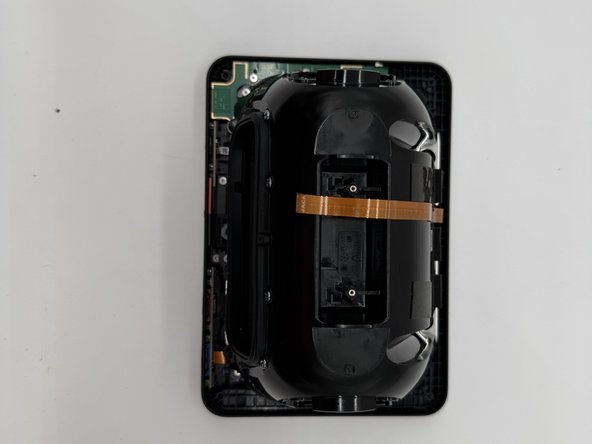
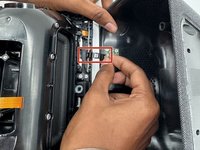
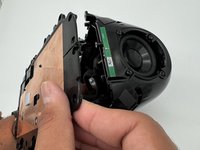
      • Gently tilt the shell towards the top of the device and disconnect the ribbon cable from the board on the case.

      • Don't tilt the cable too much as you can damage the ribbon or the connector.

      Ask FixBot

      Add Comment

    2. Amazon Echo Show 8 3rd Gen Display Assembly Replacement: step 6, image 1 of 3 Amazon Echo Show 8 3rd Gen Display Assembly Replacement: step 6, image 2 of 3 Amazon Echo Show 8 3rd Gen Display Assembly Replacement: step 6, image 3 of 3
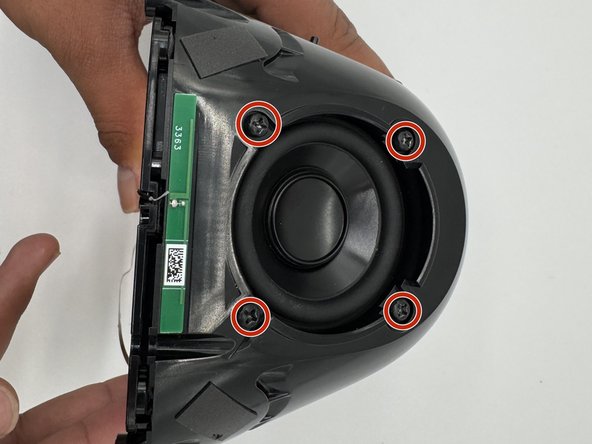
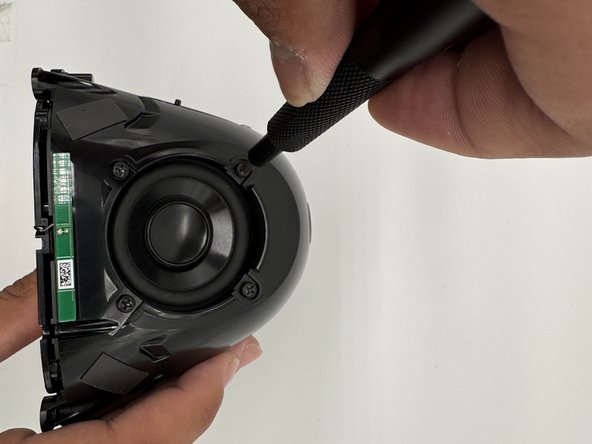
      • Use a TR6 screwdriver to remove the six 7mm screws located around the speaker assembly.

      • Gently tilt the speaker assembly towards the ribbon cable.

      • The ribbon cable is fragile and can be damaged if moved any other way.

      • Flip open the black tab on the connector towards the cable and gently pull.

      • Don't use too much force pulling up on the tab, as it can break and the cable will no longer be properly connected.

      Ask FixBot

      Add Comment

    3. Amazon Echo Show 8 3rd Gen Display Assembly Replacement: step 7, image 1 of 3 Amazon Echo Show 8 3rd Gen Display Assembly Replacement: step 7, image 2 of 3 Amazon Echo Show 8 3rd Gen Display Assembly Replacement: step 7, image 3 of 3
      • Use a TR6 Torx screwdriver to remove the eight 9 mm screws holding the metal bracket.

      • Gently lift off the metal bracket.

      Ask FixBot

      Add Comment

    4. Amazon Echo Show 8 3rd Gen Display Assembly Replacement: step 8, image 1 of 3 Amazon Echo Show 8 3rd Gen Display Assembly Replacement: step 8, image 2 of 3 Amazon Echo Show 8 3rd Gen Display Assembly Replacement: step 8, image 3 of 3
      • Remove the 2 rubber stoppers.

      • Remove all 14 screws with a Phillips #1 screwdriver.

      Ask FixBot

      Add Comment

    5. Amazon Echo Show 8 3rd Gen Display Assembly Replacement: step 9, image 1 of 3 Amazon Echo Show 8 3rd Gen Display Assembly Replacement: step 9, image 2 of 3 Amazon Echo Show 8 3rd Gen Display Assembly Replacement: step 9, image 3 of 3
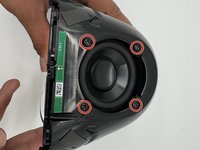
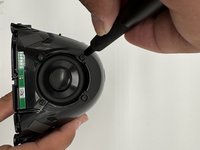
      • Use a Phillips #1 screwdriver to remove the four 1.3 cm screws holding down each driver.

      • Gently pull the plastic plate towards the antenna cable.

      • There is a small antenna cable that is easy to rip off the solder joint, so lift carefully.

      • There are 8 screws on the long side of the housing, but there is no driver behind it, so you don't need to remove them.

      Ask FixBot

      Add Comment

    6. Amazon Echo Show 8 3rd Gen Display Assembly Replacement: step 10, image 1 of 2 Amazon Echo Show 8 3rd Gen Display Assembly Replacement: step 10, image 2 of 2
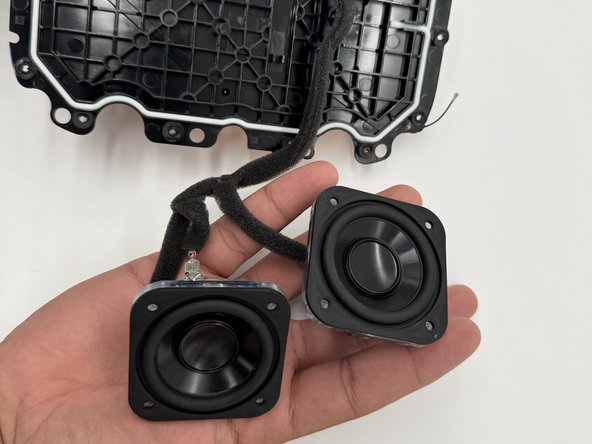
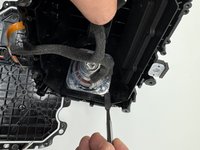
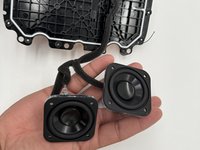
      • Pry the speakers from the housing with a spudger.

      • The speakers are connected to a spring-loaded pin connector which is attached to the black plastic using industrial hot glue, so while you can heat the glue to remove it, the plastic may melt and/or deform, so we wouldn't recommend it.

      Ask FixBot

      Add Comment

    1. Amazon Echo Show 8 3rd Gen Display Assembly Replacement, Motherboard: step 11, image 1 of 3 Amazon Echo Show 8 3rd Gen Display Assembly Replacement, Motherboard: step 11, image 2 of 3 Amazon Echo Show 8 3rd Gen Display Assembly Replacement, Motherboard: step 11, image 3 of 3
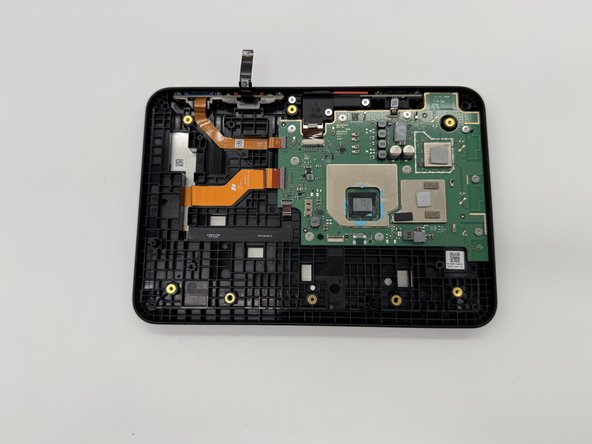
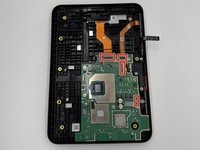
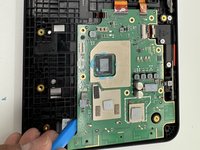
      • Use an opening tool to flip up the black ZIF locking flap that secure the four ribbon cables.

      Ask FixBot

      Add Comment

    2. Amazon Echo Show 8 3rd Gen Display Assembly Replacement: step 12, image 1 of 2 Amazon Echo Show 8 3rd Gen Display Assembly Replacement: step 12, image 2 of 2
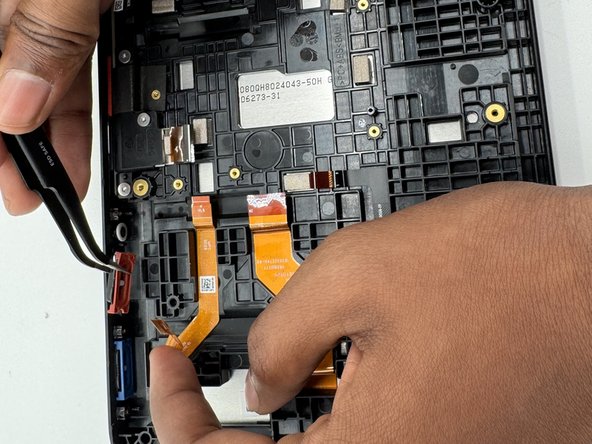
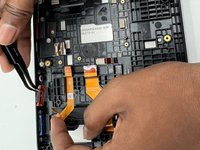
      • Use angled tweezers to disconnect all the ribbon cables from their motherboard sockets.

      • The ribbon cables are fragile; pull with care.

      Ask FixBot

      Add Comment

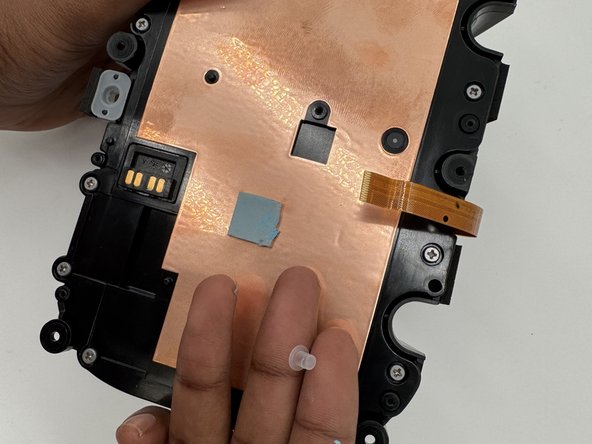
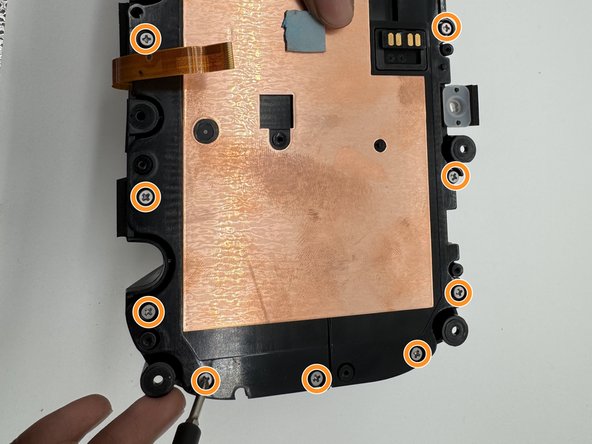
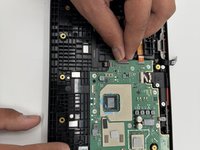
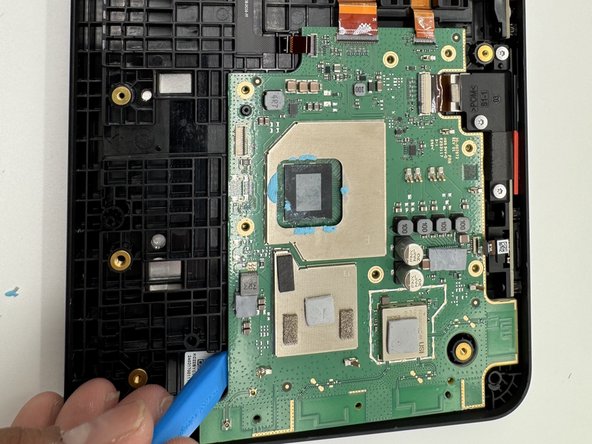
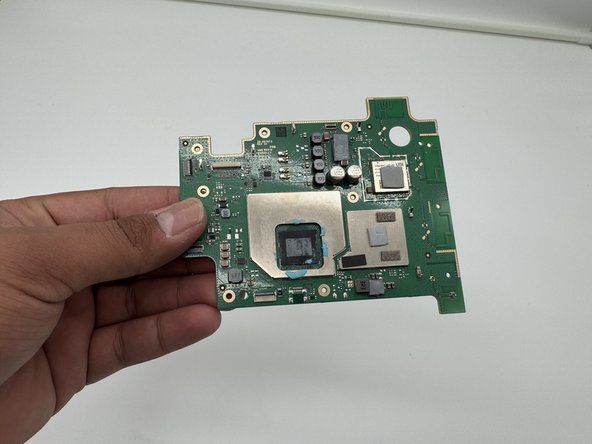
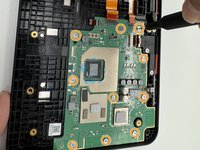
    3. Amazon Echo Show 8 3rd Gen Display Assembly Replacement: step 13, image 1 of 3 Amazon Echo Show 8 3rd Gen Display Assembly Replacement: step 13, image 2 of 3 Amazon Echo Show 8 3rd Gen Display Assembly Replacement: step 13, image 3 of 3
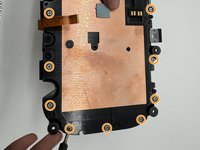
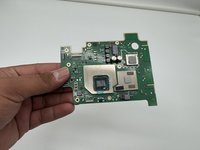
      • Remove all 10 5 mm screws on the motherboard using a TR6 Torx screwdriver.

      Ask FixBot

      Add Comment

    1. Amazon Echo Show 8 3rd Gen Display Assembly Replacement, Volume Buttons: step 14, image 1 of 3 Amazon Echo Show 8 3rd Gen Display Assembly Replacement, Volume Buttons: step 14, image 2 of 3 Amazon Echo Show 8 3rd Gen Display Assembly Replacement, Volume Buttons: step 14, image 3 of 3
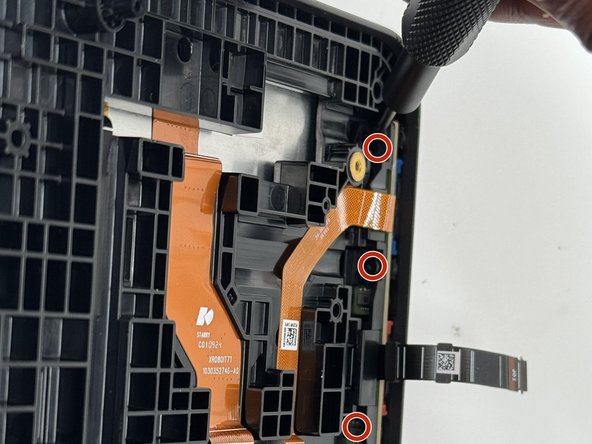
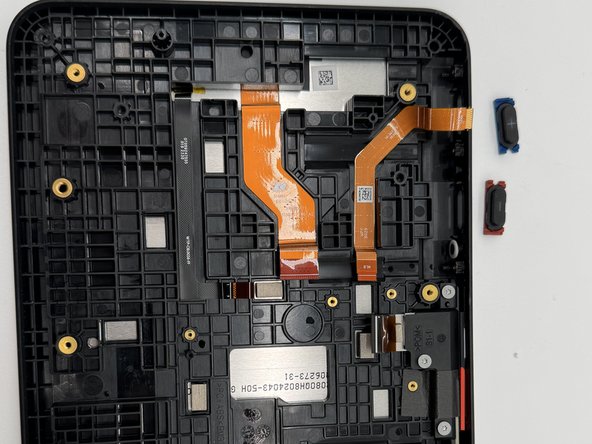
      • Remove the three 6 mm screws that secure the board using a TR4 Torx screwdriver.

      Ask FixBot

      Add Comment

    2. Amazon Echo Show 8 3rd Gen Display Assembly Replacement: step 15, image 1 of 3 Amazon Echo Show 8 3rd Gen Display Assembly Replacement: step 15, image 2 of 3 Amazon Echo Show 8 3rd Gen Display Assembly Replacement: step 15, image 3 of 3
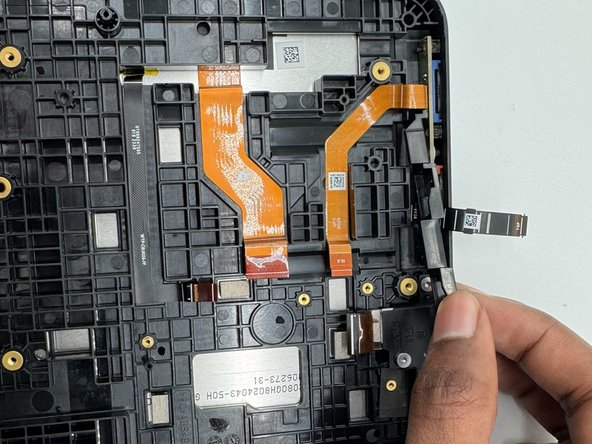
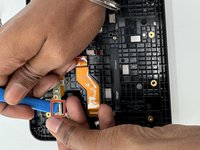
      • Use an opening tool to flip open the black ZIF locking flap that secures the ribbon cable.

      • Be gentle with the ribbon cable.

      • Use tweezers to remove both buttons from the case.

      Ask FixBot

      Add Comment

    1. Amazon Echo Show 8 3rd Gen Display Assembly Replacement, Display Assembly: step 16, image 1 of 2 Amazon Echo Show 8 3rd Gen Display Assembly Replacement, Display Assembly: step 16, image 2 of 2
      • Remove the three 6 mm screws with a TR4 Torx screwdriver; remove the top buttons.

      • Remove the two 7 mm screws with a TR6 Torx screwdriver; remove the camera.

      Ask FixBot

      Add Comment

    2. Amazon Echo Show 8 3rd Gen Display Assembly Replacement: step 17, image 1 of 3 Amazon Echo Show 8 3rd Gen Display Assembly Replacement: step 17, image 2 of 3 Amazon Echo Show 8 3rd Gen Display Assembly Replacement: step 17, image 3 of 3
      • Remove the plastic cover.

      • Remove the button and camera.

      Ask FixBot

      Add Comment

Conclusion

To reassemble your device, follow these instructions in reverse order.

Cancel: I did not complete this guide.

One other person completed this guide.

0 Guide Comments

Add Comment

View Statistics:

Past 24 Hours: 8

Past 7 Days: 54

Past 30 Days: 227

All Time: 3,700