Introduction
If your Alienware Aurora (M9700) doesn’t have a clear screen— unclear, cracked or dimmed— use this guide to replace the main screen. A ++faulty screen++ has several large problems such as cracked screen, leaking screen, dead pixels, or anything that impairs the function of the laptop. Double-check that your screen is not altered or dimmed based on the settings provided on your laptop.
Before beginning this guide, ensure that if your screen is cracked there are no fragments or glass that are in the way and potentially hurting to you. Make sure that all the tools required to fix the display are in your reach. Have a small cup or container to hold the screws that are removed from the product, as you will need all the screws to reinstall the new display. Make sure you are working in an Electrostatic discharge (ESD) control. Remove the battery and disconnect the laptop from the power supply, to prevent any electrical discharge.
What you need
-
-
-
Remove the main outer screws from the back portion of the laptop.
-
Remove the battery from the back.
 Ask FixBot
-
-
-
Open the laptop facing towards you.
-
On the right side where the power button is located, place the spudger to pry open the center panel as you slide it to the left.
-
Close the laptop and face the back portion towards you.
-
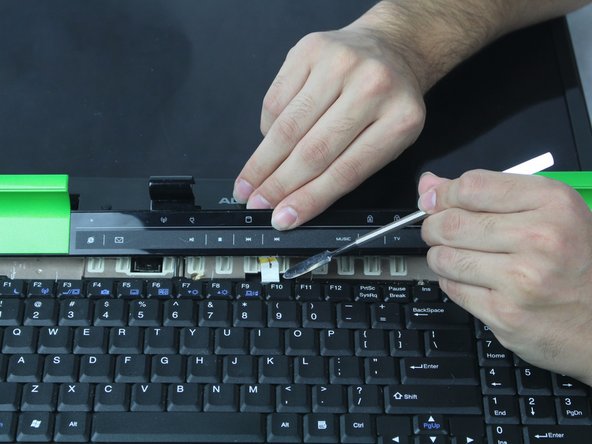
Between the green frame and the black panel insert the spudger to pry open the center panel. (Do this for both sides of the computer.)
-
-
-
Now, open the computer and face it towards you.
-
Carefully, fold the panel towards you and disconnect the cable connected to the motherboard.
-
-
-
-
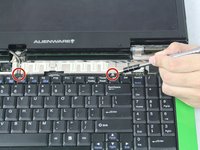
At the top of the keyboard, near the right corner, remove the screw that holds down the keyboard.
-
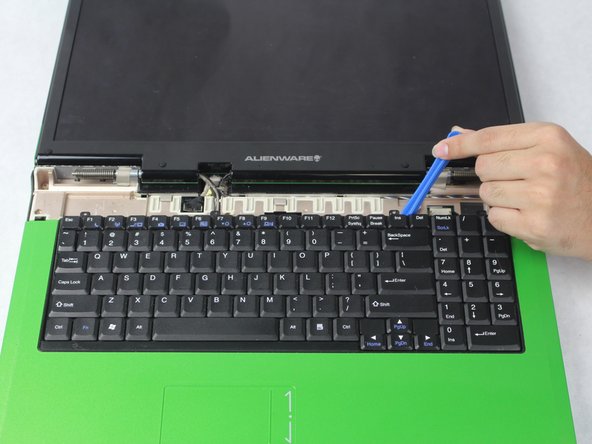
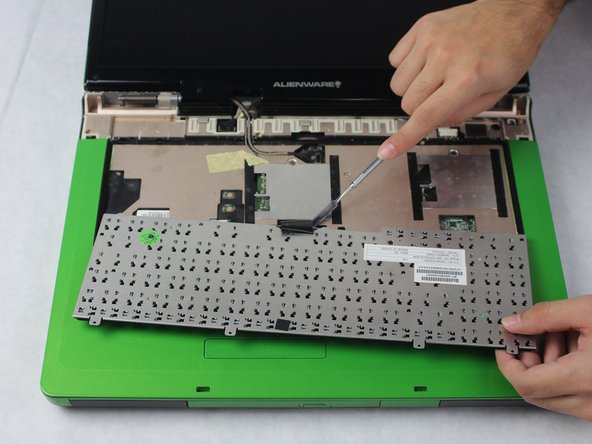
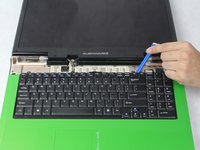
Insert a plastic opening tool and pry to lift up the keyboard.
-
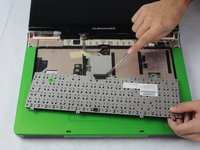
Fold the keyboard towards you.
-
-
-
Locate the rubber buttons around the bezel of the display.
-
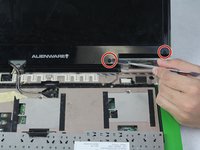
With the metal spudger remove them to expose the screws underneath.
-
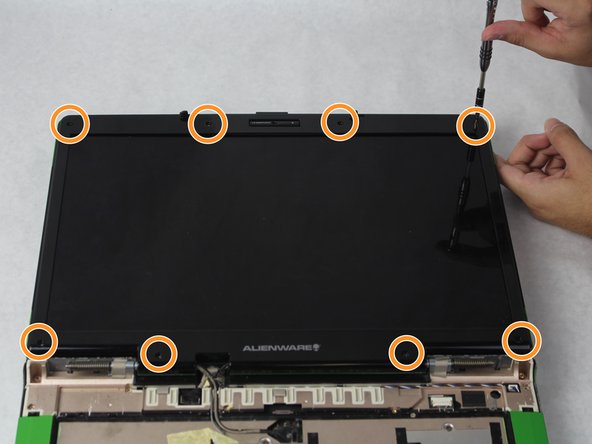
Remove all of the 8 screws. Put them together. Those will be needed when putting a new screen back.
-
-
-
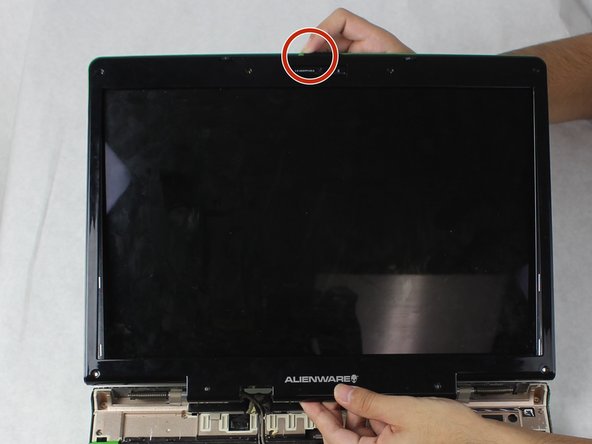
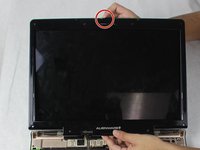
At the bottom of the display insert the plastic opening tool between the black and green frames to remove the display frame.
-
When removing the display frame, slide the lock to the right.
-
Remove the display.
-
-
-
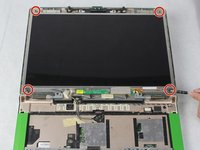
Locate and remove the 4 screws located on each corner of the display.
-
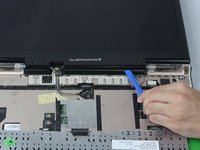
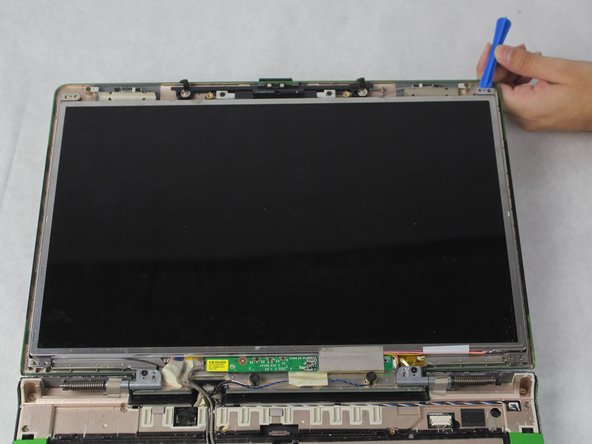
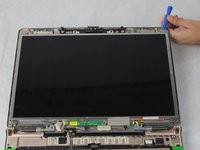
From the top of the display use the plastic opening tool to separate the screen display from the top of the laptop.
-
-
-
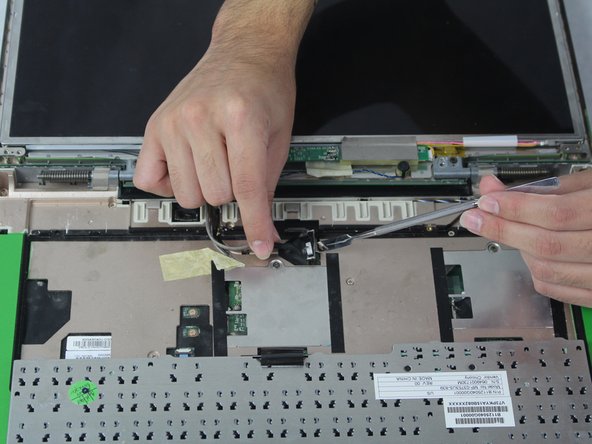
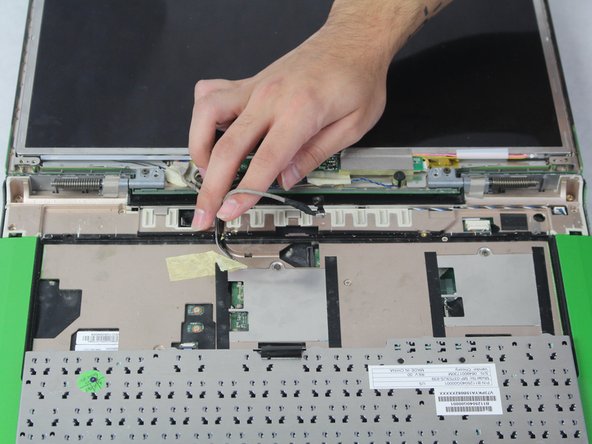
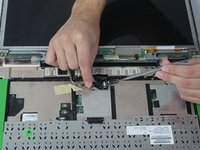
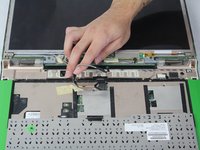
At the center, locate the cable that is connected to the display.
-
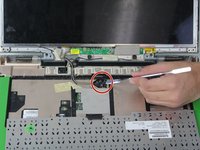
Pull the black tab upwards with the metal spudger to disconnect the cable from the display.
-
-
-
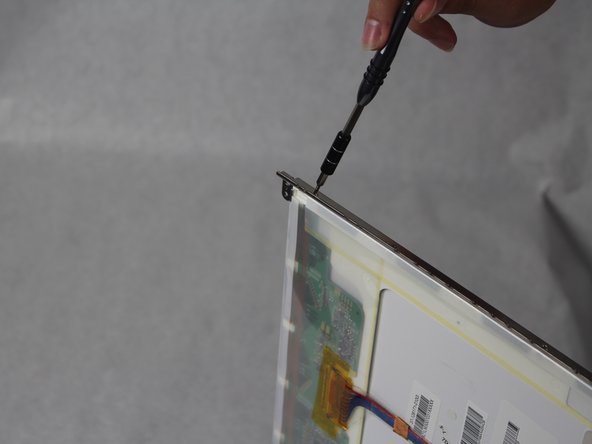
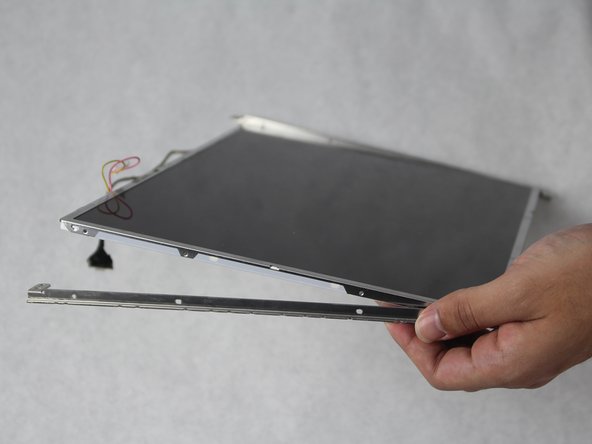
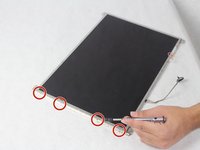
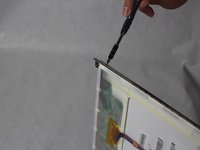
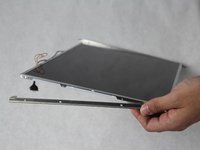
On the left of the display, remove the four screws located on the side of the display to remove the metal frame from the display. (Do the same for the right side.)
-
-








To reassemble your device, follow these instructions in reverse order.
Cancel: I did not complete this guide.
One other person completed this guide.

Team

Sam Houston State, Team S15-G3, Blackburne Fall 2018 Member of Sam Houston State, Team S15-G3, Blackburne Fall 2018
SHSU-BLACKBURNE-F18S15G3
4 Members
60 Guides authored
