
Alienware 17 R2 Screen Replacement

Luis Garcia and 2 other contributors
Last updated on Jun 11, 2019
Views: 3.9K
View statistics:
- Past 24 Hours:
- 3
- Past 7 Days:
- 22
- Past 30 Days:
- 104
- All Time:
- 3,917
Comments: 0
No one has left comments on this guide. Will you be first?
Go to guide commentsCompleted: 0 1
No one has marked this guide "completed." Will you be the first?
1 person has marked this guide "completed." It's you — great job!
Favorites: 0 1
No one has favorited (and subscribed to) this guide. Will you be the first?
1 person has favorited (and subscribed to) this guide — and that's you!
Action Shots
Be an action hero! This guide needs images that better demonstrate how to perform specific actions.
Needs Better Images
Better photos will improve this guide. Help out by taking, editing, or uploading new ones!
Introduction
Go to step 1 ↓One of the causes for a blank or pix-elated screen could because it is cracked. In this guide, we will show you how to replace your screen.
What you need
Tools

-
-
-
Put the laptop on a hard surface.
-
Make sure that the Alienware is not plugged into any power source.
-
First, we need to unplug the battery.
 Ask FixBot
-
-
-
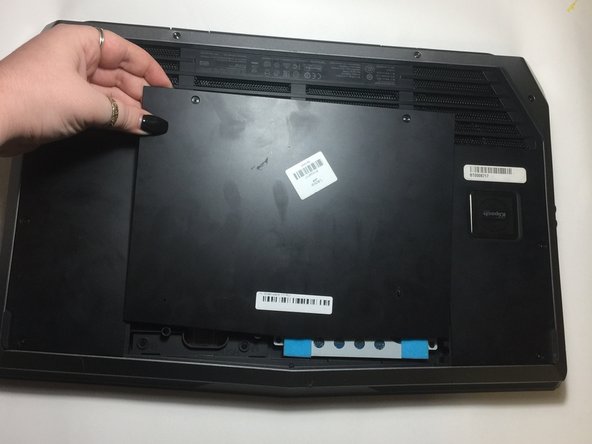
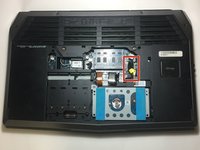
To unplug the battery, turn the computer upside down.
-
Remove the two 4mm screws from the plastic covering protecting the inner part of the laptop.
-
-
-
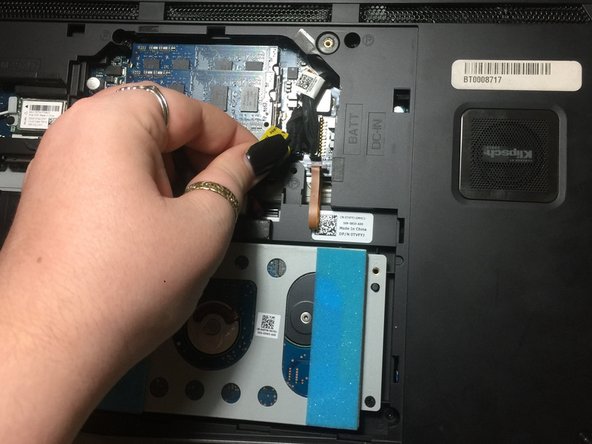
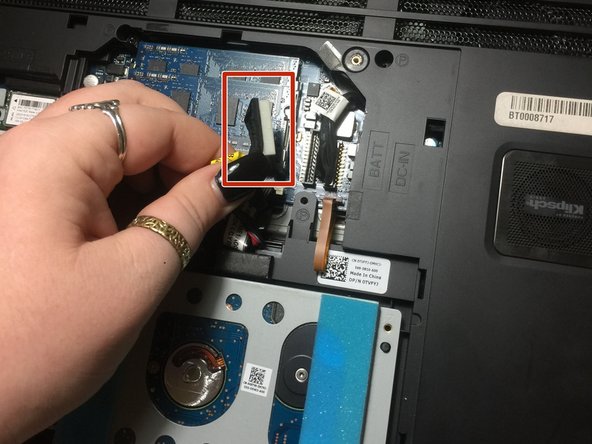
Now, you are going to look for a yellow tag.
-
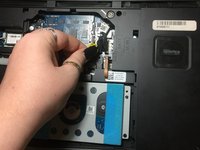
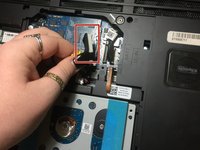
Unplug the black wire that has the yellow tag.
-
This with successfully disconnect your battery.
-
-
-
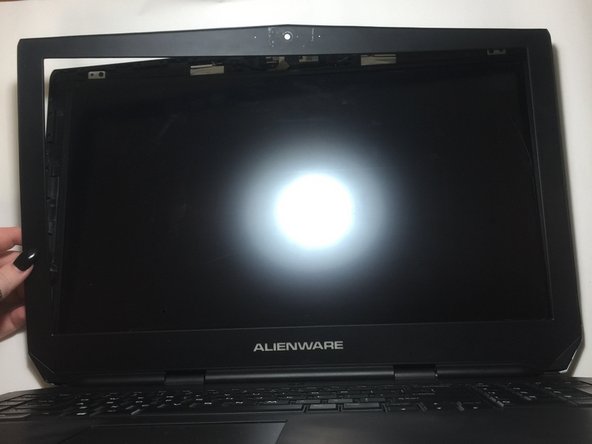
Using the plastic opening tool, gently remove the black plastic casing from the LCD screen.
-
Run the opening tool along the inner side of the computer where the screen and the plastic covering meet.
-
-
-
-
Tilt the screen forward towards the keyboard.
-
Disconnect the plug that is connecting the screen to the main body.
-
-






To reassemble your device, follow these instructions in reverse order.

Team

University of North Texas, Team S6-G4, Thomas Fall 2017 Member of University of North Texas, Team S6-G4, Thomas Fall 2017
UNT-THOMAS-F17S6G4
3 Members
48 Guides authored
