Acer Extensa 4420 RAM Replacement

What you need

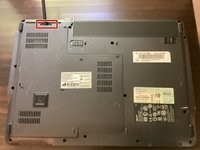
  1. Acer Extensa 4420 RAM Replacement, Battery: step 1, image 1 of 2 Acer Extensa 4420 RAM Replacement, Battery: step 1, image 2 of 2
    • First, make sure that the battery lock is turned off.

    • The battery lock makes it so the battery doesn't accidentally fall out of your computer while it is running.

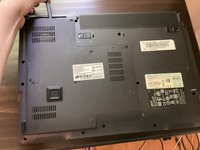
  2. Acer Extensa 4420 RAM Replacement: step 2, image 1 of 3 Acer Extensa 4420 RAM Replacement: step 2, image 2 of 3 Acer Extensa 4420 RAM Replacement: step 2, image 3 of 3
    • Then, slide the other battery lock while pulling the battery out.

  3. Acer Extensa 4420 RAM Replacement, Back Panel: step 3, image 1 of 1
    Tool used on this step:
    Phillips #00 Screwdriver
    $5.49
    Buy
    • Unscrew all five screws on the back panel with a Phillips #00 screwdriver

    • The screws will stay in the back panel, so when you remove it, you don't have to worry about organizing the screws.

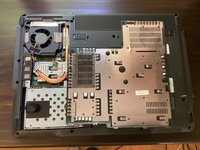
  4. Acer Extensa 4420 RAM Replacement: step 4, image 1 of 3 Acer Extensa 4420 RAM Replacement: step 4, image 2 of 3 Acer Extensa 4420 RAM Replacement: step 4, image 3 of 3
    Tool used on this step:
    Spudger
    $3.99
    Buy
    • Take a spudger and start to pry open the back panel. Finish prying it open with your hands.

    • Be extra careful and try not to break any clips in this process.

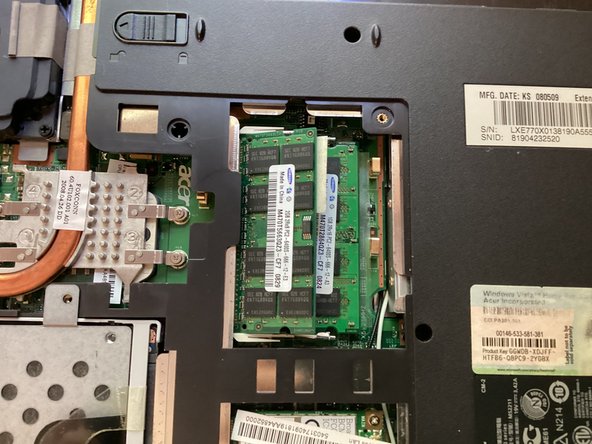
  5. Acer Extensa 4420 RAM Replacement, RAM: step 5, image 1 of 3 Acer Extensa 4420 RAM Replacement, RAM: step 5, image 2 of 3 Acer Extensa 4420 RAM Replacement, RAM: step 5, image 3 of 3
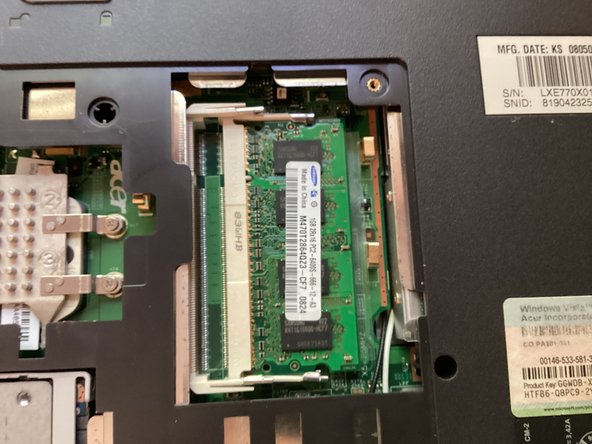
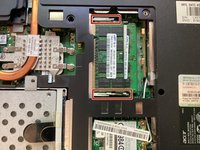
    • Push the clips in red towards the outside. Doing so will release the RAM. Pull the RAM out.

    • Do this for both RAM modules

Conclusion

To reassemble your device, follow these instructions in reverse order.

One other person completed this guide.

TheMasterG

Member since: 07/19/24

1,369 Reputation

12 Guides authored

0 Guide Comments

Add Comment

View Statistics:

Past 24 Hours: 0

Past 7 Days: 1

Past 30 Days: 5

All Time: 95