Free Shipping on Domestic Orders $75+

Acer Chromebook C720-2827 SD Card Reader/USB Port Replacement

Views: 856

View statistics:

Past 24 Hours:
1
Past 7 Days:
23
Past 30 Days:
111
All Time:
856
Comments: 0

No one has left comments on this guide. Will you be first?

Go to guide comments
Completed: 1

1 person has marked this guide "completed." Will you be next?

Favorites: 0

No one has favorited (and subscribed to) this guide. Will you be the first?

Time Required: 10 minutes
Difficulty: Easy
Acer Chromebook C720-2827 SD Card Reader/USB Port Replacement

Introduction

Go to step 1 ↓

This guide explains how to remove the SD Card Reader and the USB Port next to it. Before removing the two ports, the back panel assembly, battery, and speakers needs to be removed. Once all of these are removed, the two ports can be easily disconnected from the Chromebook.

What you need

Tools

    1. Acer Chromebook C720-2827 SD Card Reader/USB Port Replacement, Back Panel Assembly: step 1, image 1 of 2 Acer Chromebook C720-2827 SD Card Reader/USB Port Replacement, Back Panel Assembly: step 1, image 2 of 2
      • Remove the thirteen 6.0mm screws on the back panel using your Phillips #1 screwdriver.

      Ask FixBot

      Add Comment

    2. Acer Chromebook C720-2827 SD Card Reader/USB Port Replacement: step 2, image 1 of 2 Acer Chromebook C720-2827 SD Card Reader/USB Port Replacement: step 2, image 2 of 2
      • Pry the back panel open with the plastic opening tool.

      Ask FixBot

      Add Comment

    1. Acer Chromebook C720-2827 SD Card Reader/USB Port Replacement, Battery: step 3, image 1 of 1
      • Remove the two 6.0mm screws securing the battery with your Phillips #1 screwdriver.

      Ask FixBot

      Add Comment

    2. Acer Chromebook C720-2827 SD Card Reader/USB Port Replacement: step 4, image 1 of 2 Acer Chromebook C720-2827 SD Card Reader/USB Port Replacement: step 4, image 2 of 2
      • Carefully pull out the battery wire connected to the battery port.

      Ask FixBot

      Add Comment

    3. Acer Chromebook C720-2827 SD Card Reader/USB Port Replacement: step 5, image 1 of 1
      • Slowly lift the battery to remove it from the Chromebook.

      Ask FixBot

      Add Comment

    1. Acer Chromebook C720-2827 SD Card Reader/USB Port Replacement, Speakers: step 6, image 1 of 2 Acer Chromebook C720-2827 SD Card Reader/USB Port Replacement, Speakers: step 6, image 2 of 2
      • Unplug the speaker wire from the motherboard.

      Ask FixBot

      Add Comment

    2. Acer Chromebook C720-2827 SD Card Reader/USB Port Replacement: step 7, image 1 of 2 Acer Chromebook C720-2827 SD Card Reader/USB Port Replacement: step 7, image 2 of 2
      • Carefully pull out the speakers from each side of the Chromebook.

      Ask FixBot

      Add Comment

    1. Acer Chromebook C720-2827 SD Card Reader/USB Port Replacement, USB Port/SD Card Reader: step 8, image 1 of 3 Acer Chromebook C720-2827 SD Card Reader/USB Port Replacement, USB Port/SD Card Reader: step 8, image 2 of 3 Acer Chromebook C720-2827 SD Card Reader/USB Port Replacement, USB Port/SD Card Reader: step 8, image 3 of 3
      • Remove the three 6.0mm screws using the Phillips #1 screwdriver.

      • Remove the two 3.0mm screws using the Phillips #1 screwdriver.

      Ask FixBot

      Add Comment

    2. Acer Chromebook C720-2827 SD Card Reader/USB Port Replacement: step 9, image 1 of 2 Acer Chromebook C720-2827 SD Card Reader/USB Port Replacement: step 9, image 2 of 2
      • Position the spudger under the switch that connects the ribbon cable to the motherboard.

      • Flick the spudger up to flip the switch up.

      Ask FixBot

      Add Comment

    3. Acer Chromebook C720-2827 SD Card Reader/USB Port Replacement: step 10, image 1 of 2 Acer Chromebook C720-2827 SD Card Reader/USB Port Replacement: step 10, image 2 of 2
      • Pull the blue tab on the ribbon cable to remove it.

      Ask FixBot

      Add Comment

    4. Acer Chromebook C720-2827 SD Card Reader/USB Port Replacement: step 11, image 1 of 2 Acer Chromebook C720-2827 SD Card Reader/USB Port Replacement: step 11, image 2 of 2
      • Grab the edges of each piece of circuitry that is included with the SD Card Reader and USB Port.

      • Pull each piece of circuitry out of the Chromebook and remove it from the device.

      Ask FixBot

      Add Comment

    5. Acer Chromebook C720-2827 SD Card Reader/USB Port Replacement: step 12, image 1 of 2 Acer Chromebook C720-2827 SD Card Reader/USB Port Replacement: step 12, image 2 of 2
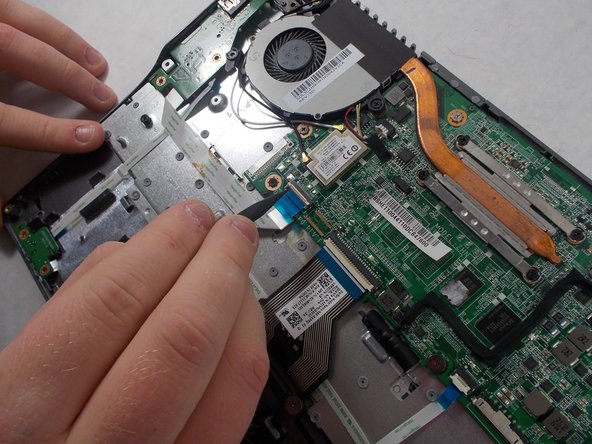
      • Position the spudger under the switch.

      • Flick the spudger up to flip the switch up.

      Ask FixBot

      Add Comment

    6. Acer Chromebook C720-2827 SD Card Reader/USB Port Replacement: step 13, image 1 of 2 Acer Chromebook C720-2827 SD Card Reader/USB Port Replacement: step 13, image 2 of 2
      • Pull on the blue tab of the ribbon cable to remove the ribbon cable.

      • Repeat the previous step and this step with the other ribbon cable that is attached to the SD Card Reader/USB Port.

      Ask FixBot

      Add Comment

Conclusion

To reassemble your device, follow these instructions in reverse order.

Cancel: I did not complete this guide.

One other person completed this guide.

Jason Bechtold

Member since: 10/19/17

611 Reputation

5 Guides authored

Team

0 Guide Comments

Add Comment

View Statistics:

Past 24 Hours: 1

Past 7 Days: 23

Past 30 Days: 111

All Time: 856