Introduction
The RAM on a computer is used to store temporary information for your computer to run swiftly. If you computer seems to studder or slow down it might mean that you could use an upgrade of the RAM. RAM upgrades are one of the more common upgrades in a computer unit. You should read through the entire guide before performing the repair and should have all necessary tools readily available. You should also find a safe location to store the various screws taken out of the computer to ensure that they do not get mixed up or lost.
What you need
-
-
-
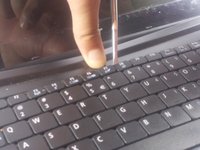
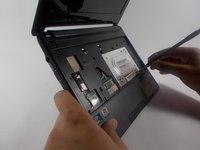
Using plastic opening tools press down the 6 clips located around the keyboard.
-
-
-
-
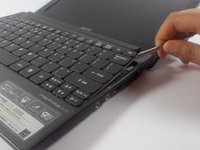
Using a spudger gently push the tab on the port forward then pull out the cable.
-
-
-
-
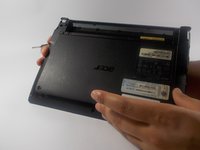
Unscrew seven 1.2 mm Phillips #1 screws from the back of the device
-
-
-
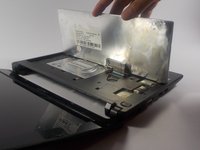
Using a spudger carefully push though the hole to dislodge the panel on the back of the device then remove the panel by hand.
-
-
-
-
-
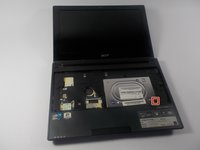
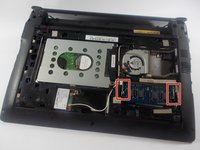
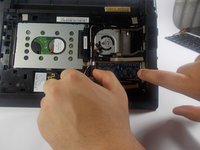
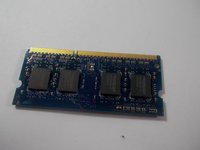
Using your hands pull apart the two clips holding the RAM in then pull out the RAM.
-
It uses (DDR3) 204pin PC3-10600 1333MHz DDR3 SO-DIMM Memory Modules
-
-

 Ask FixBot






To reassemble your device, follow these instructions in reverse order.
Cancel: I did not complete this guide.
7 other people completed this guide.

Team

UMass Dartmouth, Team 16-8, Bhusal Spring 2016 Member of UMass Dartmouth, Team 16-8, Bhusal Spring 2016
UMASSD-BHUSAL-S16S16G8
2 Members
59 Guides authored
1 Guide Comment
Don't remove all those screws in the guide. Underneath the keyboard, just remove the 4 screws labeled "Door", then push with much force a blunt tool through the labeled hole at the corner of the hard drive bay. That part was easy, but can somebody please post a guide to popping off the keyboard without deforming the aluminum keyboard tray like I did?
