Free Shipping on Domestic Orders $75+

ATT Trek HD 9020A Screen Replacement

Views: 1.1K

View statistics:

Past 24 Hours:
4
Past 7 Days:
14
Past 30 Days:
56
All Time:
1,095
Comments: 0

No one has left comments on this guide. Will you be first?

Go to guide comments
Completed: 1

1 person has marked this guide "completed." Will you be next?

Favorites: 0

No one has favorited (and subscribed to) this guide. Will you be the first?

Time Required: 30 minutes
Difficulty: Moderate
ATT Trek HD 9020A Screen Replacement

Introduction

Go to step 1 ↓

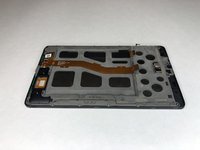
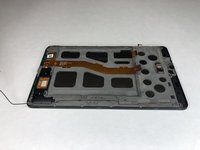
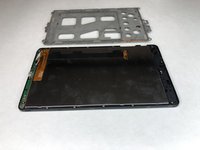
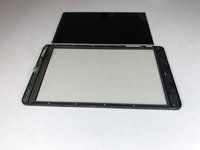
This guide will help you remove the screen from your device. The removal may be necessary if your screen is not responding or performing correctly. This repair guide is moderately difficult, requires three different tools, and should take approximately 30 minutes of your time. The removal of the screen also requires the removal of more sensitive parts of the device, including the motherboard, which should be removed carefully in order to prevent damage to the device.

What you need

Parts

Tools

    1. ATT Trek HD 9020A Screen Replacement, Back Cover: step 1, image 1 of 1
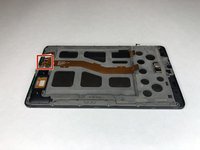
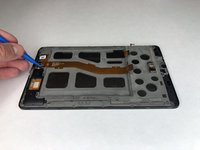
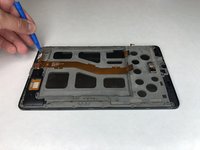
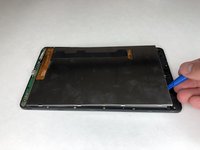
      • To separate the screen from the back panel, run the plastic opening tool along the outer edge of the device.

      Ask FixBot

      Add Comment

    2. ATT Trek HD 9020A Screen Replacement: step 2, image 1 of 1
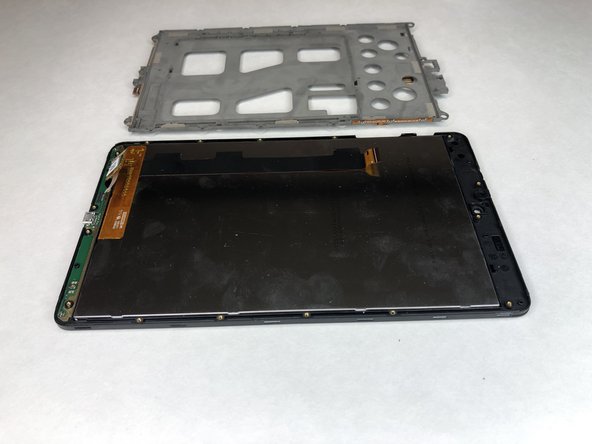
      • Pull the screen away from the back panel.

      Ask FixBot

      Add Comment

    1. ATT Trek HD 9020A Screen Replacement, Battery: step 3, image 1 of 2 ATT Trek HD 9020A Screen Replacement, Battery: step 3, image 2 of 2
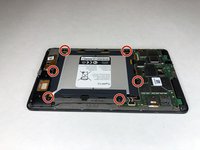
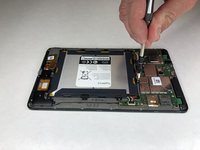
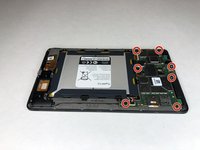
      • Use a Phillips #00 screwdriver to remove the six 2.5 mm screws located around the perimeter of the battery.

      Ask FixBot

      Add Comment

    2. ATT Trek HD 9020A Screen Replacement: step 4, image 1 of 2 ATT Trek HD 9020A Screen Replacement: step 4, image 2 of 2
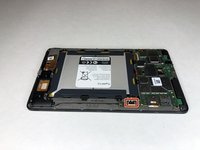
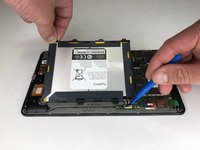
      • Use the plastic opening tool to disconnect the black battery connector.

      • Gently lift the battery out of the device.

      Ask FixBot

      Add Comment

    1. ATT Trek HD 9020A Screen Replacement, Motherboard: step 5, image 1 of 2 ATT Trek HD 9020A Screen Replacement, Motherboard: step 5, image 2 of 2
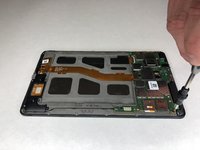
      • Using a Phillips #00 screwdriver, remove the seven 1 mm screws on the green perimeter of the motherboard.

      Ask FixBot

      Add Comment

    2. ATT Trek HD 9020A Screen Replacement: step 6, image 1 of 2 ATT Trek HD 9020A Screen Replacement: step 6, image 2 of 2
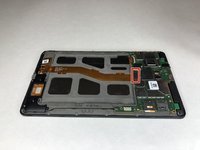
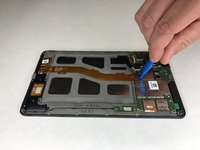
      • Use the plastic opening tool to disconnect the large gold strip underneath the metal plate from the motherboard.

      Ask FixBot

      Add Comment

    3. ATT Trek HD 9020A Screen Replacement: step 7, image 1 of 1
      • Use the plastic opening tool to disconnect the front and back cameras from motherboard.

      Ask FixBot

      Add Comment

    4. ATT Trek HD 9020A Screen Replacement: step 8, image 1 of 2 ATT Trek HD 9020A Screen Replacement: step 8, image 2 of 2
      Tool used on this step:
      Tweezers
      $3.99
      Buy
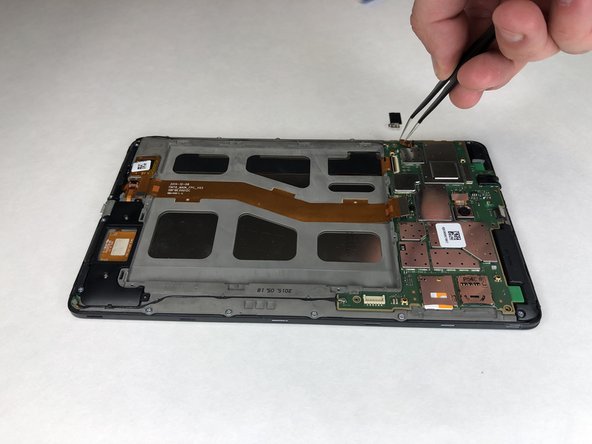
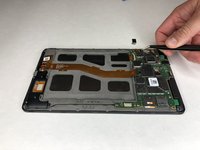
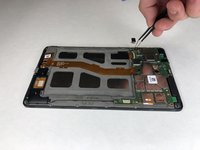
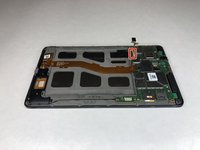
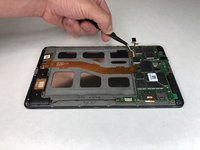
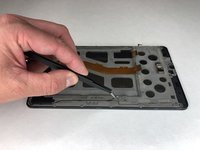
      • Use angled tweezers to pry up the black tab.

      • Use the angled tweezers to pull out the gold connector.

      Ask FixBot

      Add Comment

    5. ATT Trek HD 9020A Screen Replacement: step 9, image 1 of 2 ATT Trek HD 9020A Screen Replacement: step 9, image 2 of 2
      • Use the angled tweezers to disconnect the gold connector.

      Ask FixBot

      Add Comment

    6. ATT Trek HD 9020A Screen Replacement: step 10, image 1 of 1
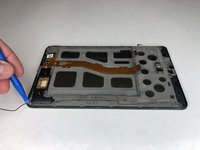
      • Use the plastic opening tool to disconnect the black connectors on each side of the motherboard.

      Ask FixBot

      Add Comment

    7. ATT Trek HD 9020A Screen Replacement: step 11, image 1 of 2 ATT Trek HD 9020A Screen Replacement: step 11, image 2 of 2
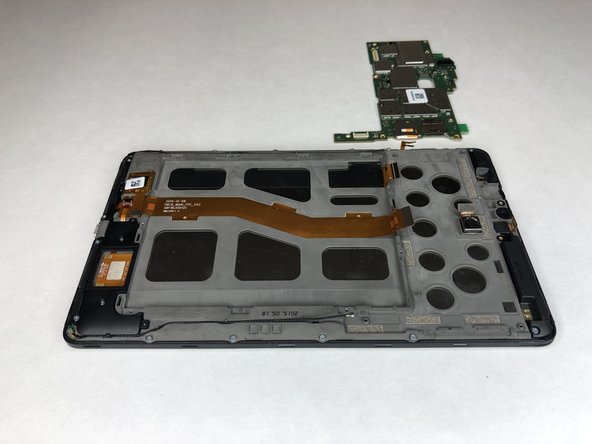
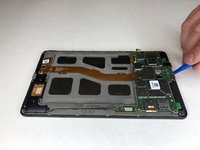
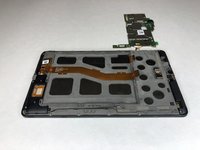
      • Use the plastic opening tool to lift the motherboard out of place.

      Ask FixBot

      Add Comment

    1. ATT Trek HD 9020A Screen Replacement, Front Camera: step 12, image 1 of 2 ATT Trek HD 9020A Screen Replacement, Front Camera: step 12, image 2 of 2
      Tool used on this step:
      Tweezers
      $3.99
      Buy
      Ask FixBot

      Add Comment

    1. ATT Trek HD 9020A Screen Replacement, Screen: step 13, image 1 of 3 ATT Trek HD 9020A Screen Replacement, Screen: step 13, image 2 of 3 ATT Trek HD 9020A Screen Replacement, Screen: step 13, image 3 of 3
      • Use the Phillips #00 screwdriver to remove the six 3 mm screws holding the black plastic corner pieces in place.

      • Gently lift the black corner pieces out of the device.

      Ask FixBot

      Add Comment

    2. ATT Trek HD 9020A Screen Replacement: step 14, image 1 of 2 ATT Trek HD 9020A Screen Replacement: step 14, image 2 of 2
      Tool used on this step:
      Tweezers
      $3.99
      Buy
      • Use the angled tweezers to remove the black cables on each side of the device from their groove.

      Ask FixBot

      Add Comment

    3. ATT Trek HD 9020A Screen Replacement: step 15, image 1 of 2 ATT Trek HD 9020A Screen Replacement: step 15, image 2 of 2
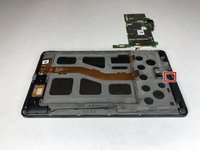
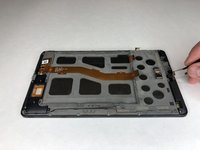
      • Use the plastic opening tool to disconnect the black cable connectors from each side of the device.

      Ask FixBot

      Add Comment

    4. ATT Trek HD 9020A Screen Replacement: step 16, image 1 of 2 ATT Trek HD 9020A Screen Replacement: step 16, image 2 of 2
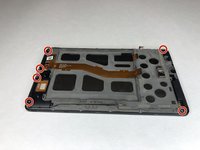
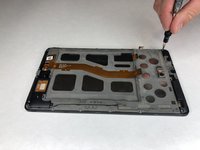
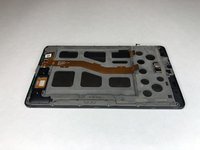
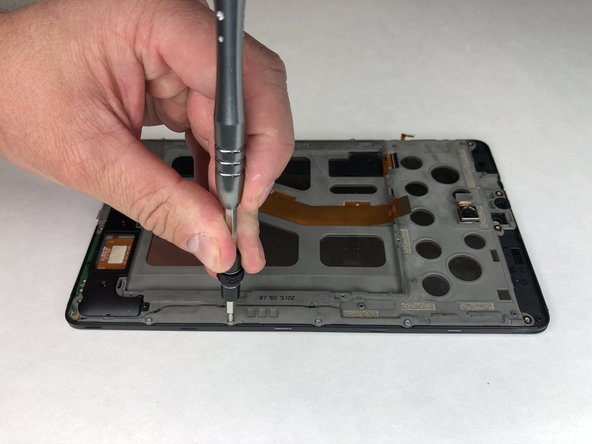
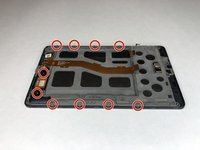
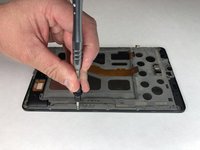
      • Remove the remaining ten 3 mm Phillips #00 screws.

      Ask FixBot

      Add Comment

    5. ATT Trek HD 9020A Screen Replacement: step 17, image 1 of 2 ATT Trek HD 9020A Screen Replacement: step 17, image 2 of 2
      • Use the plastic opening tool to disconnect the remaining three gold connectors at the bottom of the device.

      Ask FixBot

      Add Comment

    6. ATT Trek HD 9020A Screen Replacement: step 18, image 1 of 2 ATT Trek HD 9020A Screen Replacement: step 18, image 2 of 2
      • Use the plastic opening tool to pry up the grey plastic panel.

      Ask FixBot

      Add Comment

    7. ATT Trek HD 9020A Screen Replacement: step 19, image 1 of 2 ATT Trek HD 9020A Screen Replacement: step 19, image 2 of 2
      • Use the plastic opening tool to pry the screen out of the device.

      Ask FixBot

      Add Comment

Conclusion

To reassemble your device, follow these instructions in reverse order.

Cancel: I did not complete this guide.

One other person completed this guide.

0 Guide Comments

Add Comment

View Statistics:

Past 24 Hours: 4

Past 7 Days: 14

Past 30 Days: 56

All Time: 1,095