
ASUS U52F-BBG6 Keyboard Replacement

Ashley DeHuff and 4 other contributors
Last updated on Jul 31, 2026
Views: 1.3K
View statistics:
- Past 24 Hours:
- 4
- Past 7 Days:
- 17
- Past 30 Days:
- 81
- All Time:
- 1,328
Comments: 2
1 comment on steps, 1 guide comment.
Go to guide commentsCompleted: 1 2
1 person has marked this guide "completed." Will you be next?
2 people have marked this guide "completed." Including you — great job!
Favorites: 0 1
No one has favorited (and subscribed to) this guide. Will you be the first?
1 person has favorited (and subscribed to) this guide — and that's you!
Introduction
Go to step 1 ↓You can now move on to replacing your keyboard assembly, keep in mind it will take a lot of effort when removing the back panel.
What you need
Tools


-
-
-
Flip the laptop over to the back.
-
Slide the right latch to unlock, then simultaneously slide the left latch outward while pulling the battery out.
 Ask FixBot
-
-
-
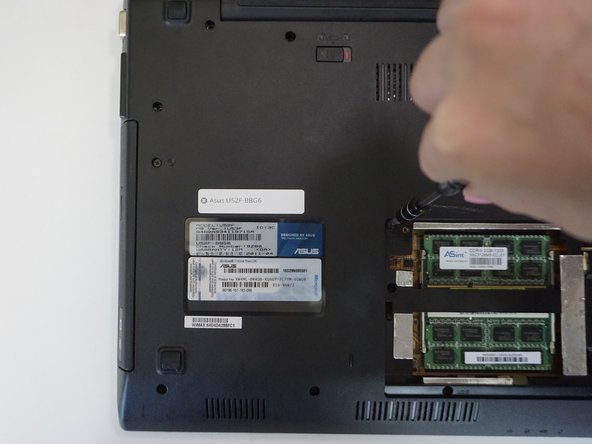
Unscrew all twelve 3mm Phillips screws with the J1 screwdriver.
-
Unscrew two 3mm Phillips screws on the black panel using the PH0 screwdriver.
-
Lift the black panel upward by inserting your fingernail in the space provided.
-
-
-
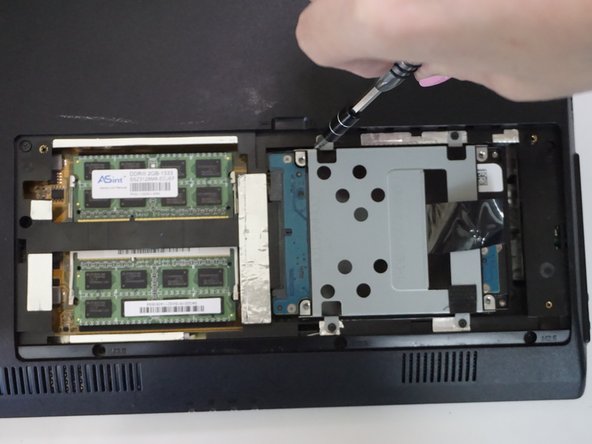
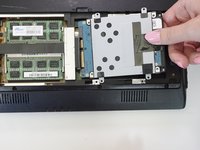
In the RAM and hard drive compartment, unscrew the four 3mm Phillips screws using the J1 screwdriver.
-
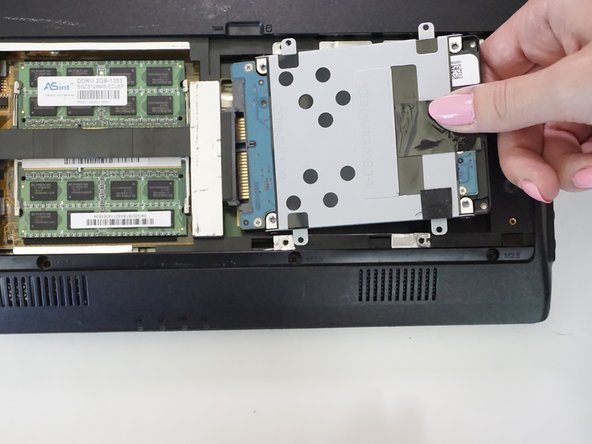
Gently pull out the hard drive.
-
-
-
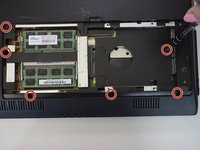
Unscrew six 3mm Phillips screws in the RAM and hard drive compartment with the J1 screwdriver.
-
-
-
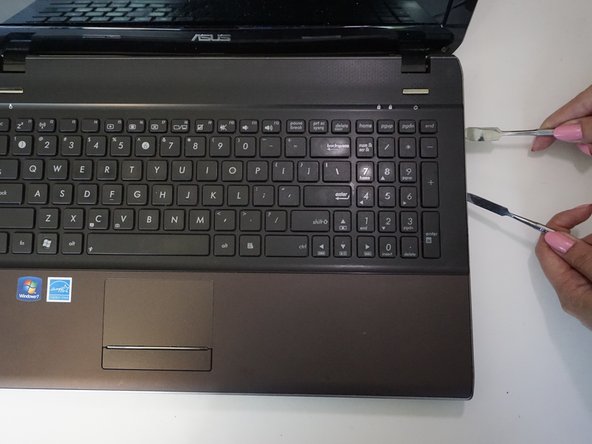
Insert and gently twist the flat metal spudger between the keyboard assembly and the bottom plastic cover so that a small seam is opened.
-
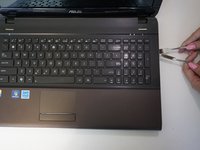
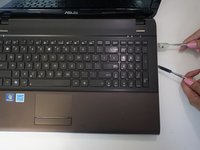
Put in the metal spudger in the seam to hold its place while twisting and levering the flat metal spudger along the whole keyboard.
-
Slowly pry off the back
-
-
-
-
-
-
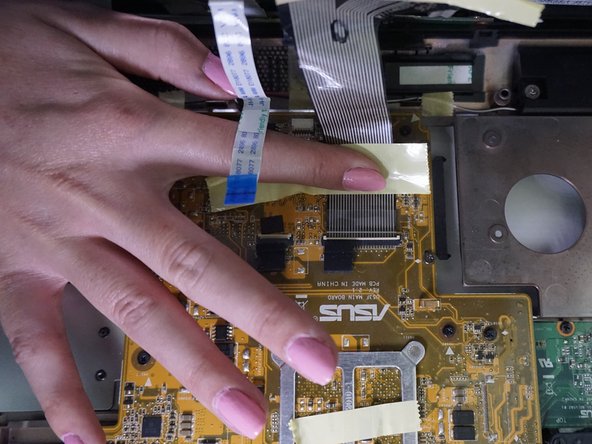
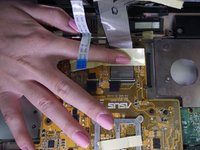
Unlatch the clip attaching the white flattened flexible cord with a blue tip to the circuit board with your thumb.
-
Pull out the white flattened cord.
-
-
-
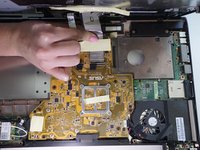
Pull back yellow tape attaching the metal colored flexible flattened cord to the circuit board.
-
Lift up the latch at the end of the cord.
-
Pull out the cord to release the keyboard.
-
-







To reassemble your device, follow these instructions in reverse order.
Cancel: I did not complete this guide.
One other person completed this guide.

Team

CSU Fullerton, Team 1-3, Bruce Fall 2016 Member of CSU Fullerton, Team 1-3, Bruce Fall 2016
CSUF-BRUCE-F16S1G3
4 Members
108 Guides authored
1 Guide Comment
How do you remove the keyboard from the palm rest is what I'd like to know...what a goofy design
