Free Shipping on Domestic Orders $75+

ASUS TUF Gaming A15 (2023) FA507XI RAM Replacement

What you need

  1. ASUS TUF Gaming A15 (2023) FA507XI RAM Replacement, Put your laptop down somewhere accessible: step 1, image 1 of 1
    • Place a soft non-slip mat under the laptop and place the laptop with the lid up.

    • I remind you that you need to turn off the power to the laptop!!!

    Ask FixBot

    Add Comment

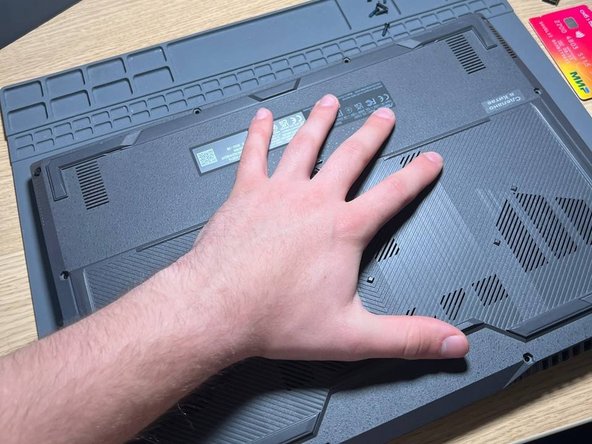
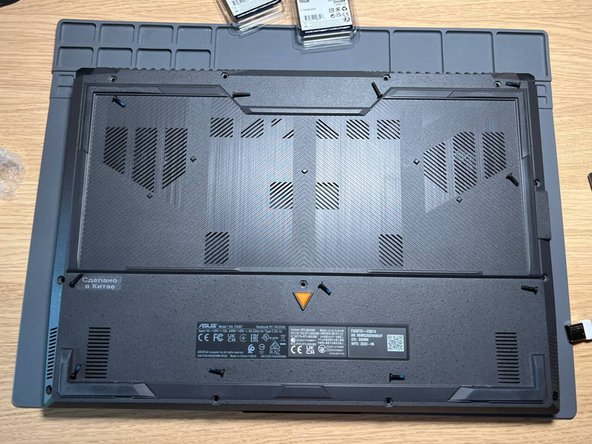
  2. ASUS TUF Gaming A15 (2023) FA507XI RAM Replacement, Unscrew the screws: step 2, image 1 of 1
    • Using a Phillips screwdriver from the Xiaomi Mija set, unscrew all the screws

    • The lower right screw is secured with a lock and cannot be removed from the case

    • Remember the location of the screws: the two longest ones are in the center at the top, and the short one is in the lower left corner.

    Ask FixBot

    Add Comment

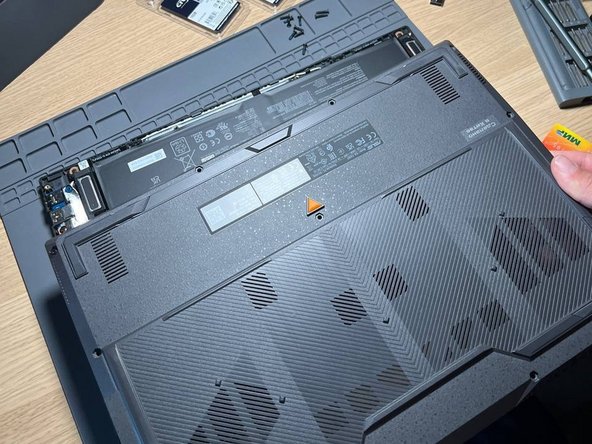
  3. ASUS TUF Gaming A15 (2023) FA507XI RAM Replacement, Removing the back cover: step 3, image 1 of 3 ASUS TUF Gaming A15 (2023) FA507XI RAM Replacement, Removing the back cover: step 3, image 2 of 3 ASUS TUF Gaming A15 (2023) FA507XI RAM Replacement, Removing the back cover: step 3, image 3 of 3
    • Carefully, starting from the lower right corner, we begin to unclip the clips off the back cover and, as a result, we can remove it.

    Ask FixBot

    Add Comment

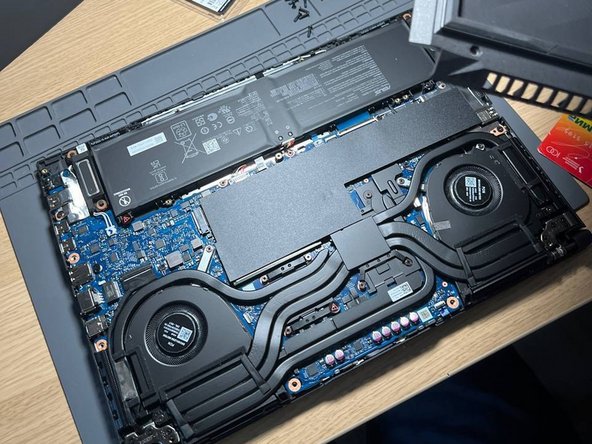
  4. ASUS TUF Gaming A15 (2023) FA507XI RAM Replacement, Removing the battery off the motherboard: step 4, image 1 of 2 ASUS TUF Gaming A15 (2023) FA507XI RAM Replacement, Removing the battery off the motherboard: step 4, image 2 of 2
    • MUST!!!! Turn off the power to the laptop from the built-in battery by slightly prying the chip on both sides using a credit card.

    Ask FixBot

    Add Comment

  5. ASUS TUF Gaming A15 (2023) FA507XI RAM Replacement, Sticker removal: step 5, image 1 of 2 ASUS TUF Gaming A15 (2023) FA507XI RAM Replacement, Sticker removal: step 5, image 2 of 2
    • Partially peel off the sticker above the RAM ports.

    Ask FixBot

    Add Comment

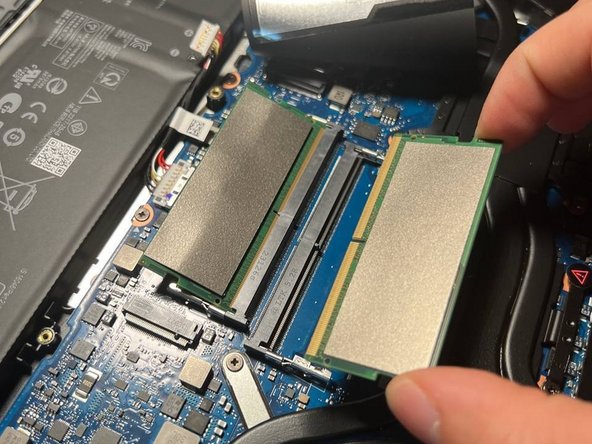
  6. ASUS TUF Gaming A15 (2023) FA507XI RAM Replacement, Removing old RAM: step 6, image 1 of 3 ASUS TUF Gaming A15 (2023) FA507XI RAM Replacement, Removing old RAM: step 6, image 2 of 3 ASUS TUF Gaming A15 (2023) FA507XI RAM Replacement, Removing old RAM: step 6, image 3 of 3
    • Unclip the clips holding the RAM (away from the RAM stick) and remove both sticks of RAM.

    Ask FixBot

    Add Comment

  7. ASUS TUF Gaming A15 (2023) FA507XI RAM Replacement, Unboxing the new RAM: step 7, image 1 of 1
    • Opening new RAM. Put it in a convenient and accessible place on the table.

    • Do not touch the contacts with your fingers.

    Ask FixBot

    Add Comment

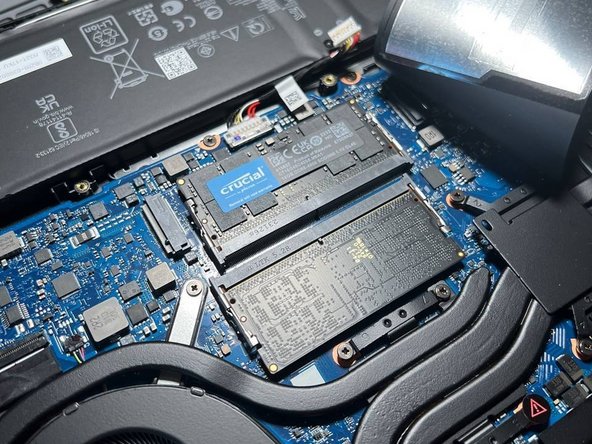
  8. ASUS TUF Gaming A15 (2023) FA507XI RAM Replacement, Installing new RAM: step 8, image 1 of 3 ASUS TUF Gaming A15 (2023) FA507XI RAM Replacement, Installing new RAM: step 8, image 2 of 3 ASUS TUF Gaming A15 (2023) FA507XI RAM Replacement, Installing new RAM: step 8, image 3 of 3
    • Carefully install new RAM into the ports. Snap by pressing both corners of the bar at the same time.

    Ask FixBot

    Add Comment

  9. ASUS TUF Gaming A15 (2023) FA507XI RAM Replacement, Put the sticker back on: step 9, image 1 of 1
    • Return the sticker back and smooth it with our finger along the middle of the sticker (glue line).

    Ask FixBot

    Add Comment

  10. ASUS TUF Gaming A15 (2023) FA507XI RAM Replacement, Return power to laptop: step 10, image 1 of 2 ASUS TUF Gaming A15 (2023) FA507XI RAM Replacement, Return power to laptop: step 10, image 2 of 2
    • Using a credit card and your hand, carefully place the chip back into the battery.

    Ask FixBot

    Add Comment

  11. ASUS TUF Gaming A15 (2023) FA507XI RAM Replacement, Housing Assembly: step 11, image 1 of 2 ASUS TUF Gaming A15 (2023) FA507XI RAM Replacement, Housing Assembly: step 11, image 2 of 2
    • We return the cover to its rightful place and, according to the photo, tighten the screws with light force into the laptop.

    Ask FixBot

    Add Comment

  12. ASUS TUF Gaming A15 (2023) FA507XI RAM Replacement, Launch bios: step 12, image 1 of 3 ASUS TUF Gaming A15 (2023) FA507XI RAM Replacement, Launch bios: step 12, image 2 of 3 ASUS TUF Gaming A15 (2023) FA507XI RAM Replacement, Launch bios: step 12, image 3 of 3
    • We start the laptop with the PWR button and when the ASUS logo appears, press the F2 button to enter the BIOS.

    Ask FixBot

    Add Comment

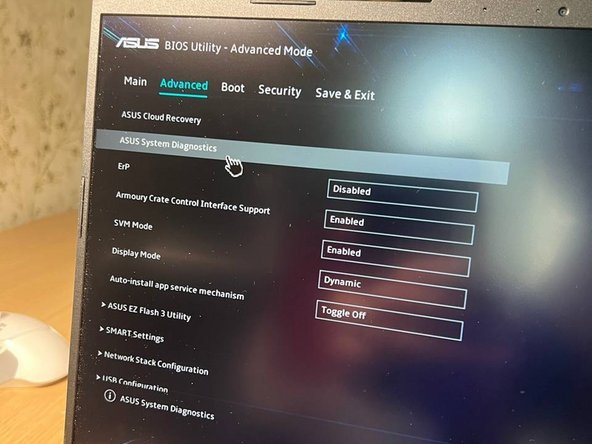
  13. ASUS TUF Gaming A15 (2023) FA507XI RAM Replacement, Entering Diagnostic Mode: step 13, image 1 of 2 ASUS TUF Gaming A15 (2023) FA507XI RAM Replacement, Entering Diagnostic Mode: step 13, image 2 of 2
    • Already in the main BIOS menu, our RAM strips are initialized, press the F7 button or select the advanced settings item in the lower right corner. Then click ASUS System Diagnostics.

    Ask FixBot

    Add Comment

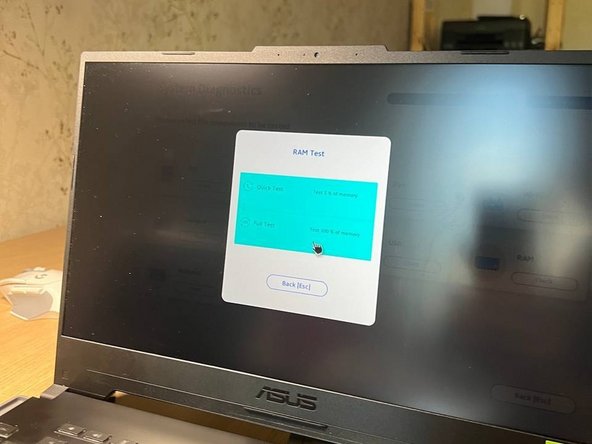
  14. ASUS TUF Gaming A15 (2023) FA507XI RAM Replacement, RAM test: step 14, image 1 of 3 ASUS TUF Gaming A15 (2023) FA507XI RAM Replacement, RAM test: step 14, image 2 of 3 ASUS TUF Gaming A15 (2023) FA507XI RAM Replacement, RAM test: step 14, image 3 of 3
    • Once in the diagnostics menu, select RAM - diagnostics of RAM. Next, select 100% in the drop-down window and wait for the verification to complete. If successful, you will receive a window like this.

    Ask FixBot

    Add Comment

  15. ASUS TUF Gaming A15 (2023) FA507XI RAM Replacement, Congratulations!: step 15, image 1 of 2 ASUS TUF Gaming A15 (2023) FA507XI RAM Replacement, Congratulations!: step 15, image 2 of 2
    • Congratulations, you have successfully upgraded the RAM on your laptop! This cake is for you!

    Ask FixBot

    Add Comment

Conclusion

Congratulations on replacing your RAM!

Cancel: I did not complete this guide.

12 other people completed this guide.

Special thanks to these translators:

ru en

100%

These translators are helping us fix the world! Want to contribute?
Start translating ›

Dislikedd

Member since: 10/04/23

621 Reputation

1 Guide authored

5 Guide Comments

я владею английским языком. этот гид был великолепен и в нем было много очарования. я перевел для вас на английский. хорошего дня!

Corbanizer - Reply Share

@dislikedd Great guide.

Corbanizer - Reply Share

супер спасибо большое 👍

Winlator - Reply Share

Thank you, great 👍

Marko Komel - Reply Share

Thank you Best

djshock praha - Reply Share

Add Comment

View Statistics:

Past 24 Hours: 19

Past 7 Days: 195

Past 30 Days: 724

All Time: 27,416