Free Shipping on Domestic Orders $75+

Handspring Visor Deluxe PDA Button Pad and Battery Terminal Replacement

Views: 1.2K

View statistics:

Past 24 Hours:
0
Past 7 Days:
11
Past 30 Days:
49
All Time:
1,205
Comments: 1

1 comment on steps.

Completed: 0

No one has marked this guide "completed." Will you be the first?

Favorites: 1

1 person has favorited (and subscribed to) this guide. Will you be next?

Time Required: 10 - 15 minutes
Difficulty: Moderate
Handspring Visor Deluxe PDA Button Pad and Battery Terminal Replacement

Introduction

Go to step 1 ↓

This guide will walk you through how to replace your button pad.

What you need

Tools

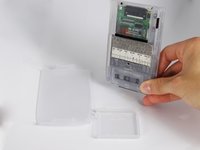
    1. Handspring Visor Deluxe PDA Button Pad and Battery Terminal Replacement, Outside cover and stylus: step 1, image 1 of 2 Handspring Visor Deluxe PDA Button Pad and Battery Terminal Replacement, Outside cover and stylus: step 1, image 2 of 2
      • Remove the outer screen cover by releasing the top clip from the main body of the device.

      Ask FixBot

      Add Comment

    2. Handspring Visor Deluxe PDA Button Pad and Battery Terminal Replacement: step 2, image 1 of 3 Handspring Visor Deluxe PDA Button Pad and Battery Terminal Replacement: step 2, image 2 of 3 Handspring Visor Deluxe PDA Button Pad and Battery Terminal Replacement: step 2, image 3 of 3
      • Pull out the stylus from the top right corner of the device.

      Ask FixBot

      Add Comment

    3. Handspring Visor Deluxe PDA Button Pad and Battery Terminal Replacement: step 3, image 1 of 3 Handspring Visor Deluxe PDA Button Pad and Battery Terminal Replacement: step 3, image 2 of 3 Handspring Visor Deluxe PDA Button Pad and Battery Terminal Replacement: step 3, image 3 of 3
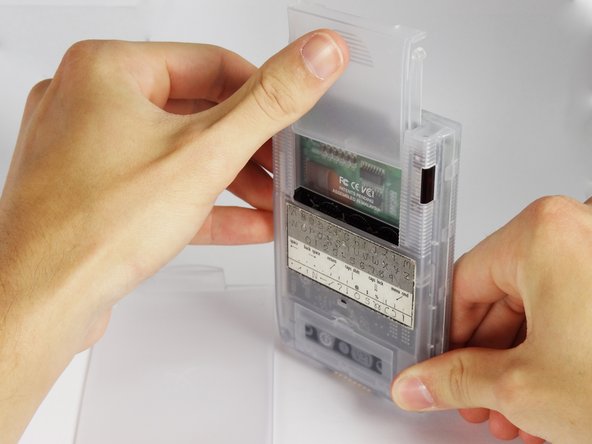
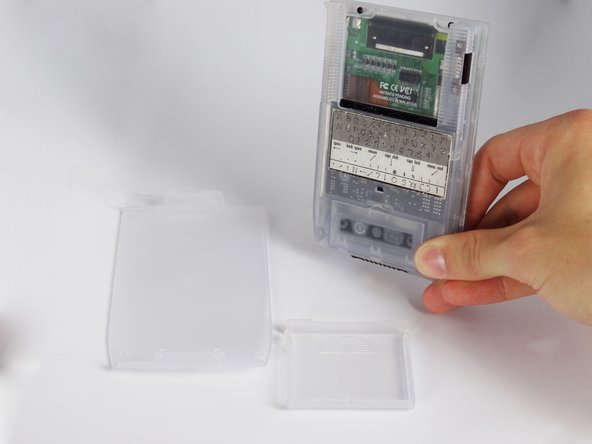
      • Slide the memory cartridge cover up and off the device.

      Ask FixBot

      Add Comment

    1. Handspring Visor Deluxe PDA Button Pad and Battery Terminal Replacement, Batteries: step 4, image 1 of 2 Handspring Visor Deluxe PDA Button Pad and Battery Terminal Replacement, Batteries: step 4, image 2 of 2
      • Remove the battery cover by releasing the clip from the main body of the device.

      Ask FixBot

      Add Comment

    2. Handspring Visor Deluxe PDA Button Pad and Battery Terminal Replacement: step 5, image 1 of 1
      • Remove the batteries from the device.

      Ask FixBot

      Add Comment

    1. Handspring Visor Deluxe PDA Button Pad and Battery Terminal Replacement, Back Cover: step 6, image 1 of 1
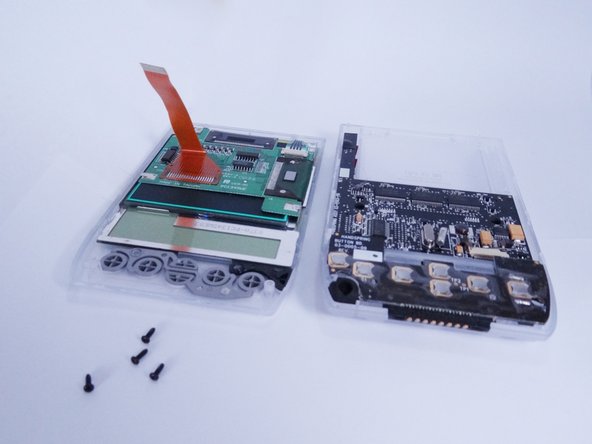
      • Unscrew the four 2.94mm screws with a #00 Phillips screwdriver.

      • One end of the OEM stylus can unscrew and contains a mini #00 Phillips screwdriver.

      Ask FixBot

      Add Comment

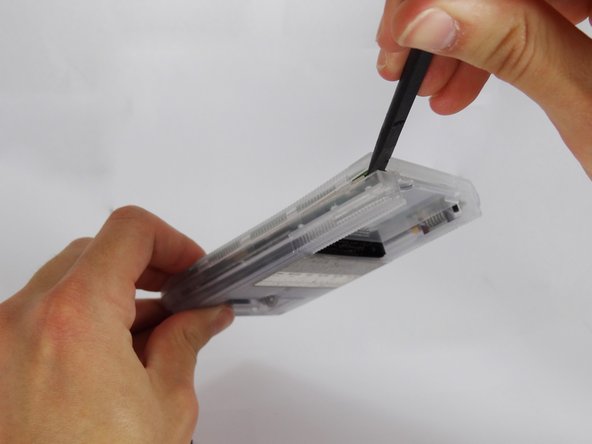
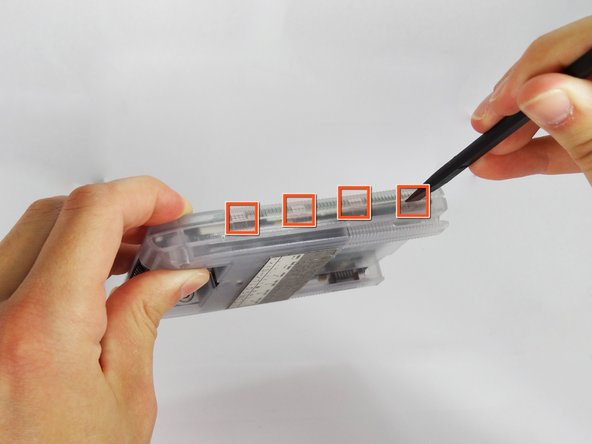
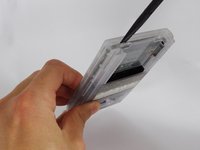
    2. Handspring Visor Deluxe PDA Button Pad and Battery Terminal Replacement: step 7, image 1 of 3 Handspring Visor Deluxe PDA Button Pad and Battery Terminal Replacement: step 7, image 2 of 3 Handspring Visor Deluxe PDA Button Pad and Battery Terminal Replacement: step 7, image 3 of 3
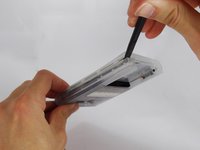
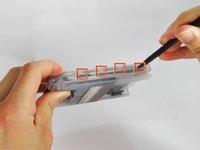
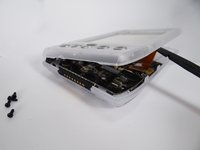
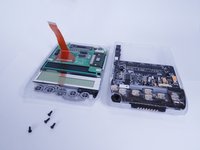
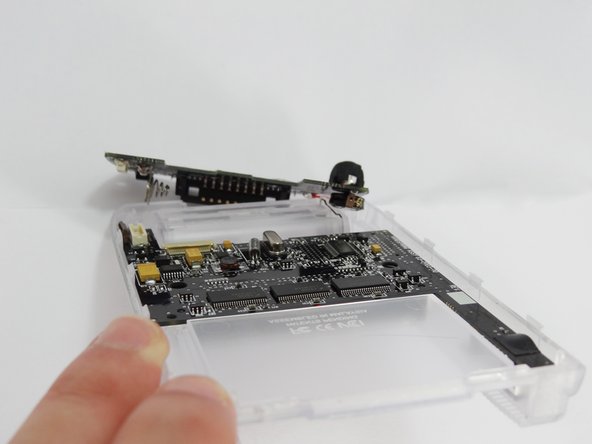
      • Use the spudger to pry open the casing by applying pressure at 4 clips on both sides of the device.

      • Be careful while opening the casing as there is a flex strip connecting the two halves.

      Ask FixBot

      Add Comment

    3. Handspring Visor Deluxe PDA Button Pad and Battery Terminal Replacement: step 8, image 1 of 3 Handspring Visor Deluxe PDA Button Pad and Battery Terminal Replacement: step 8, image 2 of 3 Handspring Visor Deluxe PDA Button Pad and Battery Terminal Replacement: step 8, image 3 of 3
      Tool used on this step:
      Tweezers
      $4.99
      Buy
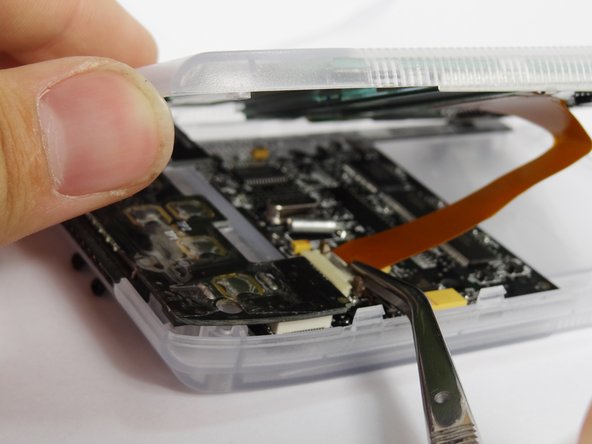
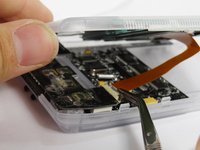
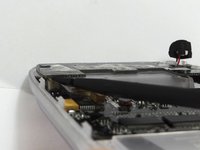
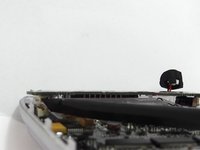
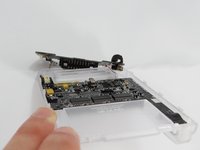
      • Disconnect the flex strip from the motherboard with tweezers.

      Ask FixBot

      Add Comment

    1. Handspring Visor Deluxe PDA Button Pad and Battery Terminal Replacement, Button Pad and Battery Terminal: step 9, image 1 of 1
      Tool used on this step:
      Tweezers
      $4.99
      Buy
      • Use tweezers to remove the power button from the back case.

      Ask FixBot

      Add Comment

    2. Handspring Visor Deluxe PDA Button Pad and Battery Terminal Replacement: step 10, image 1 of 3 Handspring Visor Deluxe PDA Button Pad and Battery Terminal Replacement: step 10, image 2 of 3 Handspring Visor Deluxe PDA Button Pad and Battery Terminal Replacement: step 10, image 3 of 3
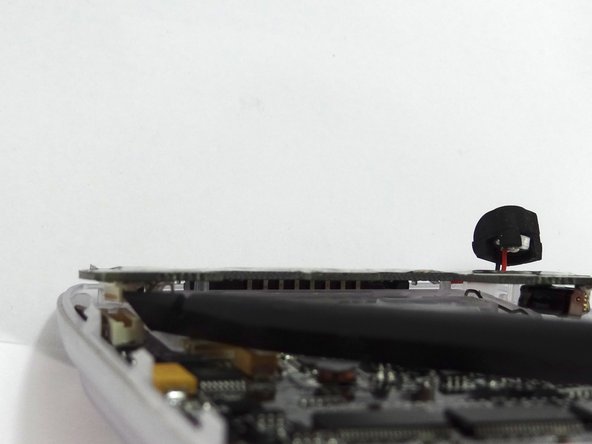
      • Disconnect the button pad by using the spudger to pry it off the motherboard.

      • Remove the button pad.

      Ask FixBot

      Add Comment

Conclusion

To reassemble your device, follow these instructions in reverse order.

Cancel: I did not complete this guide.

David Faltemier

Member since: 06/20/12

19 Reputation

5 Guides authored

Team

Cal Poly, Team 1-2, Regan SU 2012 Member of Cal Poly, Team 1-2, Regan SU 2012

CPSU-REGAN-SU12S1G2

4 Members

72 Guides authored

0 Guide Comments

Add Comment

View Statistics:

Past 24 Hours: 0

Past 7 Days: 11

Past 30 Days: 49

All Time: 1,205