15% Off Selected iFixit Tools — Limited Time
Free Shipping on Domestic Orders $75+

ASUS Q536F Motherboard Replacement

What you need

  1. ASUS Q536F Motherboard Replacement, Back Panel: step 1, image 1 of 2 ASUS Q536F Motherboard Replacement, Back Panel: step 1, image 2 of 2
    • Remove ten 2 mm screws using a Phillips #0 screwdriver.

    • Remove the screw in the center using a T4 Torx screwdriver.

    • Use an iFixit opening tool to pry open the back panel.

    • It's normal to hear some cracking, but proceed with caution.

    Ask FixBot

    Add Comment

  2. ASUS Q536F Motherboard Replacement, Battery: step 2, image 1 of 2 ASUS Q536F Motherboard Replacement, Battery: step 2, image 2 of 2
    Tool used on this step:
    Tweezers
    $4.99
    Buy
    • Remove the four 2 mm screws from the battery using a Phillips #1 screwdriver.

    • Detach the battery cable from the motherboard using a pair of tweezers.

    Ask FixBot

    Add Comment

  3. ASUS Q536F Motherboard Replacement: step 3, image 1 of 3 ASUS Q536F Motherboard Replacement: step 3, image 2 of 3 ASUS Q536F Motherboard Replacement: step 3, image 3 of 3
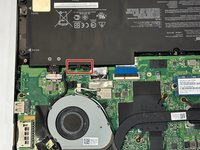
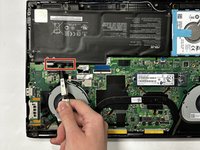
    • Unhinge the fan cable using your fingers or a pair of tweezers.

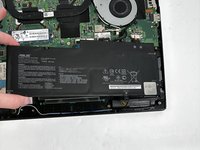
    • Remove the battery from its slot.

    • There should be no resistance from any cable wiring at this point. If there happens to be resistance, make sure to double check and confirm nothing is being pulled.

    Ask FixBot

    Add Comment

  4. ASUS Q536F Motherboard Replacement, Fan: step 4, image 1 of 2 ASUS Q536F Motherboard Replacement, Fan: step 4, image 2 of 2
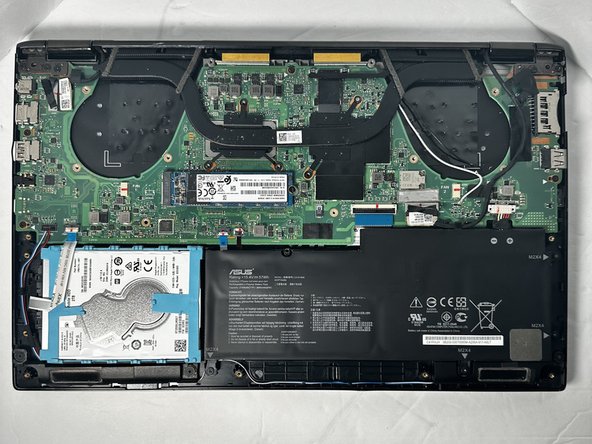
    • Use a Phillips #0 screwdriver to remove the six 2 mm fan screws.

    • Use a Phillips #0 screwdriver to remove the five 2 mm heatsink screws.

    • Warped Screw

    • Heatsink shown has warped screw, so unable to remove

    Ask FixBot

    Add Comment

  5. ASUS Q536F Motherboard Replacement: step 5, image 1 of 1
    Tool used on this step:
    Tweezers
    $4.99
    Buy
    • Disconnect white and black antennae cables.

    • Using tweezers for this would be helpful.

    Ask FixBot

    Add Comment

  6. ASUS Q536F Motherboard Replacement: step 6, image 1 of 2 ASUS Q536F Motherboard Replacement: step 6, image 2 of 2
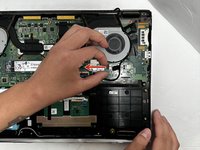
    • Disconnect fan cables pulling outwards as shown.

    Ask FixBot

    Add Comment

  7. ASUS Q536F Motherboard Replacement: step 7, image 1 of 3 ASUS Q536F Motherboard Replacement: step 7, image 2 of 3 ASUS Q536F Motherboard Replacement: step 7, image 3 of 3
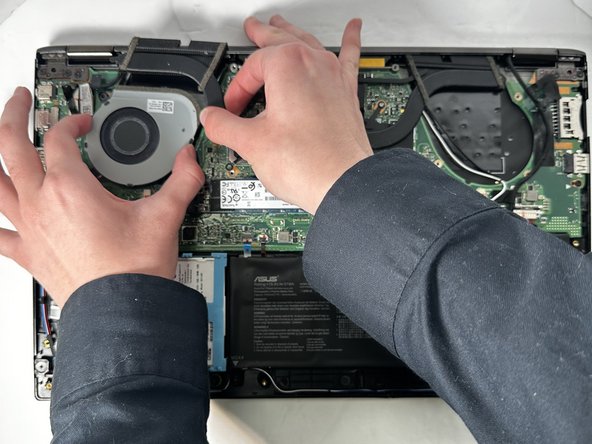
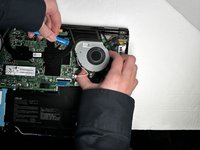
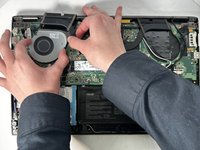
    • Carefully lift heatsink upward using a Ifixit opening tool or Fingers pull fan out from under the heat sink.

    • The fan can be removed without removing the heatsink, although it may be easier to remove.

    Ask FixBot

    Add Comment

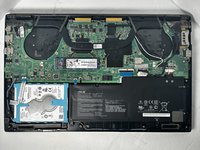
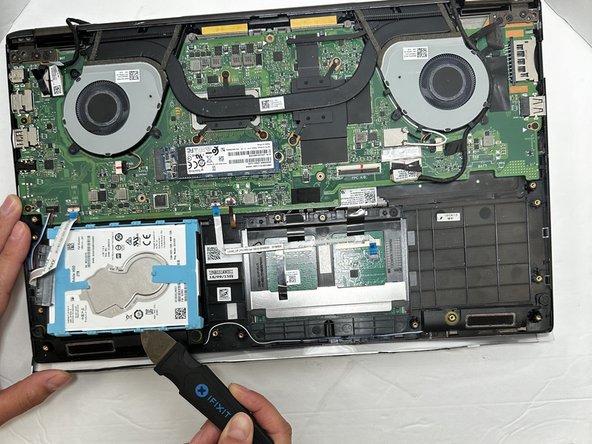
  8. ASUS Q536F Motherboard Replacement, Hard Drive: step 8, image 1 of 2 ASUS Q536F Motherboard Replacement, Hard Drive: step 8, image 2 of 2
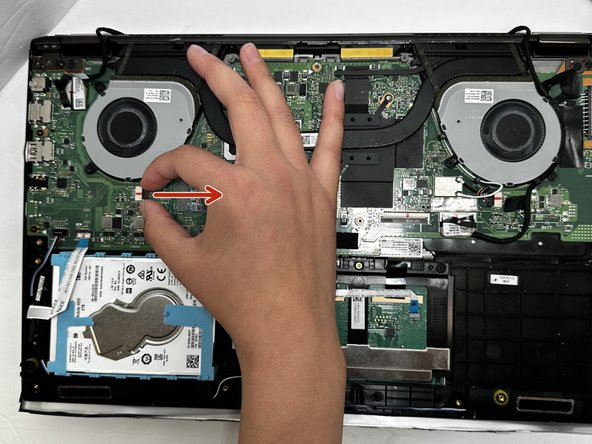
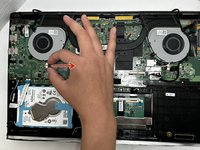
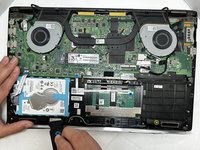
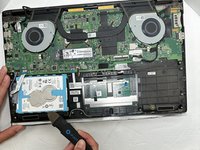
    • Disconnect the white ribbon cable from the connection lever using a Jimmy.

    Ask FixBot

    Add Comment

  9. ASUS Q536F Motherboard Replacement: step 9, image 1 of 2 ASUS Q536F Motherboard Replacement: step 9, image 2 of 2
    • Using the Jimmy, lift the hard drive out of its slot.

    Ask FixBot

    Add Comment

  10. ASUS Q536F Motherboard Replacement, SSD: step 10, image 1 of 1
    • Remove the single 2 mm screw from the SSD with a Phillips #0 screwdriver.

    Ask FixBot

    Add Comment

  11. ASUS Q536F Motherboard Replacement: step 11, image 1 of 1
    • Pull the SSD out of its slot.

    Ask FixBot

    Add Comment

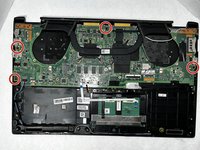
  12. ASUS Q536F Motherboard Replacement, Motherboard: step 12, image 1 of 2 ASUS Q536F Motherboard Replacement, Motherboard: step 12, image 2 of 2
    • Use a Phillips #0 screwdriver to remove the four 2 mm screws that secure the motherboard.

    Ask FixBot

    Add Comment

  13. ASUS Q536F Motherboard Replacement: step 13, image 1 of 1
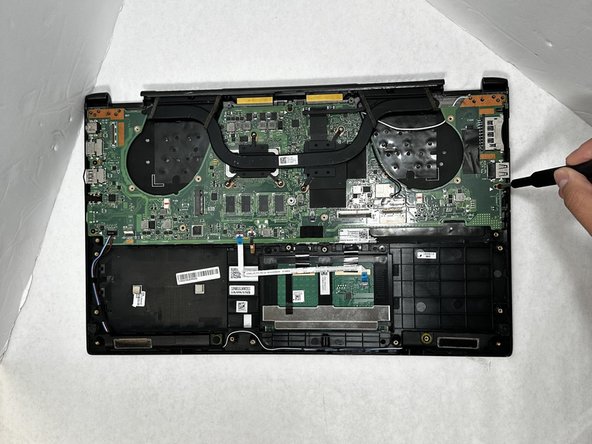
    • Using a Jimmy, pull up on the power cable.

    Ask FixBot

    Add Comment

  14. ASUS Q536F Motherboard Replacement: step 14, image 1 of 3 ASUS Q536F Motherboard Replacement: step 14, image 2 of 3 ASUS Q536F Motherboard Replacement: step 14, image 3 of 3
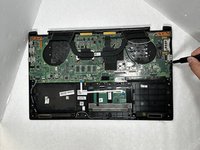
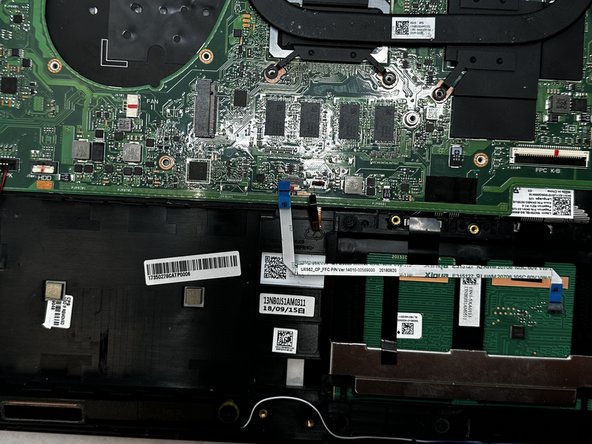
    • Using the Jimmy, lift up on both ribbon cable clamps, releasing the connection point, just like in step 8.

    Ask FixBot

    Add Comment

Conclusion

To reassemble your device, follow these instructions in reverse order.

Cancel: I did not complete this guide.

Adra Ledward

Member since: 09/07/23

557 Reputation

5 Guides authored

Team

Gateway, Team 88-8, Gonzalez Fall 2023 Member of Gateway, Team 88-8, Gonzalez Fall 2023

GCC-GONZALEZ-F23S88G8

5 Members

6 Guides authored

0 Guide Comments

Add Comment

View Statistics:

Past 24 Hours: 0

Past 7 Days: 8

Past 30 Days: 28

All Time: 716