
ASUS PadFone X Battery Replacement

John Kue and 6 other contributors
Last updated on May 26, 2017
Views: 5.7K
View statistics:
- Past 24 Hours:
- 1
- Past 7 Days:
- 22
- Past 30 Days:
- 102
- All Time:
- 5,680
Comments: 0
No one has left comments on this guide. Will you be first?
Go to guide commentsCompleted: 4 5
4 people have marked this guide "completed." Will you be next?
5 people have marked this guide "completed." Including you — great job!
Favorites: 0 1
No one has favorited (and subscribed to) this guide. Will you be the first?
1 person has favorited (and subscribed to) this guide — and that's you!
Better Introduction
Improve this guide by completing or revising its introduction.
Introduction
Go to step 1 ↓Replace the battery from your PadFone X.
What you need
Tools


-
-
-
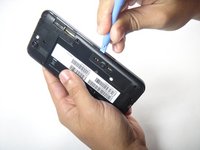
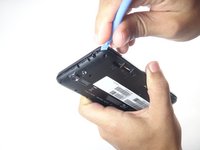
Using the blue plastic opening tool, insert the tip into the crease between the back cover and the phone and pry it upwards.
-
Work your way around the phone until the entire back cover is loose.
 Ask FixBot
-
-
-
Remove the 13 - 3.6 mm screws using the Torx T5 bit in the screwdriver.
-
-
-
Using the blue plastic opening tool, insert the tip into the crease between the mid-frame and the phone and pry it upwards.
-
Work your way around the phone until the entire back cover is loose and remove the mid-frame.
-
-
-
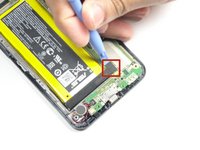
Using the blue plastic opening tool, gently disconnect the battery cable from the motherboard.
-
-
-
-
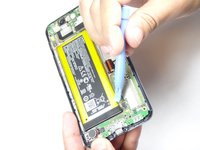
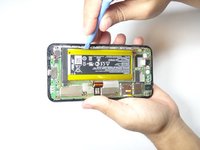
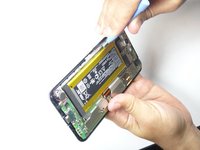
Use the blue plastic opening tool to pry the battery pack from the phone. Pry along edge away from the motherboard as this might damage the motherboard.
-
-






To reassemble your device, follow these instructions in reverse order.
Cancel: I did not complete this guide.
4 other people completed this guide.

Team

USF Tampa, Team 8-4, Leahy Fall 2014 Member of USF Tampa, Team 8-4, Leahy Fall 2014
USFT-LEAHY-F14S8G4
4 Members
60 Guides authored
