Free Shipping on Domestic Orders $75+

ASUS MeMo Pad FHD10 Camera Replacement

What you need

  1. ASUS MeMo Pad FHD10 Camera Replacement, Battery: step 1, image 1 of 2 ASUS MeMo Pad FHD10 Camera Replacement, Battery: step 1, image 2 of 2
    • Make sure that the device is turned off as a precaution.

    • Unplug the charger and remove any memory card you may have in the device.

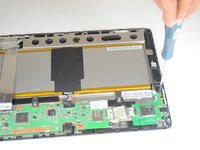
    • Wedge the plastic opening tool between the front and back cover on every side.

    • Slide the plastic opening tool back and forth to make sure that the back cover is disconnected.

    • Once disconnected, remove the back cover from the device screen.

    Ask FixBot

    Add Comment

  2. ASUS MeMo Pad FHD10 Camera Replacement: step 2, image 1 of 2 ASUS MeMo Pad FHD10 Camera Replacement: step 2, image 2 of 2
    Tool used on this step:
    Tweezers
    $4.99
    Buy
    • Remove the protective copper sticker and all tape fixed on the device.

    • Using tweezers, remove the ribbon cable from their connections attached to the motherboard.

    • While using the tweezers, make sure to use minimum force and precision to avoid damaging any components.

    Ask FixBot

    Add Comment

  3. ASUS MeMo Pad FHD10 Camera Replacement: step 3, image 1 of 2 ASUS MeMo Pad FHD10 Camera Replacement: step 3, image 2 of 2
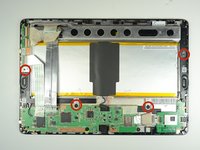
    • Remove the four 2 mm Phillips #00 screws holding the battery tray in place.

    Ask FixBot

    Add Comment

  4. ASUS MeMo Pad FHD10 Camera Replacement: step 4, image 1 of 3 ASUS MeMo Pad FHD10 Camera Replacement: step 4, image 2 of 3 ASUS MeMo Pad FHD10 Camera Replacement: step 4, image 3 of 3
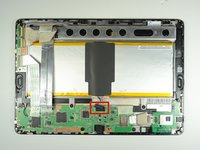
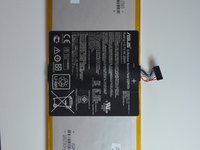
    • Locate the battery cable attached to the motherboard. Using the same technique used on the ribbons, do the same with the battery.

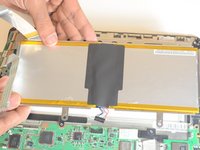
    • Remove the battery from the device. Once removed, use the plastic tool to separate the metal frame from the battery.

    • When separating the metal frame, be sure to hold on in the center as the battery is two separate cells.

    Ask FixBot

    Add Comment

  5. ASUS MeMo Pad FHD10 Camera Replacement, Speakers: step 5, image 1 of 1
    • Remove three screws using a Phillips #00 screwdriver.

    Ask FixBot

    Add Comment

  6. ASUS MeMo Pad FHD10 Camera Replacement: step 6, image 1 of 1
    Tool used on this step:
    Tweezers
    $4.99
    Buy
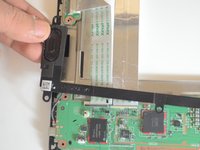
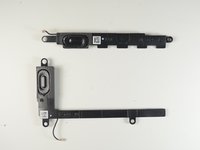
    • The two speakers are located on opposite sides of the device. Both are long black pieces with connections to the motherboard.

    • Unplug the speaker cables from their connections on the motherboard gently by using tweezers.

    Ask FixBot

    Add Comment

  7. ASUS MeMo Pad FHD10 Camera Replacement: step 7, image 1 of 3 ASUS MeMo Pad FHD10 Camera Replacement: step 7, image 2 of 3 ASUS MeMo Pad FHD10 Camera Replacement: step 7, image 3 of 3
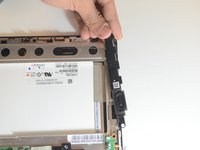
    • Gently use your hands to remove the speakers.

    Ask FixBot

    Add Comment

  8. ASUS MeMo Pad FHD10 Camera Replacement, Motherboard: step 8, image 1 of 1
    • Remove the five screws using a Phillips #00 screwdriver.

    Ask FixBot

    Add Comment

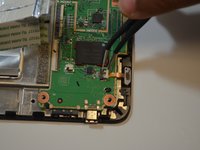
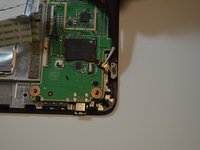
  9. ASUS MeMo Pad FHD10 Camera Replacement: step 9, image 1 of 3 ASUS MeMo Pad FHD10 Camera Replacement: step 9, image 2 of 3 ASUS MeMo Pad FHD10 Camera Replacement: step 9, image 3 of 3
    • Carefully disconnect the cord that connects the on/off button to the motherboard

    • Peel back the electrical tape holding the connections of the motherboard down to the frame of the device.

    Ask FixBot

    Add Comment

  10. ASUS MeMo Pad FHD10 Camera Replacement: step 10, image 1 of 1
    • Use your hands to remove the motherboard from the device.

    Ask FixBot

    Add Comment

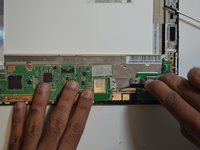
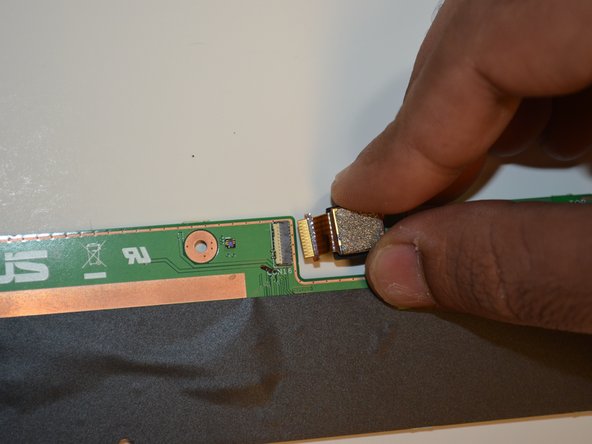
  11. ASUS MeMo Pad FHD10 Camera Replacement, Front and Rear cameras: step 11, image 1 of 3 ASUS MeMo Pad FHD10 Camera Replacement, Front and Rear cameras: step 11, image 2 of 3 ASUS MeMo Pad FHD10 Camera Replacement, Front and Rear cameras: step 11, image 3 of 3
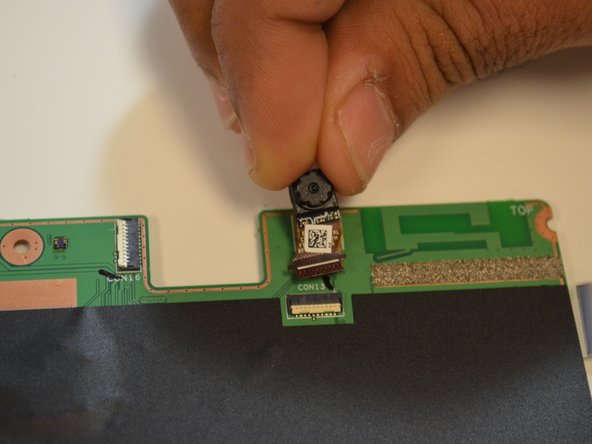
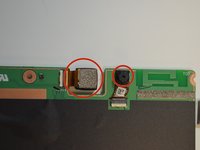
    • Identify the location of front and rear cameras on the motherboard.

    • The front and rear cameras can be removed by pulling them out gently using hands.

    Ask FixBot

    Add Comment

Conclusion

To reassemble your device, follow these instructions in reverse order.

Cancel: I did not complete this guide.

Dmitry

Member since: 01/21/15

391 Reputation

3 Guides authored

Team

USF Tampa, Team 9-5, Blackwell Winter 2015 Member of USF Tampa, Team 9-5, Blackwell Winter 2015

USFT-BLACKWELL-W15S9G5

4 Members

10 Guides authored

0 Guide Comments

Add Comment

View Statistics:

Past 24 Hours: 1

Past 7 Days: 6

Past 30 Days: 43

All Time: 887