Free Shipping on Domestic Orders $75+

ASUS E210MA-TB.CL464BK Wi-Fi Card Replacement

Views: 663

View statistics:

Past 24 Hours:
1
Past 7 Days:
15
Past 30 Days:
64
All Time:
663
Comments: 0

No one has left comments on this guide. Will you be first?

Go to guide comments
Completed: 0

No one has marked this guide "completed." Will you be the first?

Favorites: 0

No one has favorited (and subscribed to) this guide. Will you be the first?

Time Required: 5 minutes
Difficulty: Moderate
ASUS E210MA-TB.CL464BK Wi-Fi Card Replacement

Introduction

Go to step 1 ↓

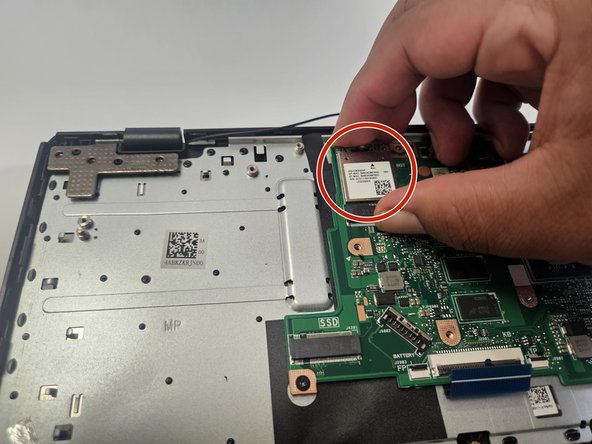
If you're experiencing difficulty connecting to a network, Its possible there is an issue with the wireless card In this guide, we go through the steps of configuration to correctly replace the wireless card. There are different types of wireless cards with different specifications and standards in our case it is a (802.11ac) (Dual band).

What you need

Tools

    1. ASUS E210MA-TB.CL464BK Wi-Fi Card Replacement, Wi-Fi Card: step 1, image 1 of 3 ASUS E210MA-TB.CL464BK Wi-Fi Card Replacement, Wi-Fi Card: step 1, image 2 of 3 ASUS E210MA-TB.CL464BK Wi-Fi Card Replacement, Wi-Fi Card: step 1, image 3 of 3
      • Place the laptop with the bottom side facing up. Have the front (where the touchpad is) facing toward you.

      • Start by removing the ten 7mm screws on the bottom of the laptop using a JIS #00 screwdriver.

      Ask FixBot

      Add Comment

    2. ASUS E210MA-TB.CL464BK Wi-Fi Card Replacement: step 2, image 1 of 1
      • Double-check to make sure all of the screws are removed.

      • If you have a Jimmy or other flat, straight-edge object, slide it in the crack where the halves of the case meet.

      • When the parts are separated, pull them apart to expose the insides of the case.

      Ask FixBot

      Add Comment

    3. ASUS E210MA-TB.CL464BK Wi-Fi Card Replacement: step 3, image 1 of 2 ASUS E210MA-TB.CL464BK Wi-Fi Card Replacement: step 3, image 2 of 2
      • Locate the card and remove it by gently lifting it up and pulling it out.

      Ask FixBot

      Add Comment

Conclusion

To reassemble your device, follow these instructions in reverse order.

Cancel: I did not complete this guide.

John Hutchins

Member since: 02/07/23

763 Reputation

5 Guides authored

Team

Gateway, Team 73-6, Gonzalez Spring 2023 Member of Gateway, Team 73-6, Gonzalez Spring 2023

GCC-GONZALEZ-S23S73G6

5 Members

60 Guides authored

0 Guide Comments

Add Comment

View Statistics:

Past 24 Hours: 1

Past 7 Days: 15

Past 30 Days: 64

All Time: 663