Free Shipping on Domestic Orders $75+

ASUS E210MA-TB.CL464BK USB Port Replacement

Views: 582

View statistics:

Past 24 Hours:
3
Past 7 Days:
14
Past 30 Days:
73
All Time:
582
Comments: 0

No one has left comments on this guide. Will you be first?

Go to guide comments
Completed: 0

No one has marked this guide "completed." Will you be the first?

Favorites: 0

No one has favorited (and subscribed to) this guide. Will you be the first?

Time Required: 5 - 10 minutes
Difficulty: Moderate
Action Shots

Be an action hero! This guide needs images that better demonstrate how to perform specific actions.

Needs Better Images

Better photos will improve this guide. Help out by taking, editing, or uploading new ones!

Needs More Images

A few more images would make this guide's procedures crystal clear.

Better Introduction

Improve this guide by completing or revising its introduction.

ASUS E210MA-TB.CL464BK USB Port Replacement

Introduction

Go to step 1 ↓

If your laptop is having trouble with identifying external USB devices, you may have to replace the port. After ensuring that it is not a software issue, you can use these steps to remove the USB port board.

What you need

Tools

    1. ASUS E210MA-TB.CL464BK USB Port Replacement, USB Port: step 1, image 1 of 3 ASUS E210MA-TB.CL464BK USB Port Replacement, USB Port: step 1, image 2 of 3 ASUS E210MA-TB.CL464BK USB Port Replacement, USB Port: step 1, image 3 of 3
      • Place the laptop with the bottom side facing up. Have the front (where the touchpad is) facing toward you.

      • Start by removing the ten 7mm screws on the bottom of the laptop using a JIS #00 screwdriver.

      Ask FixBot

      Add Comment

    2. ASUS E210MA-TB.CL464BK USB Port Replacement: step 2, image 1 of 1
      • Double-check to make sure all of the screws are removed.

      • If you have a Jimmy or other flat, straight-edge object, slide it in the crack where the halves of the case meet.

      • When the parts are separated, pull them apart to expose the insides of the case.

      Ask FixBot

      Add Comment

    3. ASUS E210MA-TB.CL464BK USB Port Replacement: step 3, image 1 of 2 ASUS E210MA-TB.CL464BK USB Port Replacement: step 3, image 2 of 2
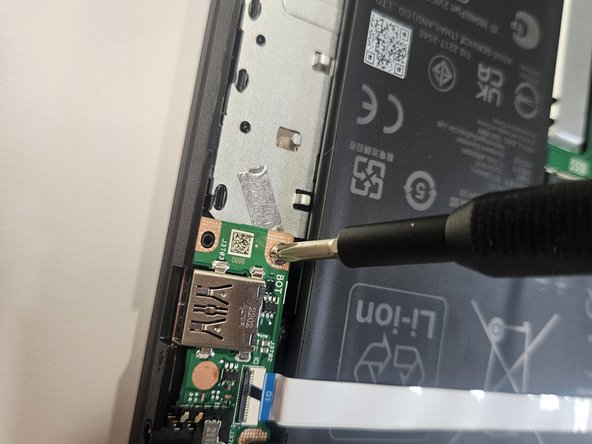
      • Remove the four 2 mm screws from the USB PCB.

      Ask FixBot

      Add Comment

    4. ASUS E210MA-TB.CL464BK USB Port Replacement: step 4, image 1 of 1
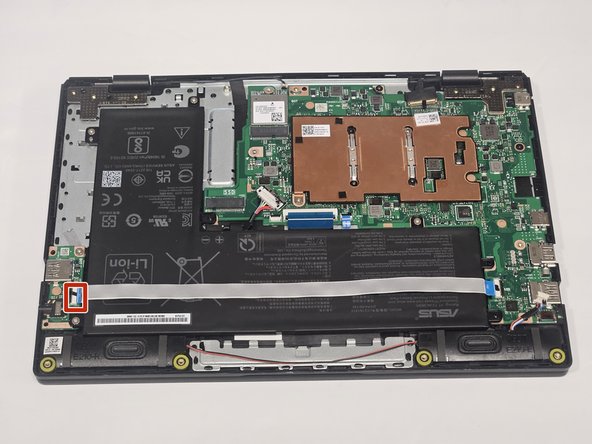
      • Unlatch the ribbon cable from the the USB port and remove the PCB.

      Ask FixBot

      Add Comment

Conclusion

To reassemble your device, follow these instructions in reverse order.

Cancel: I did not complete this guide.

John Hutchins

Member since: 02/07/23

763 Reputation

5 Guides authored

Team

Gateway, Team 73-6, Gonzalez Spring 2023 Member of Gateway, Team 73-6, Gonzalez Spring 2023

GCC-GONZALEZ-S23S73G6

5 Members

60 Guides authored

0 Guide Comments

Add Comment

View Statistics:

Past 24 Hours: 3

Past 7 Days: 14

Past 30 Days: 73

All Time: 582