
APS Tech 101629 Channel Switch Replacement

Alexis Weckel and 9 other contributors
Last updated on Mar 22, 2021
Views: 1.3K
View statistics:
- Past 24 Hours:
- 1
- Past 7 Days:
- 11
- Past 30 Days:
- 74
- All Time:
- 1,284
Comments: 0
No one has left comments on this guide. Will you be first?
Go to guide commentsCompleted: 1 2
1 person has marked this guide "completed." Will you be next?
2 people have marked this guide "completed." Including you — great job!
Favorites: 3 4
3 people have favorited (and subscribed to) this guide. Will you be next?
4 people have favorited (and subscribed to) this guide — including you!
Introduction
Go to step 1 ↓This repair guide will take you through the steps to removing and replacing the channel switch of your APS Tech 101629 CD-Drive. This can be quickly removed and easily replaced.
First the external casing will need to be removed.
What you need
Tools
-
Spudger4.9


-
-
-
Pry all four of the plastic feet off the bottom of the enclosure using the iPod opening tool.
 Ask FixBot
-
-
-
Unscrew the four screws previously covered by the feet with a Phillips #1 screwdriver.
-
-
-
Flip the device right side up.
-
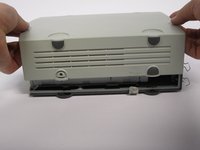
Gently slide the casing upwards and off the hard drive.
-
-
-
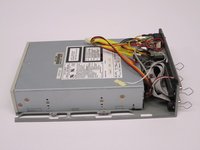
Flip device upside down again.
-
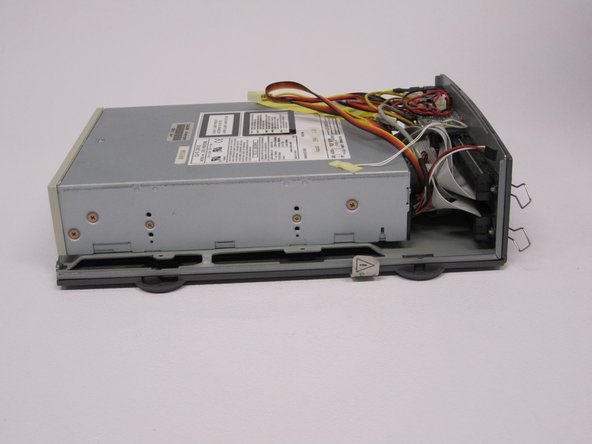
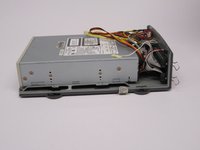
Gently pry the bottom gray casing away from the device.
-
-
-
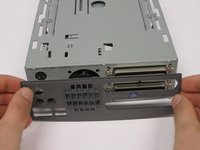
Rotate so the back of the device is facing you.
-
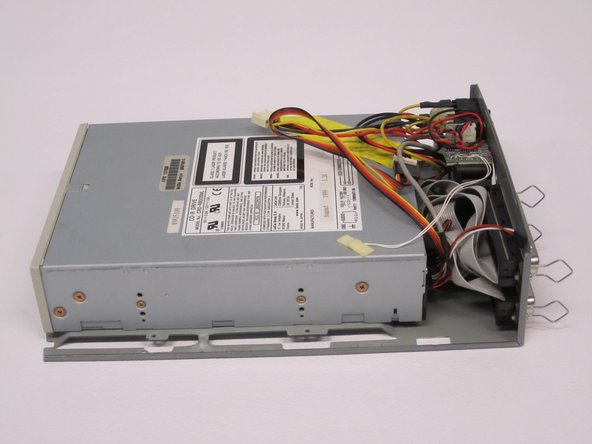
Gently pry the back casing away.
-
When the back casing is removed, the fan will become loose.
-
-
-
-
-
-
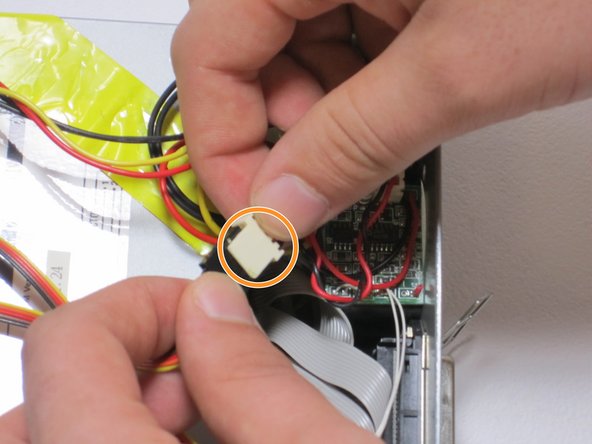
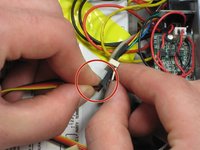
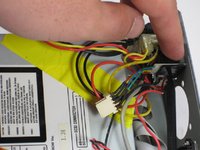
Find the conjoined ID cable wires that are colored black, orange, and yellow.
-
Lift white portion of cable wires to disconnect it.
-
-
-
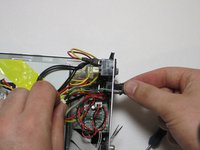
Using the spudger, depress the pressure holders at all four corners of the fan.
-
Take out the fan and its cords, by pulling it outward from its cavity within the device.
-
-





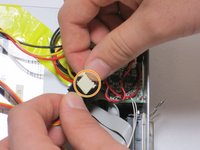

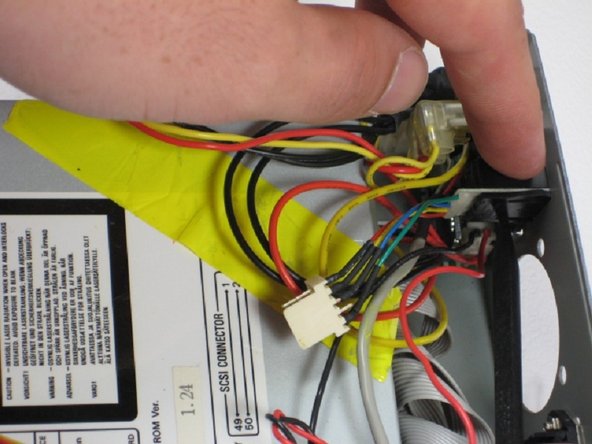
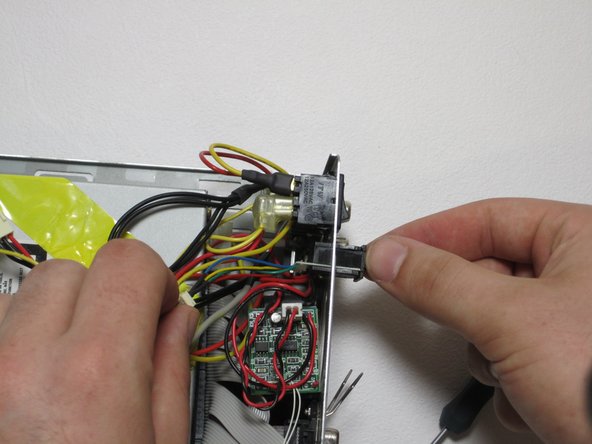
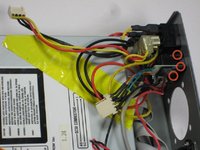
To reassemble your device, follow these instructions in reverse order.
Cancel: I did not complete this guide.
One other person completed this guide.

Team

Cal Poly, Team 24-60, Amido Spring 2011 Member of Cal Poly, Team 24-60, Amido Spring 2011
CPSU-AMIDO-S11S24G60
5 Members
72 Guides authored
