
8BitDo Ultimate Wired Buttons Replacement

Tanvi Verma and 3 other contributors
Last updated on May 31, 2024
Views: 4.6K
View statistics:
- Past 24 Hours:
- 9
- Past 7 Days:
- 49
- Past 30 Days:
- 212
- All Time:
- 4,608
Comments: 6
4 comments on steps, 2 guide comments.
Go to guide commentsCompleted: 8 9
8 people have marked this guide "completed." Will you be next?
9 people have marked this guide "completed." Including you — great job!
Favorites: 1 2
1 person has favorited (and subscribed to) this guide. Will you be next?
2 people have favorited (and subscribed to) this guide — including you!
Introduction
Go to step 1 ↓If you need to replace the buttons, you can access them with this guide. You may need to change the buttons if they are worn down, cracked, jammed, or missing. For this guide, you will need a plastic opening tool, Phillips #0 screwdriver, TR6 Torx Security screwdriver, and ESD-safe blunt nose tweezers (optional).
This repair process is not too difficult, but be careful to not damage anything when you take off the top panel. Make sure the controller is not plugged into a power source.
What you need
Tools


-
-
-
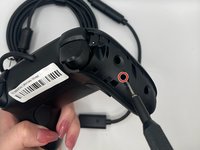
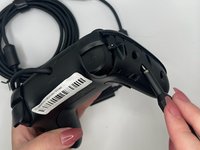
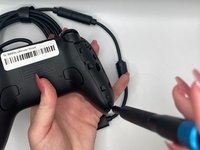
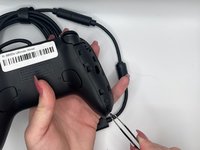
Orient the controller such that the back of the controller is facing you.
-
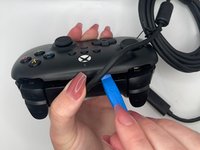
Insert an opening tool into the small opening on the back of the grip, and gently pry the grip cover away until it pops free.
 Ask FixBot
-
-
-
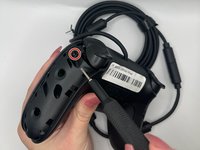
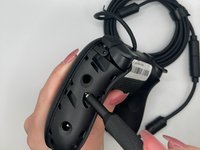
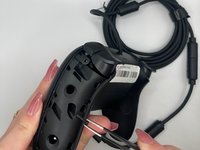
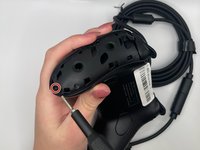
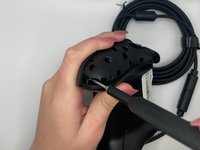
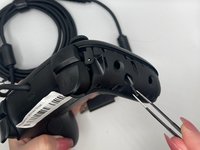
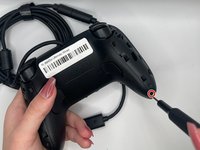
Use the TR6 Torx Security screwdriver to remove the top left 10.44 mm torx screw on the backside.
-
-
-
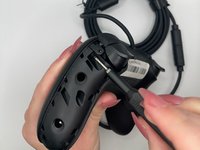
Use the TR6 Torx Security screwdriver to remove the middle left 10.44 mm Torx screw on the backside.
-
-
-
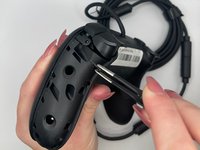
Use the TR6 Torx Security screwdriver to remove the bottom left 10.44 mm Torx screw on the backside.
-
-
-
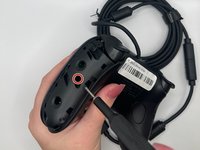
Use the TR6 Torx Security screwdriver to remove the top right 10.44 mm Torx screw on the backside.
-
-
-
Use the TR6 Torx Security screwdriver to remove the middle right 10.44 mm Torx screw on the backside.
-
-
-
Use the TR6 Torx Security screwdriver to unscrew the bottom right 10.44 mm Torx screw on the backside.
-
-
-
Orient the controller such that the back of the controller is facing you.
-
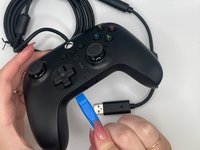
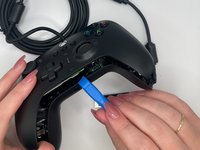
Insert an opening tool into the small opening between the front and back panels, and gently pry the back panel away to open the bottom clamps of the top panel of the controller.
-
-
-
-
Insert an opening tool into the small opening between the front and back panel (top view) and pry away to remove the top half.
-
-
-
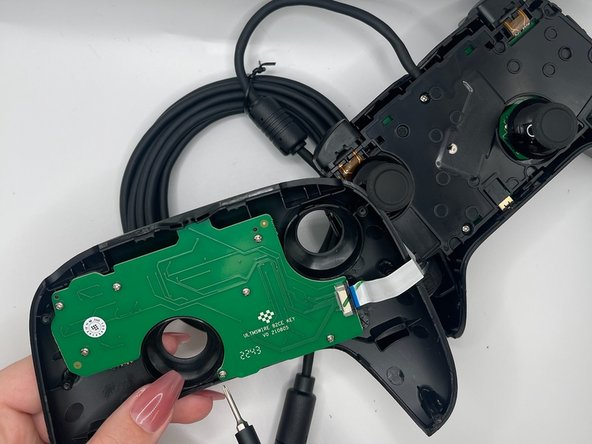
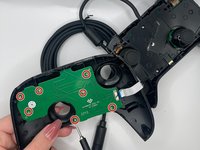
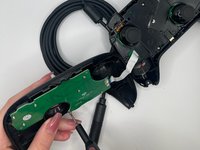
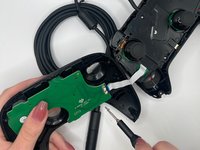
Use the Phillips #0 Screwdriver to remove all seven 6.14 mm Phillips screws from the button PCB.
-
-
-
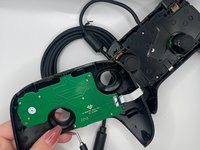
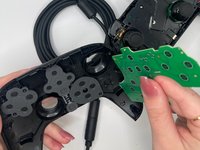
Remove the button PCB.
-
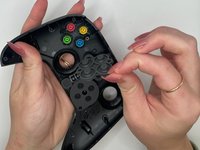
Pinch the silicone cover on the buttons to remove it, such that the buttons are exposed.
-
-
-
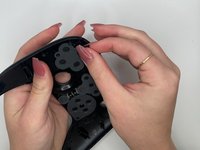
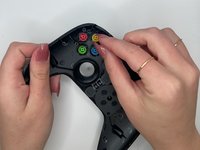
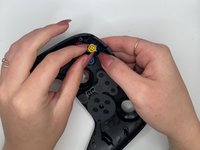
Simply using the force from your finger, push the button out of the housing.
-
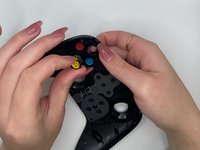
Pull button out.
-
-






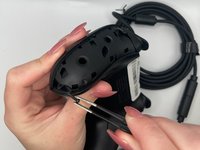


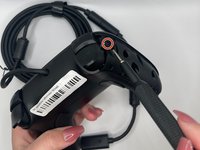
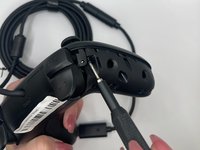
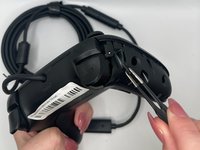













To reassemble your device, follow these instructions in reverse order.
Cancel: I did not complete this guide.
8 other people completed this guide.

Team

University of North Texas, Team 4-3, Harold Spring 2024 Member of University of North Texas, Team 4-3, Harold Spring 2024
UNT-HAROLD-S24S4G3
3 Members
60 Guides authored
