Free Shipping on Domestic Orders $75+

4. Installing Klipper on SKR3 EZ

    • Download and extract the latest version of Mainsail from their Github

    • Open the Raspberry Pi Imager

    • Select Operating System > Use custom > Select the Mainsail OS you downloaded.

    • Select Storage > Select your SD/USB.

    • Bring up the Advanced Settings menu by pressing CTRL+SHIFT+X

    • Here you can setup your WiFi, locale, enable SSH and numerous other options.

    • Write > Yes to confirm

    • After imaging is complete the SD/USB is automatically ejected. Insert it into the RPI.

    Ask FixBot

    Add Comment

  1. 4. Installing Klipper on SKR3 EZ: step 2, image 1 of 3 4. Installing Klipper on SKR3 EZ: step 2, image 2 of 3 4. Installing Klipper on SKR3 EZ: step 2, image 3 of 3
    • Connect your Raspberry Pi to the SKR3 EZ by USB or UART cable. I used a UART cable so that is what I will be showing but I'll try to explain how to setup USB as well.

    • UART wiring

    • PA10 > GPIO15

    • PA9 > GPIO14

    • GND > GND

    • For USB ONLY connect a USB cable from the SKR3 EZ to the RPI and place a jumper on VUSB

    • Make sure the double throw switch is in the up position

    • Connect the RPI to it's 5v power supply and power it on. Do not power on the the 24v PSU

    Ask FixBot

    Add Comment

  2. 4. Installing Klipper on SKR3 EZ: step 3, image 1 of 2 4. Installing Klipper on SKR3 EZ: step 3, image 2 of 2
    • Verify the RPI is connected to your network. Open command prompt and run

    • ping mainsailos.local

    • You should see it return successful pings

    • Open a web browser and go to

    • mainsail.local

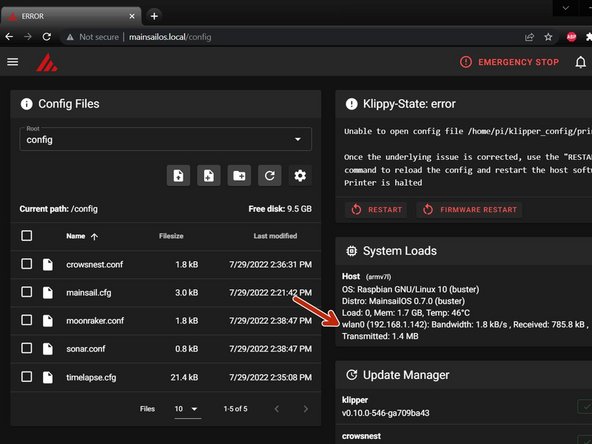
    • On the machine tab you can see the IP address of your RPI next to "wlan0"

    • I use Remote Terminal, but using your favorite SSH client login to your RPI with the default credentials

    Ask FixBot

    Add Comment

  3. 4. Installing Klipper on SKR3 EZ: step 4, image 1 of 3 4. Installing Klipper on SKR3 EZ: step 4, image 2 of 3 4. Installing Klipper on SKR3 EZ: step 4, image 3 of 3
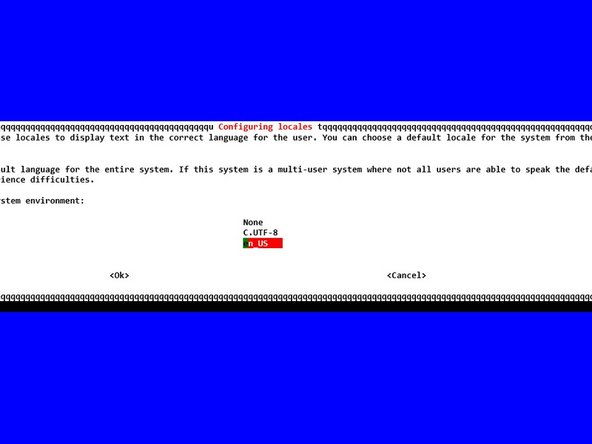
    • Set your locale

    • sudo raspi-config

    • Set your region preferences for L1-L4

    • Reboot your RPI when finished

    Ask FixBot

    Add Comment

  4. 4. Installing Klipper on SKR3 EZ: step 5, image 1 of 1
    • SSH back into your RPI and run

    • sudo apt-get update

    • sudo apt-get upgrade -y

    • Because I used a brand new image (released the day before) there was nothing to update. If yours installs updates make sure you restart the pi

    Ask FixBot

    Add Comment

  5. 4. Installing Klipper on SKR3 EZ: step 6, image 1 of 1
    • SSH into your pi and run

    • cd ~/klipper

    • make menuconfig

    • Set the following parameters

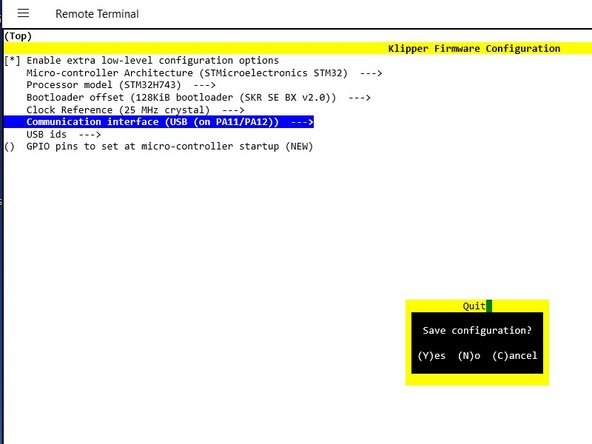
    • Enable extra low-level configuration options

    • Micro-controller Architecture (STMicroelectronics STM32) --->

    • Processor model (STM32H743) --->

    • Bootloader offset (128KiB bootloader (SKR SE BX v2.0)) --->

    Ask FixBot

    Add Comment

  6. 4. Installing Klipper on SKR3 EZ: step 7, image 1 of 3 4. Installing Klipper on SKR3 EZ: step 7, image 2 of 3 4. Installing Klipper on SKR3 EZ: step 7, image 3 of 3
    • Continued

    • Clock Reference (25 MHz crystal) --->

    • 3 wire cable connected from TFT to RPI GPIO

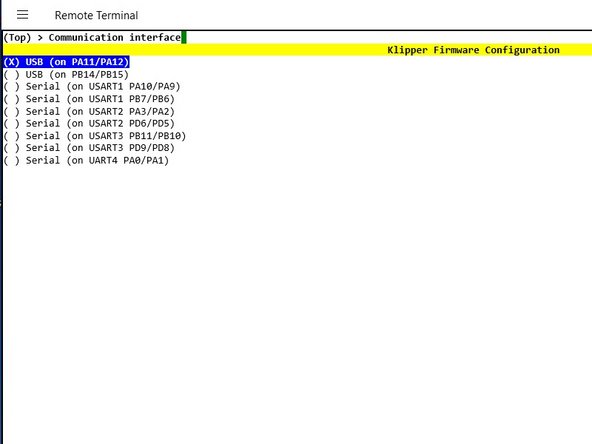
    • Communication interface (USART1 (on PA10/PA9)) --->

    • USB Cable

    • Communication interface (USB (on PA11/PA12)) --->

    • Press ESC key

    • Y to save configuration

    Ask FixBot

    Add Comment

  7. 4. Installing Klipper on SKR3 EZ, ***For USB connected board only***: step 8, image 1 of 2 4. Installing Klipper on SKR3 EZ, ***For USB connected board only***: step 8, image 2 of 2
    • Press and hold the BOOT and RESET buttons.

    • Release the RESET button first, than release BOOT. This will put the board in DFU mode.

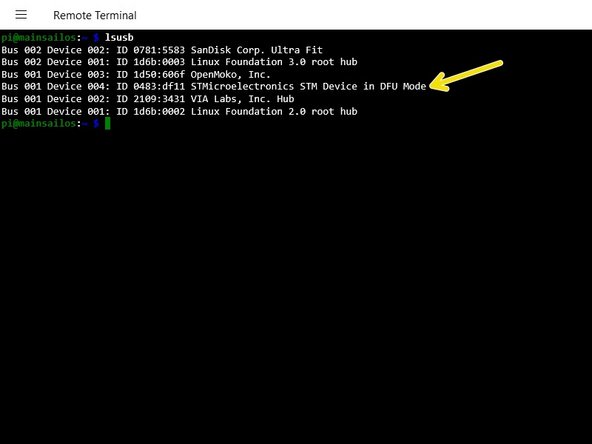
    • Get the boards ID number by running

    • lsusb

    Ask FixBot

    Add Comment

  8. 4. Installing Klipper on SKR3 EZ, For UART and USB Connected Boards: step 9, image 1 of 2 4. Installing Klipper on SKR3 EZ, For UART and USB Connected Boards: step 9, image 2 of 2
    • Compile the firmware by running

    • Make

    • The SKR3 doesn't have a bootloader so you cannot flash it from the RPI. You'll need to use the SD method.

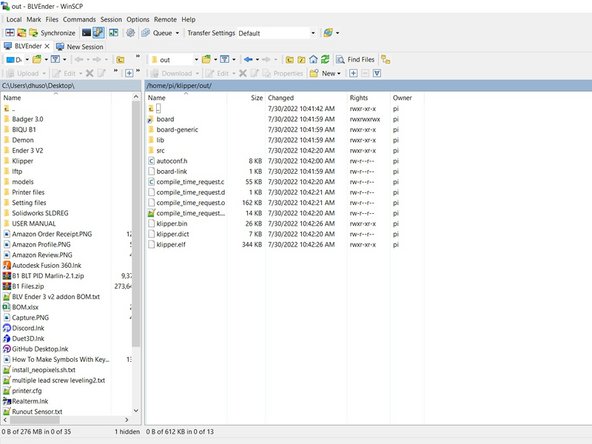
    • Open WINSCP

    • Navigate to /klipper/out/

    • Copy klipper.bin to your PC and rename it to firmware.bin

    • Copy firmware.bin to a SD. Make sure the SD card is formatted to FAT32.

    • Holding the RESET button on the SKR3 EZ, insert the SD card into the SKR3 EZ.

    Ask FixBot

    Add Comment

  9. 4. Installing Klipper on SKR3 EZ: step 10, image 1 of 2 4. Installing Klipper on SKR3 EZ: step 10, image 2 of 2
    • Release the reset button and the firmware will update. When the status LED goes out the firmware update is complete.

    • Remove the SD card and press the RESET button.

    • FOR USB CONNECTED ONLY

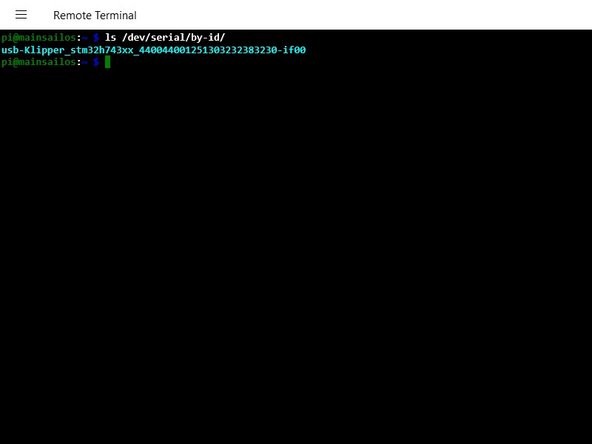
    • You need to get the boards ID. Run

    • ls /dev/serial/by-id/

    • Reboot the RPI

    Ask FixBot

    Add Comment

  10. 4. Installing Klipper on SKR3 EZ: step 11, image 1 of 1
    • Power on the RPI and SSH into it.

    • Run

    • cd ~/klipper

    • sudo cp "./scripts/klipper-mcu-start.sh" /etc/init.d/klipper_mcu

    • sudo update-rc.d klipper_mcu defaults

    • sudo service klipper stop

    • make clean

    • make

    Ask FixBot

    Add Comment

  11. 4. Installing Klipper on SKR3 EZ: step 12, image 1 of 2 4. Installing Klipper on SKR3 EZ: step 12, image 2 of 2
    • Continued

    • make menuconfig

    • Micro-Controller Architecture > Linux Process. Press esc than Y

    • make flash

    • sudo service klipper start

    • Verify klipper_host_mcu is in the tmp directory with ls /tmp/*

    • Add the pi to the TTY group

    • sudo usermod -a -G tty pi

    Ask FixBot

    Add Comment

    • Once complete go to Step #** Canbus

    Ask FixBot

    Add Comment

Finish Line

Cancel: I did not complete this guide.

5 other people completed this guide.

David Husolo

Member since: 06/16/21

9,382 Reputation

33 Guides authored

6 Guide Comments

is it suitable for skr 3 but NOT EZ version?

Vlad Vovk - Reply Share

that saved my life, thx

Balint V - Reply Share

is it different for a btt pi4b with cb1 emmc 32g

Dustin brooks - Reply Share

Thank you. I have it running with a BTT Pi (power 24V) and using USB with the SKE3 EZ.
Step 8 (Get the boards ID number by running) is only needed as check if things work.

/dev/serial was not created due to a faulty Debian script but can be solved by updating and upgrading "sudo apt -y update && sudo apt -y upgrade".

Zekitez - Reply Share

"The SKR3 doesn't have a bootloader so you cannot flash it from the RPI"
SKR3 has a 128 KB bootloader. Yet you can't flash it from the Pi.

Arty Chow - Reply Share

Add Comment

View Statistics:

Past 24 Hours: 10

Past 7 Days: 45

Past 30 Days: 184

All Time: 12,729