
Lenovo ThinkPad E14 Gen 4 Wireless LAN Card Replacement

Tyler Wolf and 3 other contributors
Last updated on Dec 22, 2025
Views: 402
View statistics:
- Past 24 Hours:
- 1
- Past 7 Days:
- 15
- Past 30 Days:
- 68
- All Time:
- 402
Comments: 0
No one has left comments on this guide. Will you be first?
Go to guide commentsCompleted: 0 1
No one has marked this guide "completed." Will you be the first?
1 person has marked this guide "completed." It's you — great job!
Favorites: 0 1
No one has favorited (and subscribed to) this guide. Will you be the first?
1 person has favorited (and subscribed to) this guide — and that's you!
Introduction
Go to step 1 ↓The Lenovo ThinkPad E14 Gen 4 is a 14" laptop designed mainly for small-to-medium businesses. It is part of the ThinkPad E Series, which prioritizes affordability and accessibility. This guide serves to inform how to remove and replace the wireless LAN card of the ThinkPad E14 Gen 4.
A wireless LAN card is an adapter card that allows the device it is installed into to connect to a LAN, or Local Area Network, of which Wi-Fi is the most widely known type. If your device is lagging/slow, having trouble showing available networks, or dropping known connections, these may be symptoms that the wireless LAN card is failing and needs replaced. The device may also produce an inordinate amount of heat, but that particular symptom may have a number of causes. Wireless Lan cards are not meant for frequent or rough treatment, so handle the component with care.
Warning: Before you begin opening your device, ensure that it is unplugged and that the battery is completely shut down.
What you need
Tools


-
-
-
First start off by using your screwdriver to remove the screws from the back metal shield or cover. Loosen all seven captive screws on the back panel of the device with a Phillips #1 screwdriver.
 Ask FixBot
-
-
-
Insert an opening pick into the seam near the hinges.
-
Working from the hinges to the front, gently pry apart the back of the device from the main body.
-
-
-
Carefully lift the loosened panel away from the laptop. The metal spudger is useful when extra prying force is needed, but a black nylon spudger or iFixit opening tool should be used whenever possible.
-
-
-
-
-
Remove all five 5mm screws from the battery using a Phillips #1 screwdriver.
-
-
-
Using the fabric tag, disconnect the battery cables from their port inside the device.
-
-
-
-
-
-
Uncouple both the main (silver) and auxiliary (black) coaxial cables.
-
-


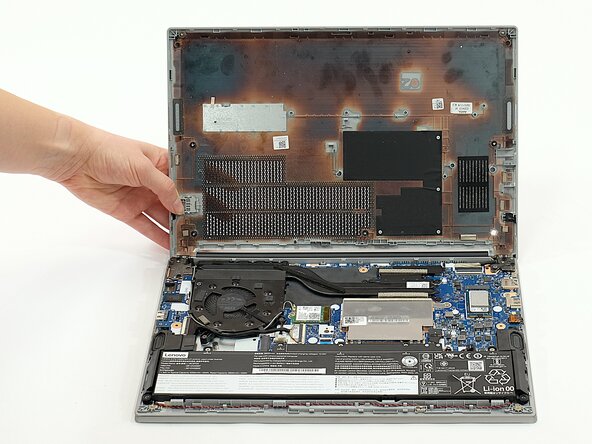


To reassemble your device, follow these instructions in reverse order.

Team

Linn Benton Community College, Team 1-4, Karnes Fall 2025 Member of Linn Benton Community College, Team 1-4, Karnes Fall 2025
LBCC-KARNES-F25S1G4
4 Members
72 Guides authored
