
Lenovo ThinkPad E14 Gen 4 Back Panel Replacement

Macy Bornheimer and 5 other contributors
Last updated on May 7, 2026
Views: 627
View statistics:
- Past 24 Hours:
- 1
- Past 7 Days:
- 19
- Past 30 Days:
- 90
- All Time:
- 627
Comments: 0
No one has left comments on this guide. Will you be first?
Go to guide commentsCompleted: 0 1
No one has marked this guide "completed." Will you be the first?
1 person has marked this guide "completed." It's you — great job!
Favorites: 0 1
No one has favorited (and subscribed to) this guide. Will you be the first?
1 person has favorited (and subscribed to) this guide — and that's you!
Introduction
Go to step 1 ↓Need to fix some hardware in your device? Here's how to get started!
Before opening your ThinkPad, first make sure that your device is completely powered off and that your charging cable is disconnected. Make sure there is no electricity actively flowing through the device before touching anything inside. Components within the device may be sharp, so watch your fingers!
Note: This guide was written with a 21E3 model, but the process is the same for all E14 Gen 4 ThinkPads.
What you need
Tools


-
-
-
First start off by using your screwdriver to remove the screws from the back metal shield or cover. Loosen all seven captive screws on the back panel of the device with a Phillips #1 screwdriver.
 Ask FixBot
-
-
-
Insert an opening pick into the seam near the hinges.
-
Working from the hinges to the front, gently pry apart the back of the device from the main body.
-
-
-
-
Carefully lift the loosened panel away from the laptop. The metal spudger is useful when extra prying force is needed, but a black nylon spudger or iFixit opening tool should be used whenever possible.
-
-


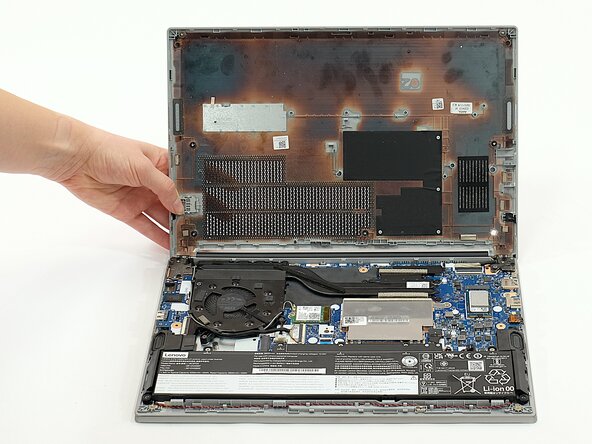
To reassemble your device, follow these instructions in reverse order.
Team

Linn Benton Community College, Team 1-4, Karnes Fall 2025 Member of Linn Benton Community College, Team 1-4, Karnes Fall 2025
LBCC-KARNES-F25S1G4
4 Members
72 Guides authored
