Introduction
The Powermac G4 "Quicksilver," The 2nd Major revision to Apple's Powermac G4 Series. It was released in 2001, and came with a 533Mhz-Dual 1Ghz Motorola PowerPC G4 CPU. This Supported up to 1.5GB of PC133 133Mhz Ram. This computer looks neat, and was the last apple computer to incoorperate a possible ZIP Drive. It had AGP Graphics with a NVIDIA GeForce 2MX Mac Edition standard. This is incredibly silent compared to the G4 MDD and the G4 Graphite. Available CPU Speeds: 533Mhz, 667Mhz, 733Mhz, 800Mhz, 933Mhz, And 1.0Ghz . Most clock speeds were available in both single and dual configurations. This was the first Mac to reach 1.0Ghz. No wonder they call it the "Quicksilver."
What you need
-
-
Start by opening the case.
-
The same way, the other powermac g3's and G4's open... Just lift the lever on the side of the case, and lower it down.
-
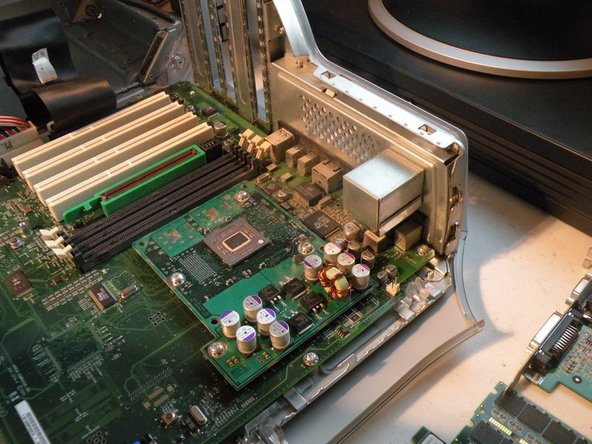
This gives us access to the guts.
-
-
-
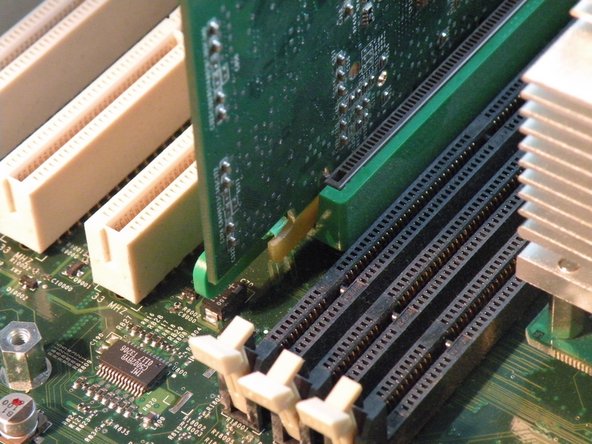
Hidden between the CPU and the Graphics Card is the RAM.
-
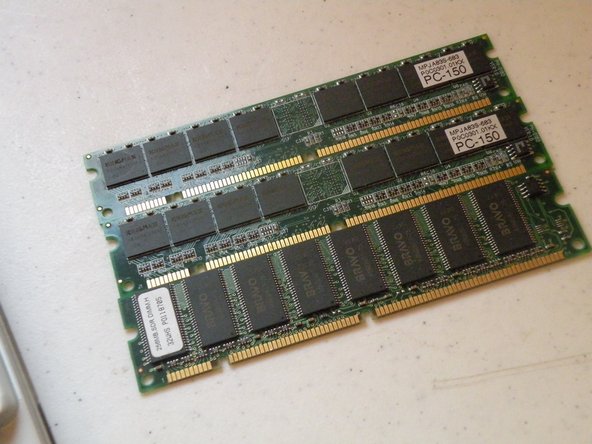
The Quicksilver uses PC133 133Mhz Ram and supports up to 1.5Gb, just like the cube.
-
-
-
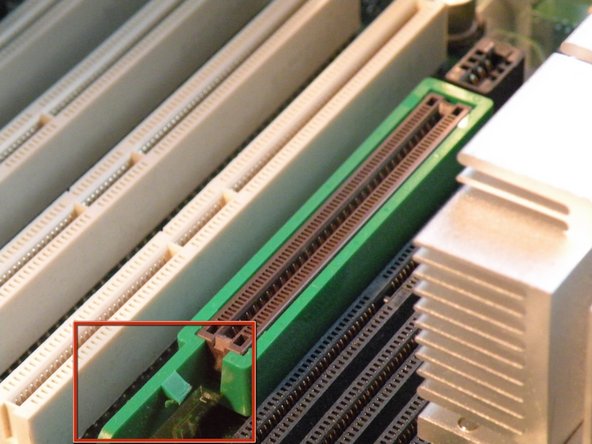
Remove this screw, then push in this tab outward, and pull the card out.
-
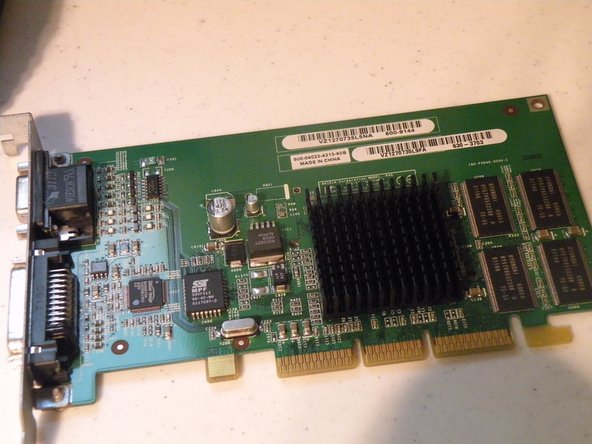
The Quicksilver came standard with this card, a 32MB NVIDIA GeForce 2MX AGP Mac Edition, this card supports the ADC Displays like the one we took apart last week.
-
-
-
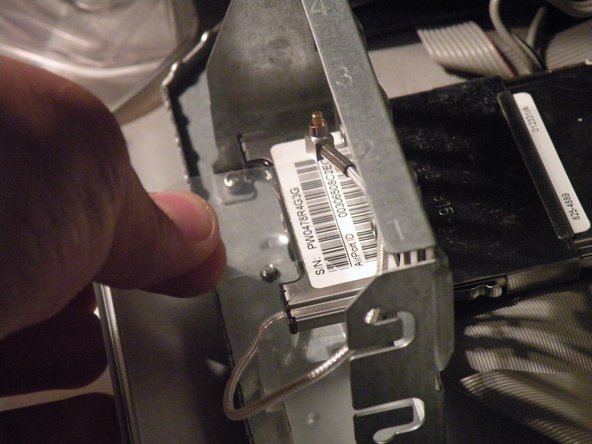
Remove the AirPort Antenna by pulling it out of the back of the card
-
Grab the plastic tab, and pull the card out.
-
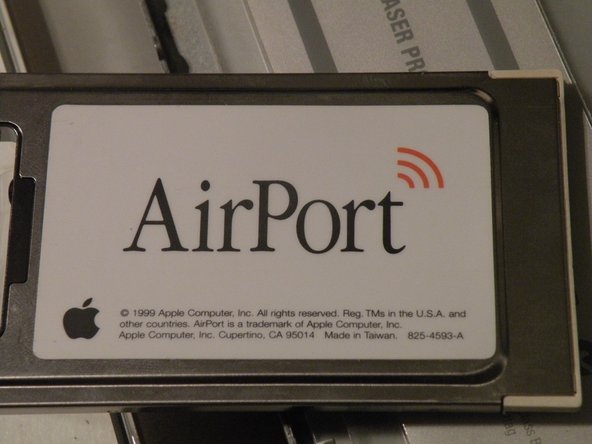
This is the same PCMCIA 802.11b Airport card found in every mac from 2000-2004, it is only wireless "B" so you only get 11Mbps, but that is enough for web browsing.
-
-
-
Removing The CPU Fan
-
Remove these 2 Phillips screws.
-
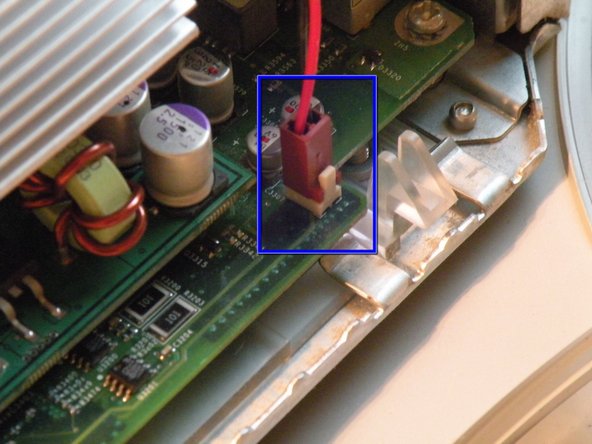
Then Remove the fan connector.
-
Then, remove the fan.
-
-
-
-
This Computer boasts a 733Mhz Motorola PowerPC G4 CPU, though not fast enough to run leopard natively, it runs 10.4.11 "Tiger" fine.
-
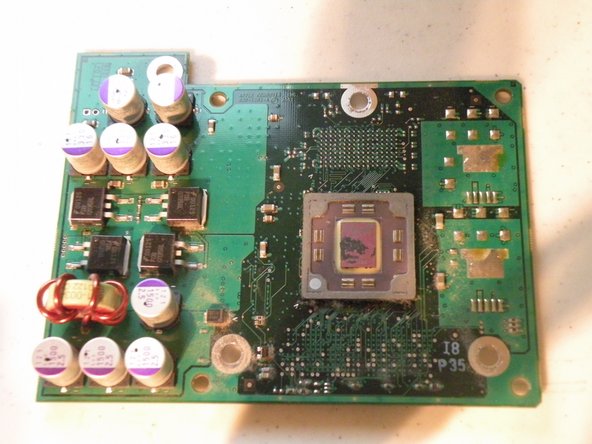
It has a 733Mhz Motorola PowerPC 7450 (G4).
-
Start by removing the heatsink clamps with a flathead screwdriver.
-
Do the same for the other side.
-
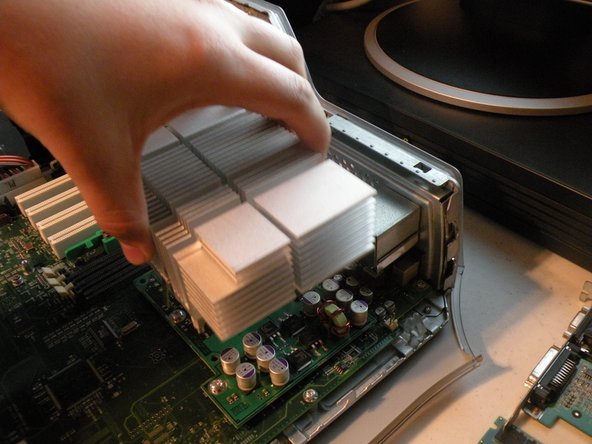
Then Lift off the heatsink.
-
This will reveal the CPU.
-
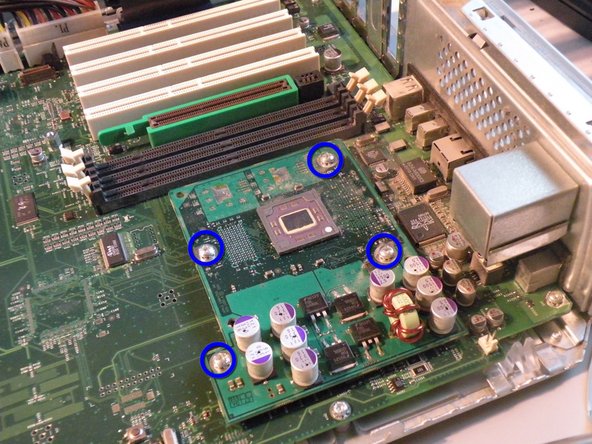
Remove these screws.
-
-
-
Once those screws are removed, carefully remove the CPU.
-
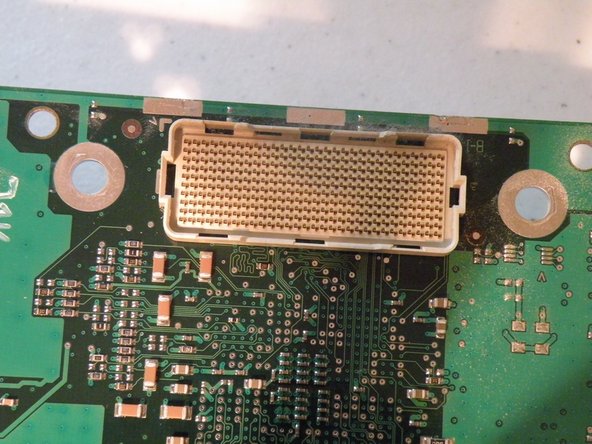
This is apple's 300-Pin connector, it is found on this Mac, and MDD's (This cpu won't work in an MDD) and similar to the one in PowerMac G5's.
-
This connector is incredibly hard to remove, because of the way it connects, it is also very hard to remove without damaging it, if you don't pull it straight up, you will, most likely damage it.
-
-
-
Disconnect the IDE Cable and Power Cables from any hard drives.
-
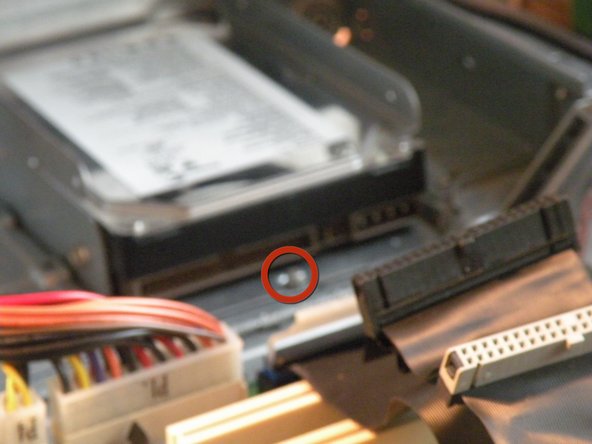
Remove this screw if present.
-
Slide the caddy out, then set it aside.
-
Many Apple Computers Including earlier versions of this one had a 128GB Limit on hard drives, only Quicksilvers made in 2002 and later will support hard drives larger than 128GB, but to bypass this, simply partition your hard drive in to multiple partitions under 128GB in Disk Utility.
-
This computer uses standard IDE hard disks, and originally shipped with 40GB or 80GB.
-
It will support up to 4 IDE drives, 2 Hard Disks, one Optical Drive, and one ZIP Drive.(You can put an IDE Hard Disk in the the ZIP Drive Slot if you wish, allowing for 3 Hard Drives).
-
-
-
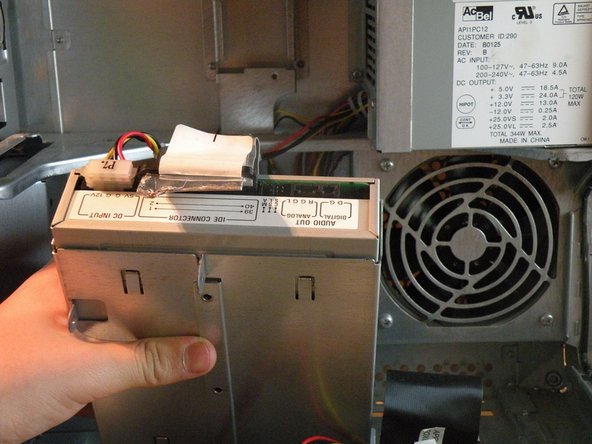
Start by removing all of these screws.
-
Then Slide the drive cage back, and pull it partially, tha remove the IDE And Power Cables, and set it aside.
-
Most Quicksilvers, Including Mine Shipped Standard With a DVD/CD-RW "ComboDrive"
-
-
-
This computer uses a non-standard 22-Pin Apple power supply, plus a 4-Pin 12V connector commonly found in some power supplies.
-
Start by disconnecting the power connectors from the motherboard, and routeing them up to the level of the power supply.
-
Also remove the fan connector, and route that up as well.
-
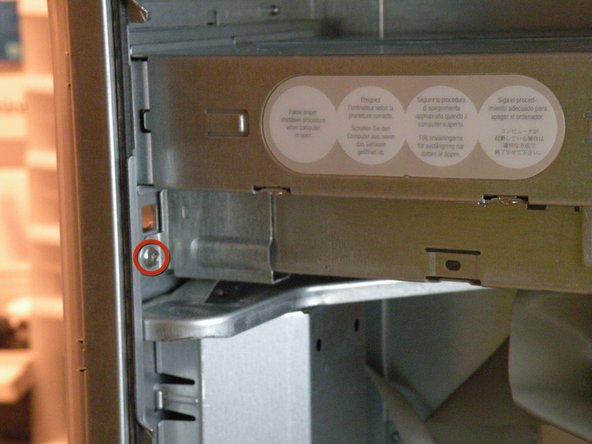
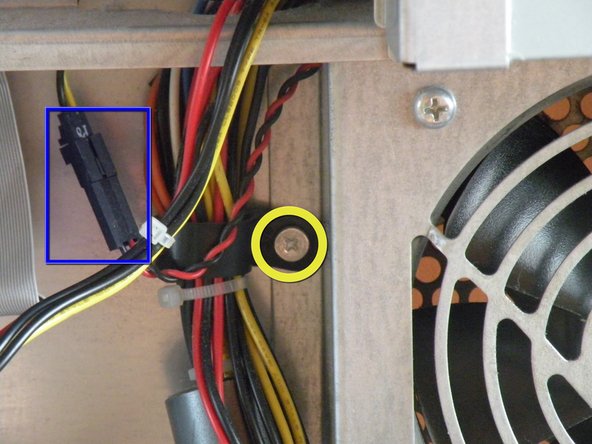
Remove this Screw as well.
-
Disconnect the Fan Connector.
-
Fan removal is only three screws. The one circled in yellow, one on the upper left of the frame cage (not shown), and one on the middle bottom of the frame (not shown).
-
-
-
Start by disconnecting everything, cables, battery, etc.
-
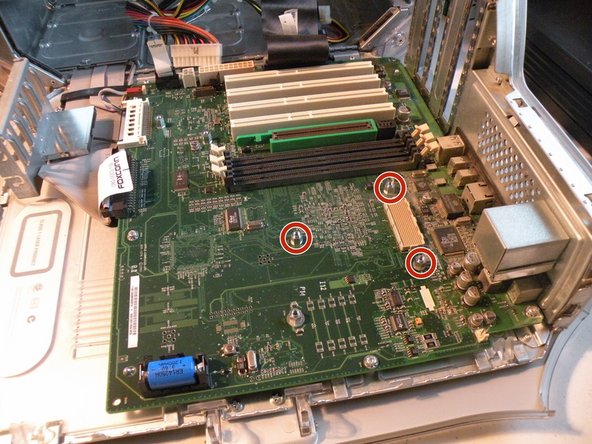
There are three hex-shaped screws holding the board, which are right where the CPU was. These also provide the screw holes to screw and hold the CPU. Use an English 1/4" size socket to remove these three screws left behind from the CPU.
-
Then remove the 4 screws which are located around the edge of the board. If you have less than 4 screws, don't worry too much, if you don't have trouble removing the board at the next step, then you are fine.
-
Now, slide the logic board away from the rear of the case about 1/2 inch, and lift it out. It should not be difficult to pull out or up, if it is, go back, and make sure you have removed all screws. I did, however, have to pull out towards the front, then up, then back towards the back of the case before I could completely remove the board.
-
-
-
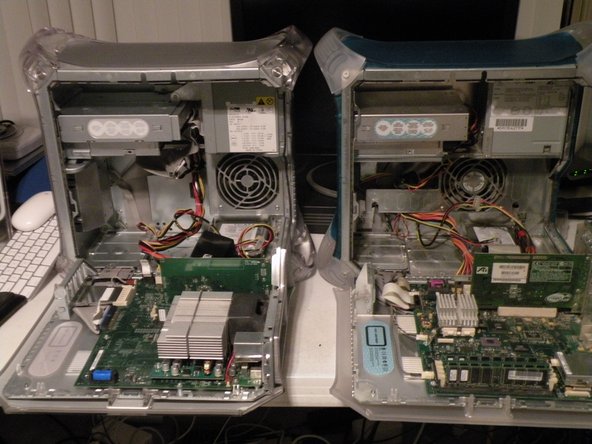
G4 Quicksilver (Left) (3rd Photo)
-
G3 B&W (Right) (3rd Photo)
-
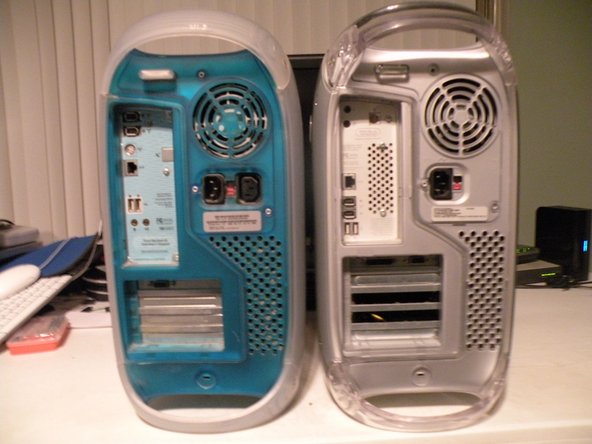
The computers are exactly the same size, but the Quicksilver Weighs more than the G3, due to heavier plastics, more case metal, and a much larger heatsink.
-

















Team

6 Comments
Seems to me that the cabling for the hard drive is a bit more complex. In fact it looks like it locks in some fashion. I say this because I came to this mostly to find out how to deal with a connection that didn't seem to be simple to un-do with out risking damage.
Nope - standard molex connectors.
Mal -
A really reliable machine. I still have mine and use it for video editing. Yes, a bit slow … but it gets the job done with no dropped frames.
Mal -
7 Years too late Mal
