Introduction
Use this guide to replace your front panel assembly. The front panel is not separable from the LCD. A new front panel assembly will give you a new front glass panel, digitizer, and LCD.
If you bought them separately, be careful when sticking the LCD to the digitizer as the entire surface of the LCD is covered with glue. Once it sticks to the LCD, you will not be able to remove it.
What you need
-
-
With the heat gun set on "low", begin heating the lower portion of the Touch near the home button.
-
-
-
-
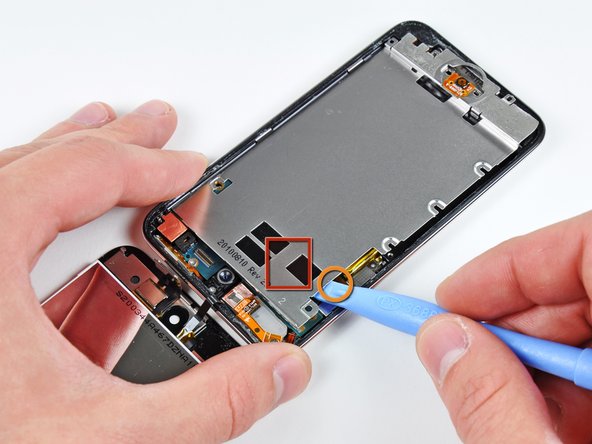
Insert the edge of an opening tool under the steel mid plate near the bottom left corner of the Touch.
-
Slowly pry upward to separate the plate from the adhesive securing it to the plastic inner case.
-
If the plate is still attached to the logic board, re-warm the area to loosen the adhesive, then slowly separate the plate from the logic board using the opening tool.
-
There is a thin, fragile ribbon cable underneath the plate. As you pry the plate up, be very careful not to rip the cable.
-
-
-
Remove the following three screws near the top edge of the logic board:
-
One 2.0 mm Phillips screw
-
Two 2.3 mm Phillips screws
-
-
-
Use an iPod opening tool to slightly lift the edge of the logic board next to the battery enough to grab it with your other hand.
-
Be very careful not to lift too much as the volume control ribbon cable is still connected and will tear very easily.
-
While gently lifting the logic board with one hand, use an iPod opening tool to lift the logic board near the copper tape at the logic board's top edge.
-
The logic board will be lifted adequately when the last display assembly connector has cleared the top edge of the rear case.
-
-
-
Use the edge of an iPod opening tool to begin peeling the loop of copper tape wrapped around the connector near the center of the top edge of the logic board.
-
Continue peeling the tape until it is free from the logic board.
-
-
-
Use the edge of an iPod opening tool to pry the connector out of its socket on the logic board.
-
Remove the front panel assembly from the Touch.
-
Remove as much of the old adhesive as you can and then apply new adhesive strips to the appropriate places.
-
You will also need to transfer the metal plate that sits over the front camera and sensor windows. You can do this using a heat gun or hair dryer.
-
Double check that the ribbon cable is not pinched between the LCD and the metal plate. Fold it back on itself so that it doesn't get pinched. If the ribbon cable is pinched, you may get a white screen that cannot be fixed because the traces on the ribbon cable have been damaged.
-




To reassemble your device, follow these instructions in reverse order.
To reassemble your device, follow these instructions in reverse order.
Cancel: I did not complete this guide.
1059 other people completed this guide.


83 Comments
When installing the new panel, it can be quite hard to get the connector onto the board with only one set of hands. You will need to use a second person to hold the iPod and the new front panel in such a way that the connector lines up, then use your tweezers to press the new connector in place. It's pretty much impossible to do with only one person...
will the glass be as it was for before ones
like i heard that the glass will come out after some days
or it will not fix very easily
can u guide me please
shripadh -
This one works great . http://stores.ebay.com/Electronic-Florid...
ah ha, yes, a bit of practice is needed for sure on this, I have done quite a few now and that is by far the most frustrating part.
Biggest fear here is ripping the volume controller flex on the logic board, seen with the 4 pads top left of photo, i have had two rip on me and it's a real nuisance to change out the volume control flex. You can ignore step 10 really as you can still perform the operation without detaching the camera.
Dave - Where did you get a replacement volume controller flex? I can't seem to find much of anything on the subject.
Rosalind -
