Introduction
Upgrade your storage with a new hard drive.
What you need
-
-
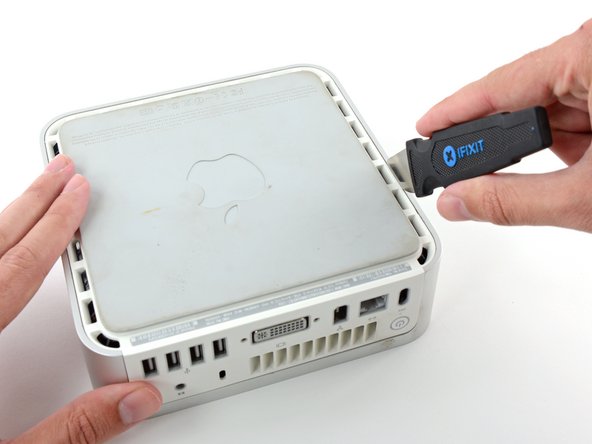
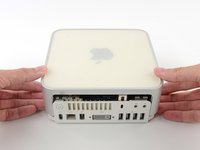
Power down your Mac mini, disconnect all of the cables, and flip it over.
-
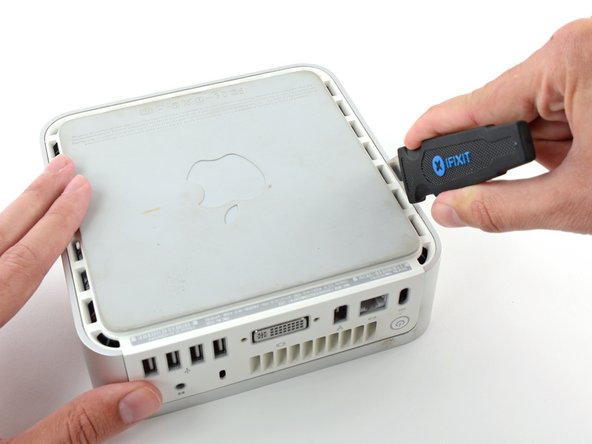
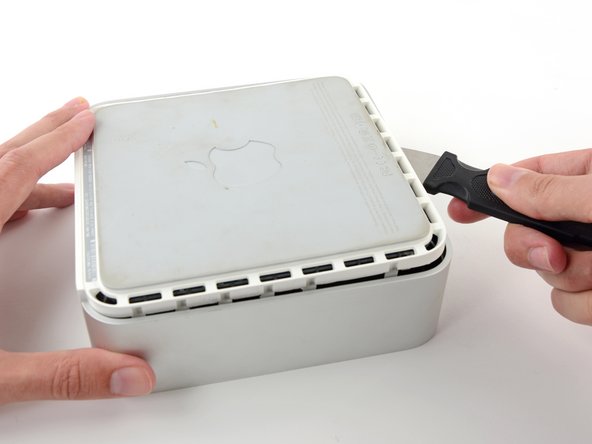
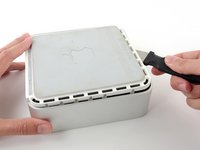
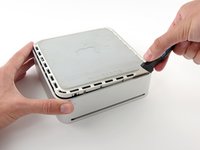
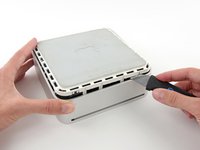
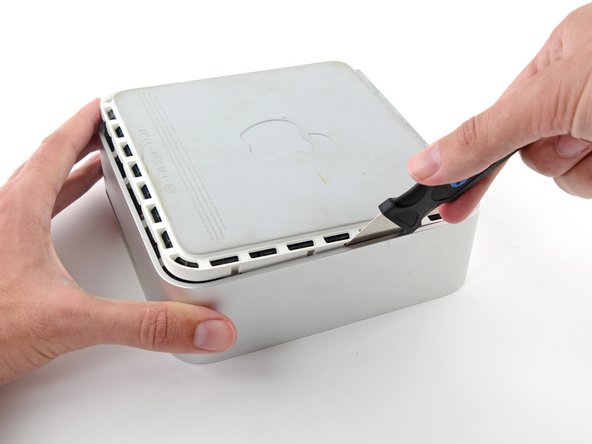
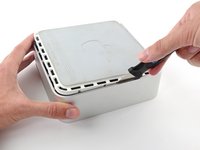
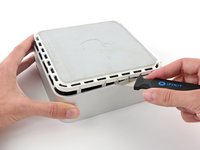
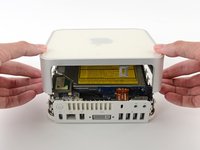
Insert the Jimmy into the crack between the aluminum top housing and the plastic lower housing.
-
The Jimmy should reach a stop about 3/8" down.
-
-
-
-
Grasp the Airport antenna board and lift it off of the two plastic posts holding it in place. You may need to push back the black plastic tab jutting through the lower left corner of the board.
-
-
-
With your free hand, pull the Bluetooth cable up from Bluetooth board and unplug the Airport antenna cable from the right of the Airport card. Caution: both of these connections are very small. When re-assembling unit after repair, you may want to remove the two screws holding the airport card to the assembly and lift the card up and out to re-attach the cables.
-
-
-
Remove the three long, black Phillips screws from the corners of the fan. These screws are strongly threaded, and will offer significant resistance.
-
-
-
Use a spudger to pry the hard drive away from the interface board. Wedge the flat end of the spudger between the interface board and the far right side of hard drive and wiggle back and forth until the hard drive slides out about a sixteenth of an inch. Then move to the other side and repeat the procedure. Go back and forth until the hard drive slides free.
-









To reassemble your device, follow these instructions in reverse order.
Cancel: I did not complete this guide.
107 other people completed this guide.
Attached Documents


10 Guide Comments
Pulled the 40GB drive from my Mac Mini G4 and replaced it with a solid state drive (mSATA to PATA enclosure with a 120GB mSATA drive). Since my Mac Mini runs MorphOS instead of OS X, it’s been absolutely screaming; MorphOS booted in 10 seconds on the HDD, and now it’s “blink and you’ll miss it” fast on the SSD! :)
I dropped the three screws on the floor and can’t find them. What size are these screws so I can buy new ones?
I made those changes with an PATA to SATA adapter but my SSD isn’t recognized, do you have a solution or a specific accessory?
Another problem I have is in C704 capacitor (closely to the processor backward from DVI port) that is broken...Do you know what are the main characteristics of it to change it? Thanks…
@fordeverblue Check the jumper settings on the drive. The optical drive and the hard drive share the same channel, so one has to be set to primary and the other to secondary (“master” and “slave”). “Cable Select” won’t work AFAIK. A lot of Apple combo drives have no jumpers and are always primary, so the HDD has to be secondary. Some PATA to IDE adapters have no jumpers or have jumpers without documentation, so some trial and error may be in order.
Hi, thanks for your advice. I was thinking that the HDD was the primary but if you say that the Combo Drive is I will try to put the Jumper as Secondary.
