Free Shipping on Domestic Orders $75+

Samsung NP R580 JBB2 Cooling Fan Replacement

What you need

    1. Samsung NP R580 JBB2 Cooling Fan Replacement, Cooling Fan: step 1, image 1 of 3 Samsung NP R580 JBB2 Cooling Fan Replacement, Cooling Fan: step 1, image 2 of 3 Samsung NP R580 JBB2 Cooling Fan Replacement, Cooling Fan: step 1, image 3 of 3
      • Remove the battery by sliding the battery release latches laterally outward into the unlatched position.

      • Slide the battery upwards out of the battery housing.

      • Remove the SD card placeholder.

      Ask FixBot

      Add Comment

    2. Samsung NP R580 JBB2 Cooling Fan Replacement: step 2, image 1 of 3 Samsung NP R580 JBB2 Cooling Fan Replacement: step 2, image 2 of 3 Samsung NP R580 JBB2 Cooling Fan Replacement: step 2, image 3 of 3
      • Remove the 9mm Phillips head screw labeled "ODD."

      • Slide the DVD drive out of the body.

      • Remove the two 3mm Phillips head housing screws.

      Ask FixBot

      Add Comment

    3. Samsung NP R580 JBB2 Cooling Fan Replacement: step 3, image 1 of 3 Samsung NP R580 JBB2 Cooling Fan Replacement: step 3, image 2 of 3 Samsung NP R580 JBB2 Cooling Fan Replacement: step 3, image 3 of 3
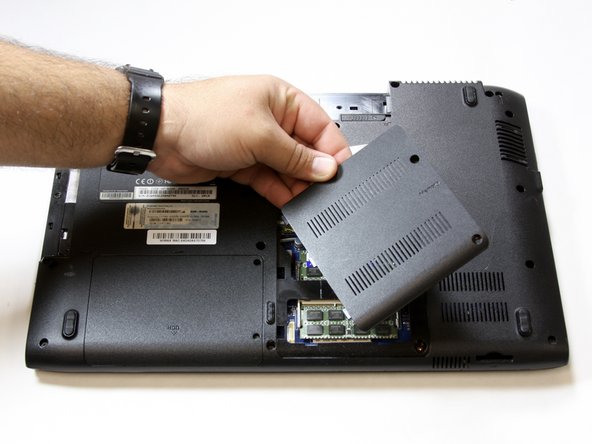
      • Remove the two 9mm Phillips head screws on the back plate labeled "memory."

      • Remove the back plate labeled "memory."

      • Disconnect the two gray connectors.

      Ask FixBot

      Add Comment

    4. Samsung NP R580 JBB2 Cooling Fan Replacement: step 4, image 1 of 3 Samsung NP R580 JBB2 Cooling Fan Replacement: step 4, image 2 of 3 Samsung NP R580 JBB2 Cooling Fan Replacement: step 4, image 3 of 3
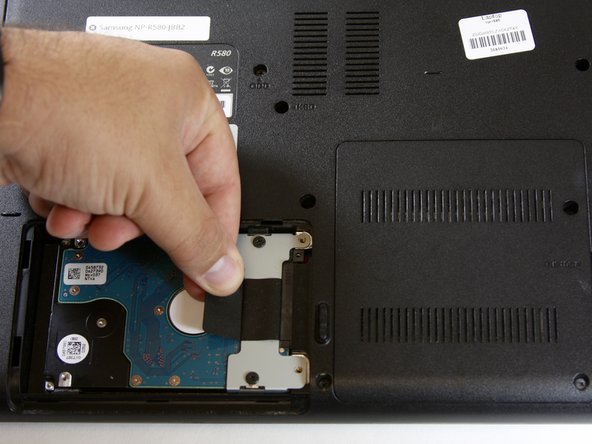
      • Remove the two 5mm Phillips head screws on the back plate labeled "HDD."

      • Remove the back plate to the hard drive by pulling downward and lifting away.

      • Pull laterally to the left on the black tab until it releases its connection and is able to be lifted free.

      Ask FixBot

      Add Comment

    5. Samsung NP R580 JBB2 Cooling Fan Replacement: step 5, image 1 of 1
      • Remove the two 7mm Phillips head keyboard screws on the back plate labeled "KBD."

      Ask FixBot

      Add Comment

    6. Samsung NP R580 JBB2 Cooling Fan Replacement: step 6, image 1 of 3 Samsung NP R580 JBB2 Cooling Fan Replacement: step 6, image 2 of 3 Samsung NP R580 JBB2 Cooling Fan Replacement: step 6, image 3 of 3
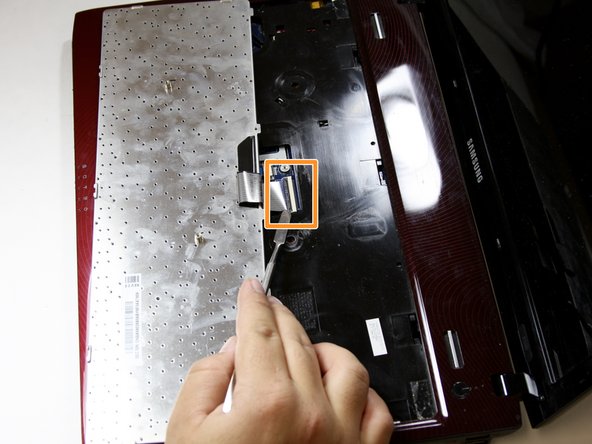
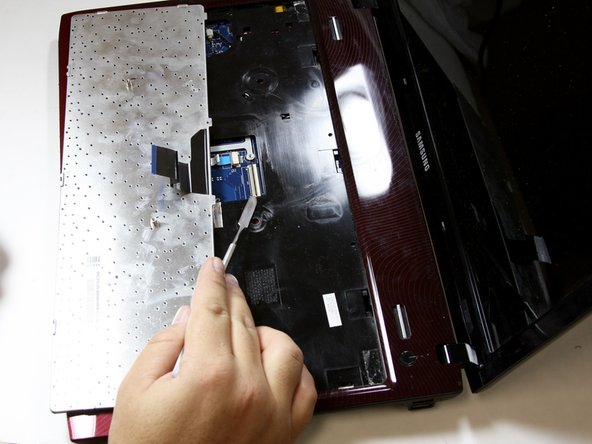
      • Open the computer and locate the three keyboard release tabs. Once located, use a flat metal device to pry the tabs open.

      • Lift the keyboard away to discover its ribbon connector beneath.

      • Lift the black portion of the connector to release the ribbon and set the keyboard aside.

      Ask FixBot

      Add Comment

    7. Samsung NP R580 JBB2 Cooling Fan Replacement: step 7, image 1 of 2 Samsung NP R580 JBB2 Cooling Fan Replacement: step 7, image 2 of 2
      • Disconnect the mouse pad ribbon connector by pulling the grey connector downwards toward the mouse-pad, freeing the ribbon.

      • Disconnect speaker wires by pulling it upwards toward the laptop screen.

      Ask FixBot

      Add Comment

    8. Samsung NP R580 JBB2 Cooling Fan Replacement: step 8, image 1 of 1
      • Remove the sixteen 9mm Phillips head housing screws on the back plate.

      Ask FixBot

      Add Comment

    9. Samsung NP R580 JBB2 Cooling Fan Replacement: step 9, image 1 of 1
      • Pry off the keyboard housing plate with the metal spudger and set aside.

      Ask FixBot

      Add Comment

    10. Samsung NP R580 JBB2 Cooling Fan Replacement: step 10, image 1 of 2 Samsung NP R580 JBB2 Cooling Fan Replacement: step 10, image 2 of 2
      • Disconnect the white USB drive plug by pulling outwards using a nylon spudger.

      • Disconnect the blue DVD player ribbon tab by pulling the blue tab outwards laterally away from the mother board using a nylon spudger.

      • Disconnect the screen connection wire by pulling it towards the screen using a nylon spudger.

      Ask FixBot

      Add Comment

    11. Samsung NP R580 JBB2 Cooling Fan Replacement: step 11, image 1 of 1
      • Remove the three 5mm Phillips head screws on the motherboard and the one 5mm Phillips head screw on the fan.

      • All screws have white arrows pointing towards them.

      Ask FixBot

      Add Comment

    12. Samsung NP R580 JBB2 Cooling Fan Replacement: step 12, image 1 of 2 Samsung NP R580 JBB2 Cooling Fan Replacement: step 12, image 2 of 2
      • Work the motherboard out of the housing by lifting upwards.

      • Disconnect the fan's cord from the motherboard by pulling upwards on it.

      Ask FixBot

      Add Comment

    13. Samsung NP R580 JBB2 Cooling Fan Replacement: step 13, image 1 of 3 Samsung NP R580 JBB2 Cooling Fan Replacement: step 13, image 2 of 3 Samsung NP R580 JBB2 Cooling Fan Replacement: step 13, image 3 of 3
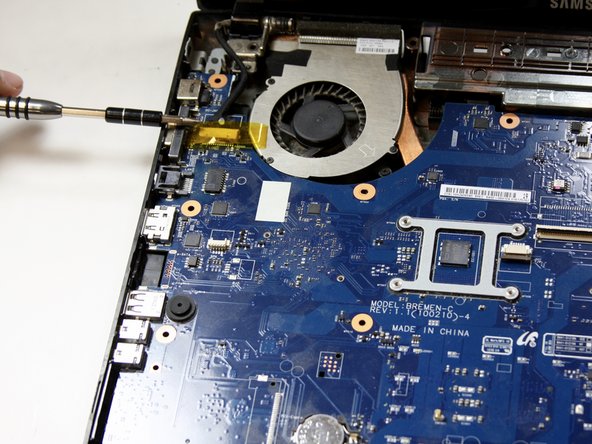
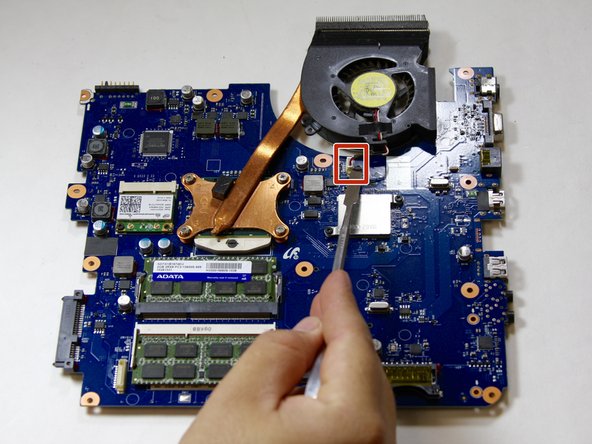
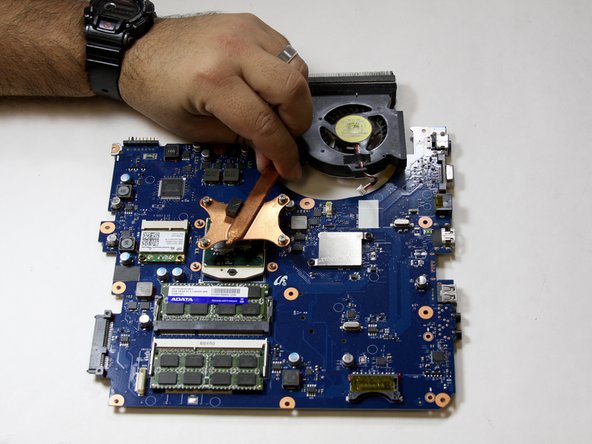
      • Loosen the four self-retaining screws located on the copper cooling bar.

      • Lift and remove the fan.

      Ask FixBot

      Add Comment

    14. Samsung NP R580 JBB2 Cooling Fan Replacement: step 14, image 1 of 3 Samsung NP R580 JBB2 Cooling Fan Replacement: step 14, image 2 of 3 Samsung NP R580 JBB2 Cooling Fan Replacement: step 14, image 3 of 3
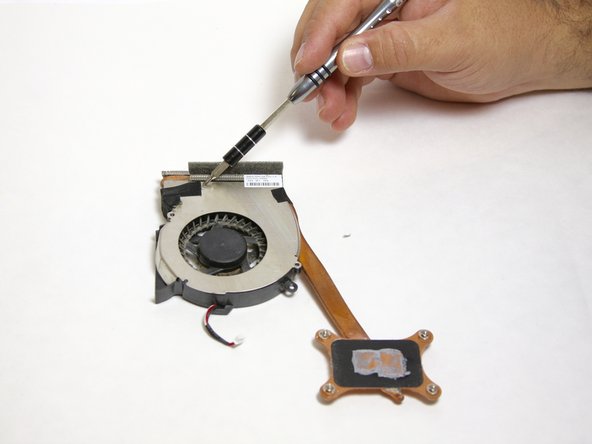
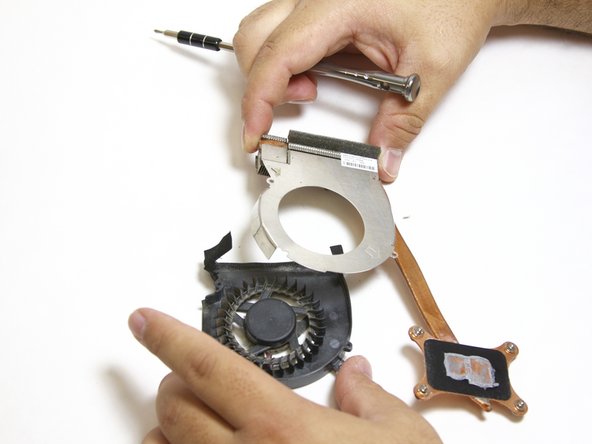
      • Remove the three 3mm Phillips screws on the fan housing.

      • Peel the tape off of the fan housing.

      • Remove the fan from the cooling hardware.

      Ask FixBot

      Add Comment

Conclusion

To reassemble your device, follow these instructions in reverse order.

Cancel: I did not complete this guide.

13 other people completed this guide.

Brian Adamson

Member since: 10/10/16

532 Reputation

3 Guides authored

Team

Texas Tech, Team 6-2, Bennett Fall 2016 Member of Texas Tech, Team 6-2, Bennett Fall 2016

TTU-BENNETT-F16S6G2

4 Members

36 Guides authored

2 Guide Comments

Hi where can I get a fan for my R580 Samsung laptop. Please help i have tried to find one but no luck!!! I stay in South Africa. Thanks

Deon Kotze - Reply Share

Is it the same with its bigger brother, the NP R780?

Andreas M - Reply Share

Add Comment

View Statistics:

Past 24 Hours: 4

Past 7 Days: 37

Past 30 Days: 80

All Time: 4,888