Free Shipping on Domestic Orders $75+

Samsung Galaxy Tab A Motherboard Replacement

Views: 26K

View statistics:

Past 24 Hours:
5
Past 7 Days:
43
Past 30 Days:
173
All Time:
26,151
Comments: 12

3 comments on steps, 9 guide comments.

Go to guide comments
Completed: 15

15 people have marked this guide "completed." Will you be next?

Favorites: 5

5 people have favorited (and subscribed to) this guide. Will you be next?

Time Required: 25 minutes
Difficulty: Difficult
Samsung Galaxy Tab A Motherboard Replacement

Introduction

Go to step 1 ↓

A damaged/broken or even corrupted motherboard can render an entire device useless. This guide highlights how to remove the back cover of the tablet in order to get to the motherboard as a means to replace it.

What you need

Parts

Tools

    1. Samsung Galaxy Tab A Motherboard Replacement, Motherboard: step 1, image 1 of 1
      • Make sure the device is turned off before attempting to disassemble it.

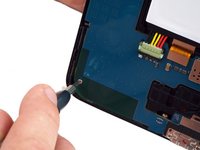
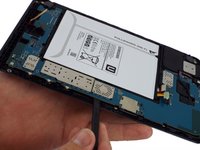
      • At the top portion of the memory card slot, use the small metal spudger to create separation between the back cover and the rest of the device.

      • The small metal spudger is only used to create separation between the back cover and the rest of the device, not to remove the back cover.

      Ask FixBot

      Add Comment

    2. Samsung Galaxy Tab A Motherboard Replacement: step 2, image 1 of 2 Samsung Galaxy Tab A Motherboard Replacement: step 2, image 2 of 2
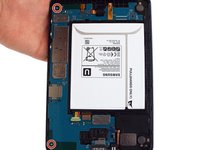
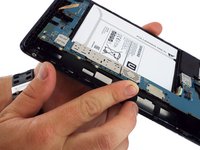
      • Use the intermediate metal spudger in place of the small metal spudger to remove the back cover. This is done by sliding the intermediate metal spudger around the perimeter of the device, beginning at the top portion of the memory card slot.

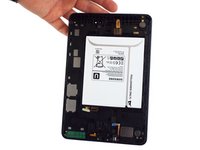
      • The second picture shows the internal portion of the device once the back cover is removed.

      Ask FixBot

      Add Comment

    3. Samsung Galaxy Tab A Motherboard Replacement: step 3, image 1 of 1
      Tool used on this step:
      Tweezers
      $4.99
      Buy
      • Use the bent precision tweezers to disconnect the battery connector from the motherboard.

      • Avoid touching the motherboard with the tweezers. Metal tools such as the tweezers can scratch the motherboard and potentially cause damage.

      Ask FixBot

      Add Comment

    4. Samsung Galaxy Tab A Motherboard Replacement: step 4, image 1 of 2 Samsung Galaxy Tab A Motherboard Replacement: step 4, image 2 of 2
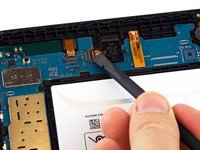
      • Use the spudger to disconnect the flexible display cable connector from the motherboard.

      • The first and second pictures show what the display looks like when it is still connected to the motherboard and once it is disconnected, respectively.

      Ask FixBot

      Add Comment

    5. Samsung Galaxy Tab A Motherboard Replacement: step 5, image 1 of 2 Samsung Galaxy Tab A Motherboard Replacement: step 5, image 2 of 2
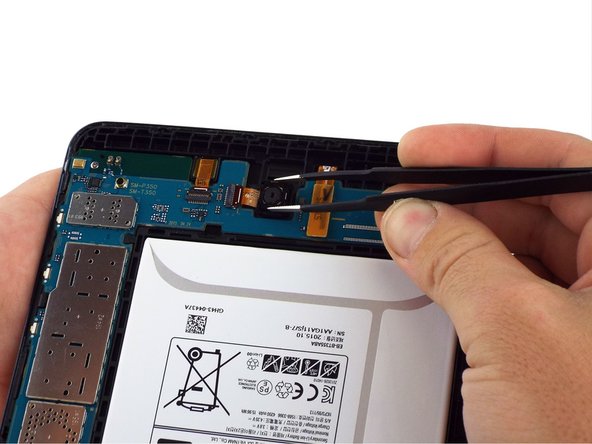
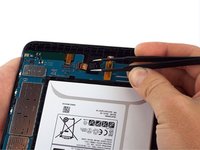
      • Use the spudger to flip up the ZIF connector to unlock the rear facing camera's flexible cable.

      • Then use tweezers to gently remove the rear facing camera from the device.

      Ask FixBot

      Add Comment

    6. Samsung Galaxy Tab A Motherboard Replacement: step 6, image 1 of 1
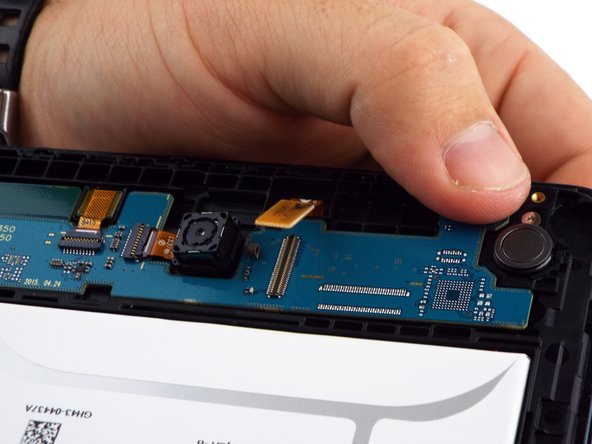
      • Use the spudger to flip up the ZIF connector to unlock the front facing camera's flexible cable.

      • Then use tweezers to gently remove the front facing camera from the device.

      Ask FixBot

      Add Comment

    7. Samsung Galaxy Tab A Motherboard Replacement: step 7, image 1 of 1
      • Use the spudger to disconnect the LCD panel's flexible cable connector.

      Ask FixBot

      Add Comment

    8. Samsung Galaxy Tab A Motherboard Replacement: step 8, image 1 of 1
      • Use the spudger to disconnect the 3.5mm headset jack's flexible cable connector.

      Ask FixBot

      Add Comment

    9. Samsung Galaxy Tab A Motherboard Replacement: step 9, image 1 of 2 Samsung Galaxy Tab A Motherboard Replacement: step 9, image 2 of 2
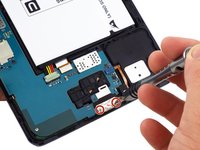
      • Use the PH0 screwdriver bit to remove the two 3 mm screws connecting the USB port shield to the midframe.

      • Then use the spudger tool to remove the USB port shield.

      Ask FixBot

      Add Comment

    10. Samsung Galaxy Tab A Motherboard Replacement: step 10, image 1 of 2 Samsung Galaxy Tab A Motherboard Replacement: step 10, image 2 of 2
      • Use the PH0 screwdriver bit to remove the two 3 mm screws on the left side of the motherboard.

      Ask FixBot

      Add Comment

    11. Samsung Galaxy Tab A Motherboard Replacement: step 11, image 1 of 3 Samsung Galaxy Tab A Motherboard Replacement: step 11, image 2 of 3 Samsung Galaxy Tab A Motherboard Replacement: step 11, image 3 of 3
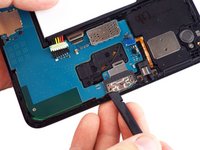
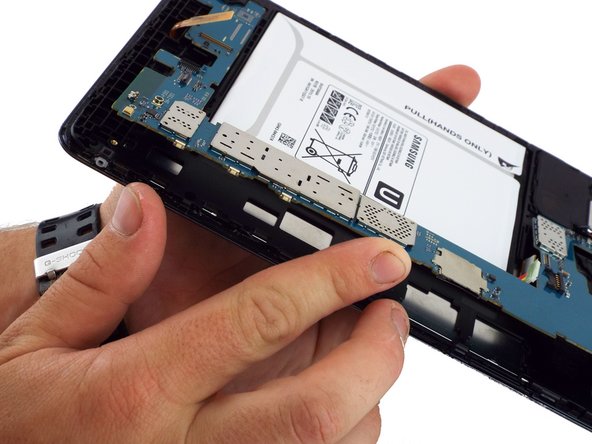
      • Using the flat end of a spudger, carefully wedge the motherboard from the case.

      • Be patient, using gentle and even force, while wedging the motherboard out of the midframe with the spudger. Excessive flexing of the board may cause damage to components or circuit traces.

      • Using your fingers, gently remove the motherboard out of the device.

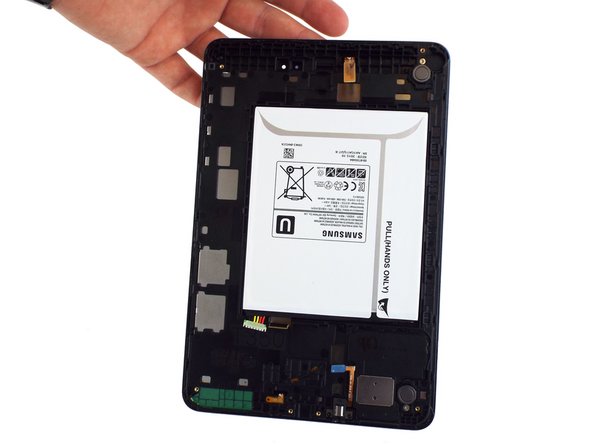
      • Once the motherboard is removed, the device should look like as illustrated in the third picture.

      Ask FixBot

      Add Comment

Conclusion

To reassemble your device, follow these instructions in reverse order.

Cancel: I did not complete this guide.

15 other people completed this guide.

Michael Wozny

Member since: 02/04/16

3,836 Reputation

5 Guides authored

Team

USF Tampa, Team 17-4, Blackwell Winter 2016 Member of USF Tampa, Team 17-4, Blackwell Winter 2016

USFT-BLACKWELL-W16S17G4

4 Members

60 Guides authored

9 Guide Comments

I have a tablet that has previously had its battery replaced and well pretty much the red text in step 3 happened would that small scratch cause it to not turn on at all and require a replacement motherboard?

Josh Guizar - Reply Share

you would be correct that it COULD as it says, but take a magnifying glass (or a phone app that magnifies and examine the scratch, if you can see the copper on the pcb is in fact showing and cut the yeah if not perhaps that is not the problem (in trouble shooting one needs to check to see that they are correct and not just assume that is the end of the road, it could be something else (this post is very old i answer only for those getting here and wondering the same thing. answers to questions are good things, questions only are just internet clutter. someone here could have answered this by now.

Ron Michel - Reply Share

Can you still revive photos and video if you change mother board

jay porras - Reply Share

if the pictures are on the old motherboard then now. if you are replacing with a motherboard (because the display and touch are messed up) from an old machine that worked then anything on the motherboards memory that you are putting in and powering up are potentially within your reach. (if you are correct that the board you are putting in is working) (there is more than one reason to replace a motherboard; i am taking a perfectly fine board out, putting in a board that is my old machine with valued data, then once i got my data i will be replacing the brand new board right back in, (most likely) and i will have saved my data (my backup was a few months out of date and i wish to recover that)

Ron Michel - Reply Share

this must be said, people do NOT use metal spudger. use plastic guitar pick or similar for this stuff, try not to use needle nose plyers, use a plastic stick on battery connection detaching at right angle to connector (not anglarly as this may undo some of the wire connections.

always examin connectors for latches or locks some connectors will have a folding door, not activating these may wreck your connector. be observant, remember you have lots of time no need for rush in this kind of stuff.

another thing not mentioned is you should destatic (or ground yourself) as your body may have enough charge in you to mess up some chips on any computer parts.

Ron Michel - Reply Share

Add Comment

View Statistics:

Past 24 Hours: 5

Past 7 Days: 43

Past 30 Days: 173

All Time: 26,151