Free Shipping on Domestic Orders $75+

Microsoft Zune 30 GB Battery and Hard Drive Replacement

What you need

    1. Microsoft Zune 30 GB Battery and Hard Drive Replacement, Battery and Hard Drive: step 1, image 1 of 1
      • Tools that are needed to replace the battery and the hard drive

      • small Phillips screwdriver

      • small jewelers flat head screwdriver

      • case opening tool, I use my trusty Ipod opener :)

      • definitely glasses if you are supposed to have them. Some of this stuff is really small.

      Ask FixBot

      Add Comment

    2. Microsoft Zune 30 GB Battery and Hard Drive Replacement: step 2, image 1 of 1
      • Start off by removing the spacer from the bottom dock port. It is just pushed in, so all you need is a small jeweler's screwdriver to pry it out. Use the smaller ends of the port as the pry point so you don't break the spacer.

      Ask FixBot

      Add Comment

    3. Microsoft Zune 30 GB Battery and Hard Drive Replacement: step 3, image 1 of 1
      • Next remove the two small Phillips screws.

      Ask FixBot

      Add Comment

    4. Microsoft Zune 30 GB Battery and Hard Drive Replacement: step 4, image 1 of 1
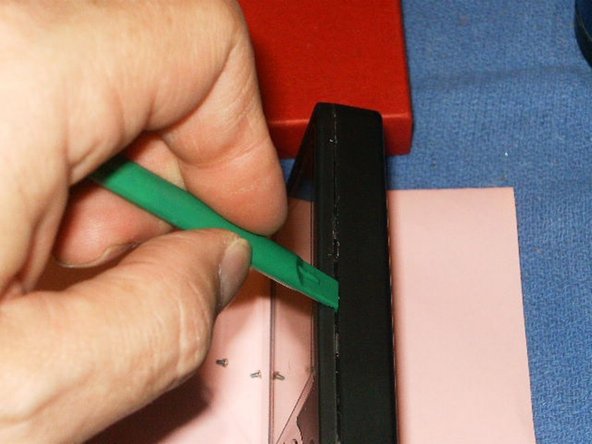
      • Now it is time to open the case. I used my trusty Ipod opening tools and started on the longer side of the Zune. Just like the Ipod, take your time and carefully open the case. Sometimes it works better if you use two tools. Once it opens, be CAREFUL around the headphone jack when you lift up the case. Lift it slwoly at the port end and then the headphone end. The headphone seems to extend a little into the case and you DO NOT want to break it of the board....

      Ask FixBot

      Add Comment

    5. Microsoft Zune 30 GB Battery and Hard Drive Replacement: step 5, image 1 of 1
      • Now with the backing off we have free access to the battery and the hard drive caddy.

      Ask FixBot

      Add Comment

    6. Microsoft Zune 30 GB Battery and Hard Drive Replacement: step 6, image 1 of 1
      • Disconnect the battery by lifting the brown slide gently up, freeing the cable. You can now safely remove the battery. Disconnect the clickwheel cable afterwards.

      Ask FixBot

      Add Comment

    7. Microsoft Zune 30 GB Battery and Hard Drive Replacement: step 7, image 1 of 1
      • Now remove the 4 screws holding the drive case as well as the clip for the battery on the board .

      Ask FixBot

      Add Comment

    8. Microsoft Zune 30 GB Battery and Hard Drive Replacement: step 8, image 1 of 1
      • With the battery and the four screws for for the hard drive caddy removed, lift the caddy up and flip it toward the headphone end of the Zune. Remove the hard drive cable clip by opening the black clip on the connector. Use your fingernails or the iPod tool to move the clip carefully to the open position. Take off the sticky tape to reveal the hard drive bumpers. Remove them to free the hard drive. Now replace the hard drive and reassemble the Zune.

      Ask FixBot

      Add Comment

Conclusion

To reassemble your device, follow these instructions in reverse order.

Cancel: I did not complete this guide.

8 other people completed this guide.

oldturkey03

Member since: 09/29/10

859,987 Reputation

123 Guides authored

2 Guide Comments

My battery won’t charge but powers up with the cable.😀

However I’d really like to access the software since Microsoft doesn’t support anymore and retrieve my playlist and songs. Any thoughts!

EdW - Reply Share

IF it is just the battery, you can always replace it. Otherwise you can get a Zif to USB Adapter and try to transfer your files to your computer.

oldturkey03 - Reply Share

Add Comment

View Statistics:

Past 24 Hours: 12

Past 7 Days: 51

Past 30 Days: 293

All Time: 9,115