Free Shipping on Domestic Orders $75+

Lenovo Yoga 730-13IKB Battery Replacement

What you need

    1. Lenovo Yoga 730-13IKB Battery Replacement, Back Case: step 1, image 1 of 3 Lenovo Yoga 730-13IKB Battery Replacement, Back Case: step 1, image 2 of 3 Lenovo Yoga 730-13IKB Battery Replacement, Back Case: step 1, image 3 of 3
      • Power off the laptop and place it facedown on a non-scratching surface.

      • Remove the nine T5 screws fastening the back case.

      Ask FixBot

      Add Comment

    2. Lenovo Yoga 730-13IKB Battery Replacement: step 2, image 1 of 3 Lenovo Yoga 730-13IKB Battery Replacement: step 2, image 2 of 3 Lenovo Yoga 730-13IKB Battery Replacement: step 2, image 3 of 3
      • Slide a plastic opening tool underneath the back case near the screen hinges. Gently pry up on either side.

      • Slide the opening tool underneath the back case next to the middle screw hole at either side of the case. Gently pry up.

      • You may hear popping sounds as the tabs securing the case release. This is normal. If the case does not move, try prying at a different angle/position.

      Ask FixBot

      Add Comment

    3. Lenovo Yoga 730-13IKB Battery Replacement: step 3, image 1 of 1
      • Remove the back case by pulling up near the screen hinges and lifting diagonally away from the laptop.

      • Go slowly to avoid breaking any connecting tabs.

      Ask FixBot

      Add Comment

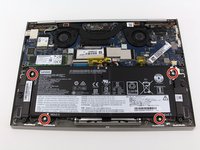
    1. Lenovo Yoga 730-13IKB Battery Replacement, Battery: step 4, image 1 of 2 Lenovo Yoga 730-13IKB Battery Replacement, Battery: step 4, image 2 of 2
      • Remove the four 3.5mm Phillips #0 screws securing the battery.

      Ask FixBot

      Add Comment

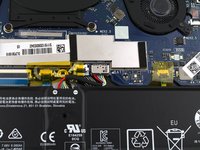
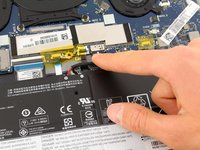
    2. Lenovo Yoga 730-13IKB Battery Replacement: step 5, image 1 of 3 Lenovo Yoga 730-13IKB Battery Replacement: step 5, image 2 of 3 Lenovo Yoga 730-13IKB Battery Replacement: step 5, image 3 of 3
      • Disconnect the battery cable by gently pulling it straight out of the connector.

      • The battery connector does not lock and requires light pressure to insert and remove. To reinstall the battery cable, hold onto the black housing and push it into the motherboard connector.

      Ask FixBot

      Add Comment

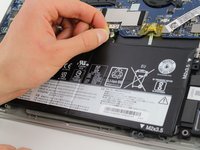
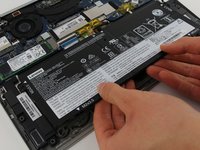
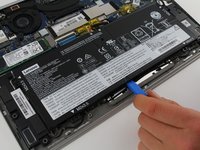
    3. Lenovo Yoga 730-13IKB Battery Replacement: step 6, image 1 of 3 Lenovo Yoga 730-13IKB Battery Replacement: step 6, image 2 of 3 Lenovo Yoga 730-13IKB Battery Replacement: step 6, image 3 of 3
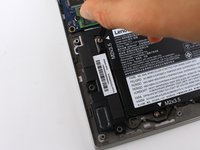
      • Remove the battery by pulling up near the white label and lifting diagonally away from the laptop.

      • Consider using a plastic opening tool to gently pry up near the white label if the battery seems stuck.

      • To reinstall the battery, carefully align its mounting holes with the plastic pins on the laptop frame.

      Ask FixBot

      Add Comment

Conclusion

To reassemble your device, follow these instructions in reverse order.

Cancel: I did not complete this guide.

15 other people completed this guide.

Colin Reay

Member since: 01/23/20

911 Reputation

5 Guides authored

Team

Cal Poly, Team S1-G1, White Winter 2020 Member of Cal Poly, Team S1-G1, White Winter 2020

CPSU-WHITE-W20S1G1

3 Members

96 Guides authored

4 Guide Comments

Overall, this was very helpful: pictures were good, it took about the time proposed (I'm a newbie at this kind of thing), and since I had a 720 and a730 that both required new batteries, I bought the toolkit which really helped. I would add that, in the first step, where you're prying away next the hinges, there appear to be a some small 'nubs' between the hinges that hold the case in place. It doesn't mention it, but you have to work your way across between the hinges, to make sure it's loosened, otherwise the case won't come apart. Other than that, I found everything went exactly as described. I Fixed It, so thanks iFixit!

frank g - Reply Share

Great instructions mine only took 10 minutes to replace, but I 'm pretty handy.

Michael Thompson - Reply Share

5 or 10 minutes. Tool kit is great. Battery is perfect. Product design by Lenovo was excellent to allowsuch a simple battery change. David

david dodds - Reply Share

The guide was very well documented, easy to follow, and the repair process ended up being faster than the estimated time. Thank you!

Reto - Reply Share

Add Comment

View Statistics:

Past 24 Hours: 5

Past 7 Days: 23

Past 30 Days: 104

All Time: 14,307