Lenovo Thinkpad T450s RAM Replacement

What you need

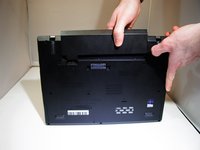
  1. Lenovo Thinkpad T450s RAM Replacement, Battery: step 1, image 1 of 2 Lenovo Thinkpad T450s RAM Replacement, Battery: step 1, image 2 of 2
    • Turn off device before starting

    • Flip the laptop upside down so you have access to the battery.

  2. Lenovo Thinkpad T450s RAM Replacement: step 2, image 1 of 1
    • Slide lock button 1 to the unlock position and gently slide away from your body.

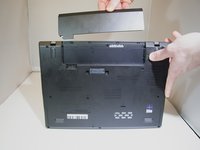
  3. Lenovo Thinkpad T450s RAM Replacement: step 3, image 1 of 2 Lenovo Thinkpad T450s RAM Replacement: step 3, image 2 of 2
    • Slide lock button 2 to the unlock position and continue gently sliding until the battery is removed.

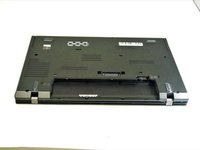
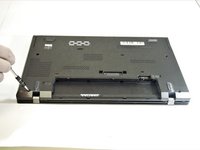
  4. Lenovo Thinkpad T450s RAM Replacement, Lenovo Thinkpad T450s Bottom Panel Removal: step 4, image 1 of 3 Lenovo Thinkpad T450s RAM Replacement, Lenovo Thinkpad T450s Bottom Panel Removal: step 4, image 2 of 3 Lenovo Thinkpad T450s RAM Replacement, Lenovo Thinkpad T450s Bottom Panel Removal: step 4, image 3 of 3
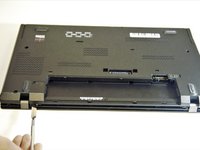
    • Flip the device over and lay it down with the underside facing upwards.

    • Unscrew all 8 screws. While they should not come out completely, in some cases, the plastic retaining washers may come off of one or more of the screws, allowing them to come out completely. - should this happen, look for a loose, tiny black plastic washer once the case is open. It's possible, in some cases, to reattach the retaining washer.

  5. Lenovo Thinkpad T450s RAM Replacement: step 5, image 1 of 2 Lenovo Thinkpad T450s RAM Replacement: step 5, image 2 of 2
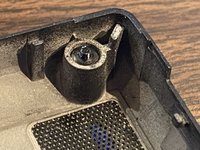
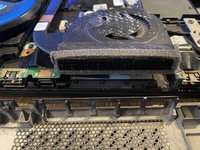
    • Pry the bottom from the computer until it pops out.

    • In some cases, the vented side of the case may cling to the heat sink; appears to be adhesive. Take care when separating.

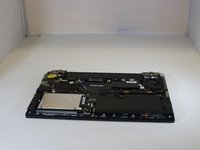
  6. Lenovo Thinkpad T450s RAM Replacement, RAM: step 6, image 1 of 3 Lenovo Thinkpad T450s RAM Replacement, RAM: step 6, image 2 of 3 Lenovo Thinkpad T450s RAM Replacement, RAM: step 6, image 3 of 3
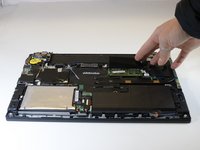
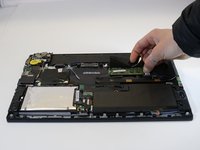
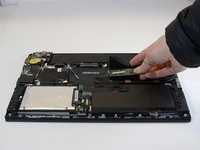
    • Pull one side of the prong that is holding the RAM in place

  7. Lenovo Thinkpad T450s RAM Replacement: step 7, image 1 of 1
    • Pull the other side prong until the RAM pops up.

  8. Lenovo Thinkpad T450s RAM Replacement: step 8, image 1 of 2 Lenovo Thinkpad T450s RAM Replacement: step 8, image 2 of 2
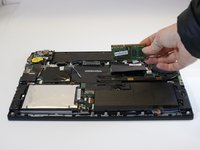
    • Pull the RAM out of the device

Conclusion

To reassemble your device, follow these instructions in reverse order.

One other person completed this guide.

1 Guide Comment

My t450s comes with an internal battery. The comment on this guide records the process for disabling the internal battery temporarily.

I also used this guide from Lenovo as I found removing the back plate rather difficult.

ray beats - Reply

Add Comment

View Statistics:

Past 24 Hours: 0

Past 7 Days: 9

Past 30 Days: 35

All Time: 5,348